20 years of Windows 95

Windows 95

Windows 95

It’s hard to believe that it has been 20 years since the release of Windows 95.  But here we are.

Windows 95 started its life as a 32bit upgrade from Windows 3.1 code named ‘Chicago’ to compete with the 32bit version of OS/2 for the desktop.  Chicago is more famous for it’s incredible delays as the project suffered from feature creep, along with a complete UI redesign.  It’s also worth noting that even back as far as October of 1992, just after the release of Windows 3.1 Microsoft was already hard at work on Win32s, the Win32 subset and compatibility layer for Windows 3.1 to run Windows NT Win32 applications.

Windows 1.x didn’t make much splash on the market.  Windows 2.x added much needed features like overlapping windows, and of course the 386 version included a 386 v86 mode hypervisor.

In my opinion, Windows 3.0 was the most significant piece of software that Microsoft has ever shipped.  This was the point where they broke away from IBM and went their own way.  And it showed that they were capable of launching a major environment without the support of their biggest partner.  Although sadly, OS/2 paid the price.
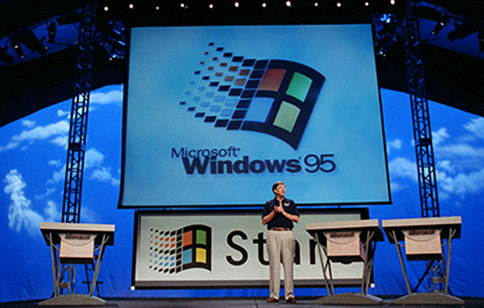
95 launch

95 launch

Windows 95 would be a close second as to what would be Microsoft’s most significant software, as it brought 32bit computing to the masses, along with a completely different user interface, one that remains popular to this day with the start button.  Even the marketing used to Rolling Stones song ‘Start me up’.  Windows 95 is also the first time (and last) that I can ever recall there being a Microsoft release party where actual users showed up, but were enthused.  Back when OS X shipped on physical media, you would see Apple fans camping out for the latest release, but for Microsoft this was the one time where the next release was going to be so significant with a whole new generation of applications like Office 95, and a much more easier to use interface people really were excited about it.  As much as Windows 10 is a great improvement on Windows 8, I don’t see anywhere near this kind of enthusiasm compared to Windows 95.
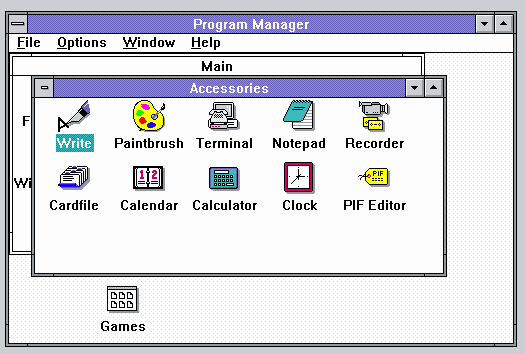
Program Manager

Program Manager

Before Windows 95 people had to fight the Program Manager, which was a MDI application which means it has windows inside of windows.  And it’s easy to obscure and lose place of programs.  I’ve seen users re-install applications because ‘they lost them’ not realizing the program group was hiding behind another window.  To many average users Program Manager was a nightmare to work with on a daily basis.
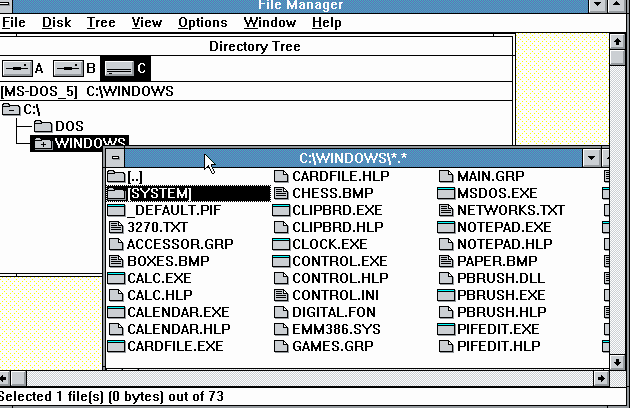
File Manager

File Manager

And to say that its complimentary program, File manager was also a MDI nightmare to work with was an understatement.  Again windows get hidden behind windows, it is all inside of another window so it can be confusing moving things around, and trying to get a good view.  To an average user, it’s tedious to work with and to get two full screen views of files, requires two copies of the application to run, which in the days of 4MB of ram or less was a luxury when you figure they were running an application as well.  Not to mention since there is no task bar, it was also common for people to launch multiple copies of an application since it would be hiding behind a window they didn’t know about.
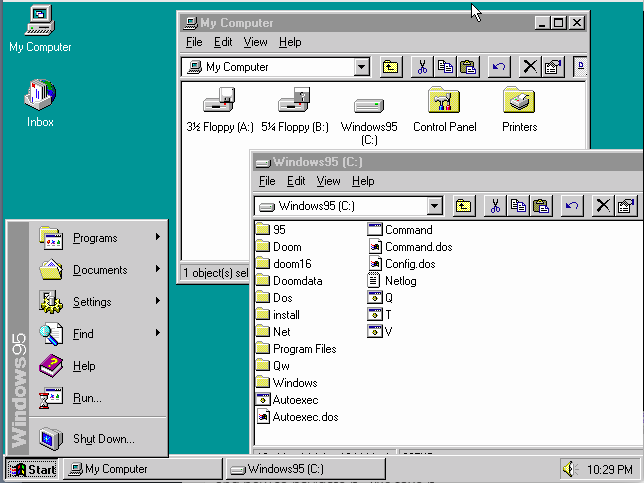
Windows 95 Desktop

Windows 95 Desktop

The Windows 95 UI solved all of these problems by showing us what is running, and by unifying Program Manager, and File Manager into one.  Now we can see what is running, we have a desktop to move things around, and we can open up multiple file windows and move them around at will.  Even in this simple screen shot with multiple applications running, it’s trivial to see what is going on, and how to navigate it.  We take it for granted today, but compared to the old Program Manager, File Manager paradigm this was simply an upgrade to get enthusiastic about!
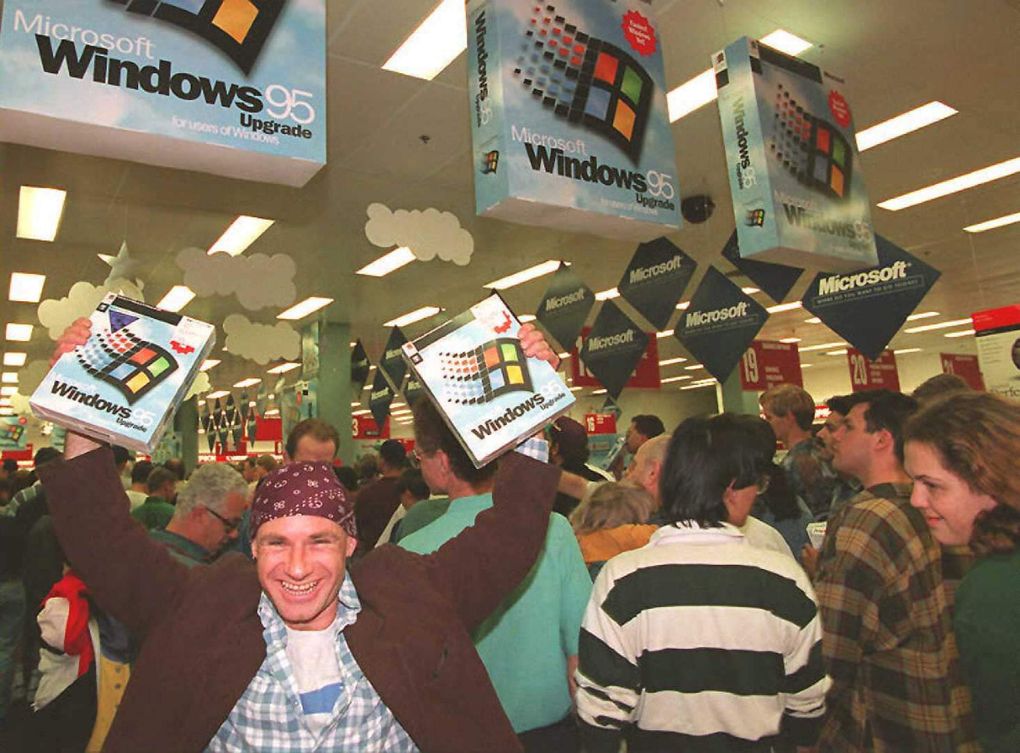
Windows 95 launch

Mikol Furneaux proudly shows off his Windows 95

And just look at this picture, isn’t this the look of excitement?  Over a piece of software?  From Microsoft?  The transition from 16bit to 32bit was so great, I really wonder if they ever again will have this kind of appeal.  Going from 32bit to 64bit has been so seamless I suspect many 64bit users don’t even know they are.

32bit applications promised (and delivered) on greater stability, and of course being able to actually use RAM that people had bought.  It was the end of segmented 64kb segments, and the use of 32bit flat memory models, that even in the game industry everyone had been flocking to 32bit MS-DOS extenders.  Now 32bit was going mainstream on the desktop.  Even though Borland had captured so much of the developer mindshare on MS-DOS, they just couldn’t achieve the same success level on Windows, and especially with Windows 95, it started the rise of Visual C++ and Visual Basic everywhere.

Networking was another strong point of Windows 95, as it included not only LAN support for TCP/IP, IPX and NetBEUI out of the box, but it also included dialup PPP support for all three protocols.  This is basically where other consumer OS really blew it, and why Microsoft not only ended up owning the desktop, but also the server space in corporations.  It was a common practise to sell the networking stack, and applications separately making a networked machine quite expensive.  SCO Xenix charged for the OS, Streams, and TCP/IP.  IBM charged separately for their TCP/IP as well.  By 1994 IBM started to see this as a mistake and included DIALUP ONLY networking for Warp.  This stop gap measure was barely acceptable for 1994, but as the PC world got more and more connected this meant LAN connections along with wide area which IBM dropped the ball by charging yet even more for Warp Connect.  Where Windows for workgroups, Windows 95, and Windows NT included all of this, and multi-protocol support.

Microsoft also was busy creating their own online service, MSN, a competitor to AOL, CompuServe, Prodigy et al.  There is a better writeup on winsupersite than I could do, since I never did use it.  But the upshoot is that Microsoft was late to the internet party, and did not include any browser with the first retail version of Windows 95.  Later versions of course did include Internet Explorer.

The most significant early version of Internet Explorer has to be version 3, which is when Microsoft finally started to take it seriously, and included things like SMTP/POP3 and USENET clients.  Back then, USENET was actually big.  This is before the rise of every website being a forum, instead we had a global distributed database that everyone could post onto.  It wasn’t instant though, so it could take days for a reply.  The kind of thing we take for granted now with many AJAX enabled websites able to alert you right away, or you can check the status with a simple refresh.
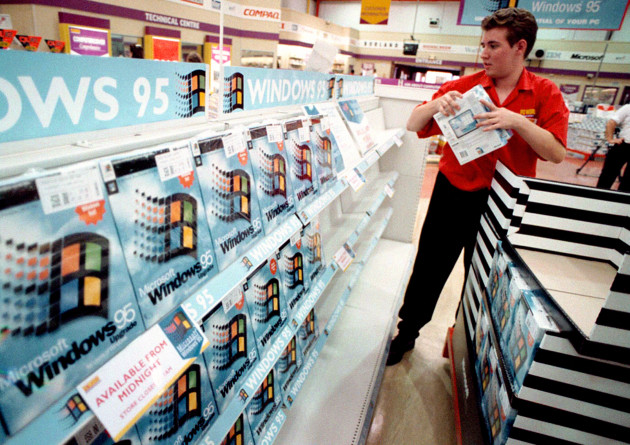
A worker packs the shelves of PC World, Croydon, with copies of the Microsoft Windows 95 upgrade computer package. The package will go on sale at midnight across the country.

A worker packs the shelves of PC World, Croydon, with copies of the Microsoft Windows 95 upgrade computer package. The package will go on sale at midnight across the country.

I may have to touch on the rise and fall of Internet explorer at a later date, but check out the exciting back of the Windows 95 box that included Internet Explorer:
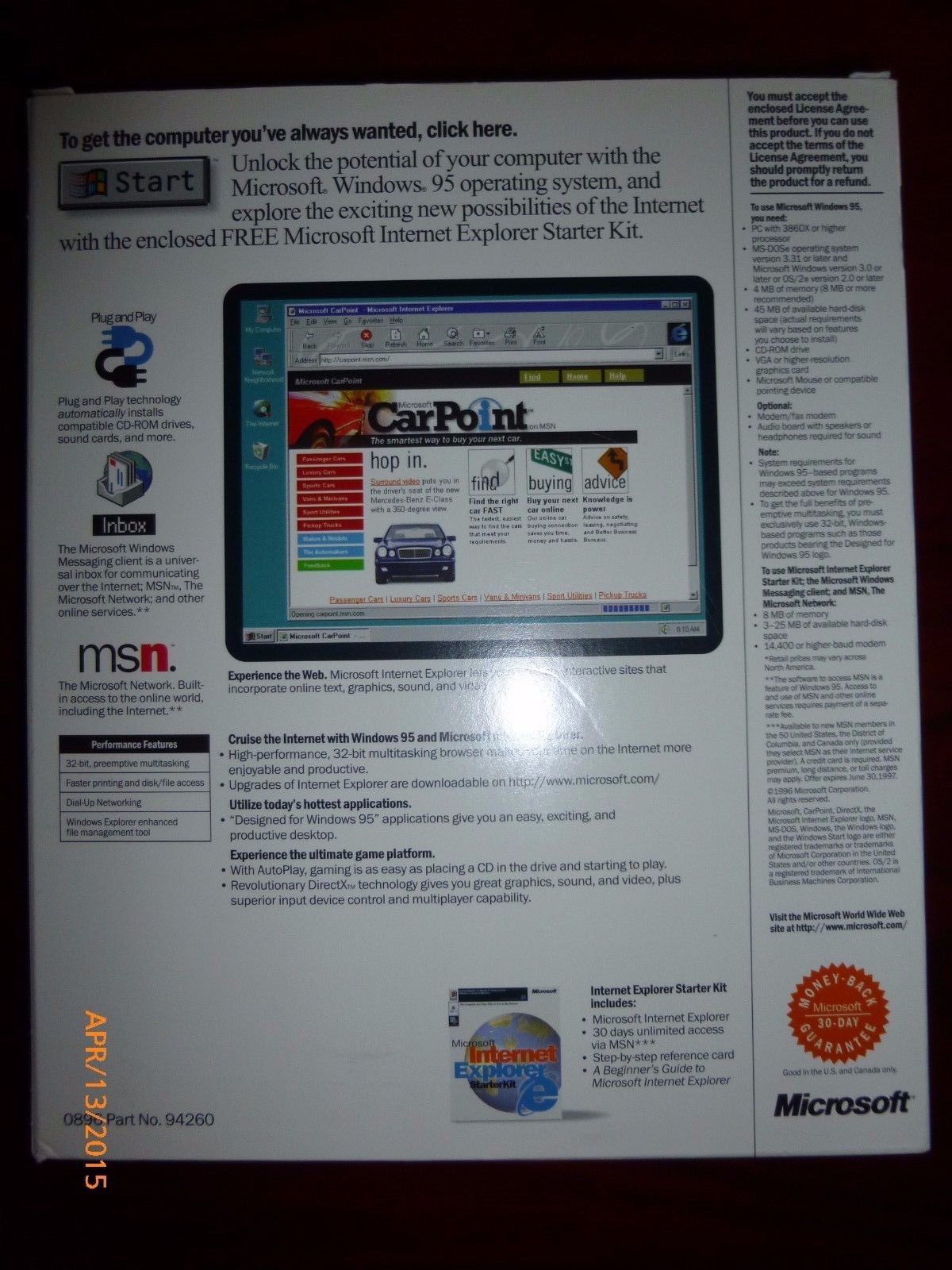
Windows 95 box SE, back

Windows 95 box SE, back

For those who want to remember, the Windows 95 start sound!

And speaking of which next year will be 20 years of Windows NT 4.0, and how it utterly changed the server market forever.
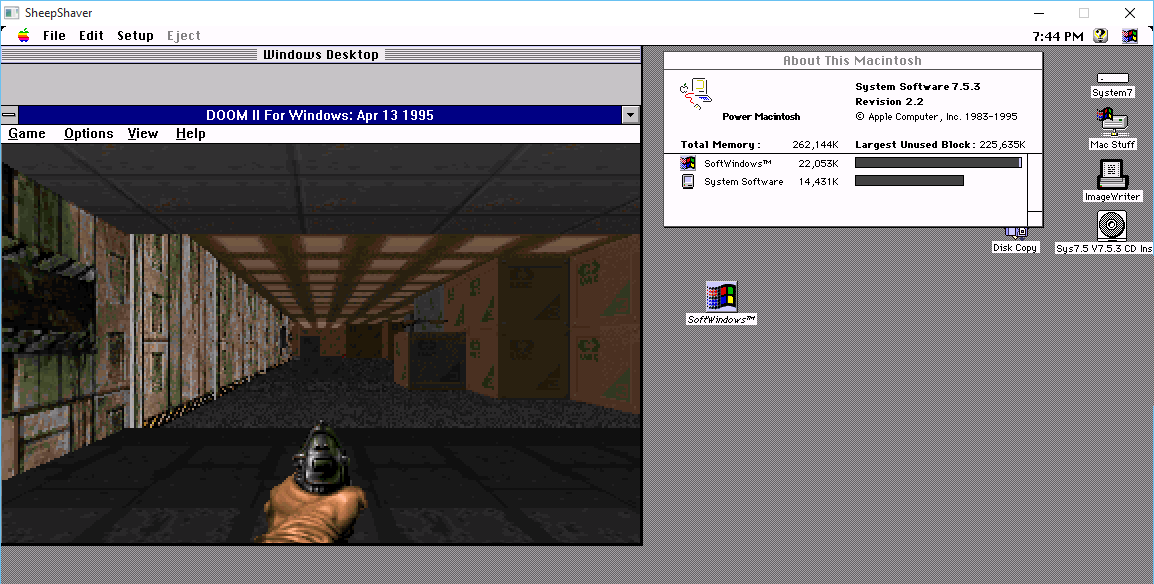
WinDooM on SoftPC, on SheepShaver

So I was hammering out something with SheepShaver (more on that later!) and I thought a quick test of just how fast SheepShaver is vs a real PowerMAC would be interesting.  So I was playing with my old copy of SoftPC, which is 68000 based, but There were PowerPC versions, years ago when I bought a G4 to run OS X to only find out that it wasn’t supported (the dark days of OS X Server 1.0, before the 10.0 public beta) I used to run Windows NT 4.0 on SoftPC on MacOS 8.6.  Ugh, dark times indeed!

So with some luck, I got SoftPC 3.0 up and running on MacOS 7.5.3 using SheepShaver for Windows. Then I noticed that unlike SoftPC for the 68000, SoftPC for the PowerPC emulates a 486!  So how does DooM run?  A little slow, it’s kind of dream like.

But since there is Windows and a 32bit processor, I thought this would be a great time to load up Win32s, Video for Windows, WinG, and WinDooM!

WinDoom on SoftPC

WinDoom on SoftPC

And much to my amazement it runs!  And I was further impressed that there is a shim sound driver, and it works!

So I made a quick video to compare DooM for Windows vs DooM for MS-DOS on this setup.

Yes it’s pointless, but I kinda think it’s really cool.

As a bonus, here is E1M1 under MacOS 8.0.  The MIDI support in 8.0 is MUCH more stronger than 7.5.3!  And I should add, it actually feels faster on 8.0 than 7.5.3

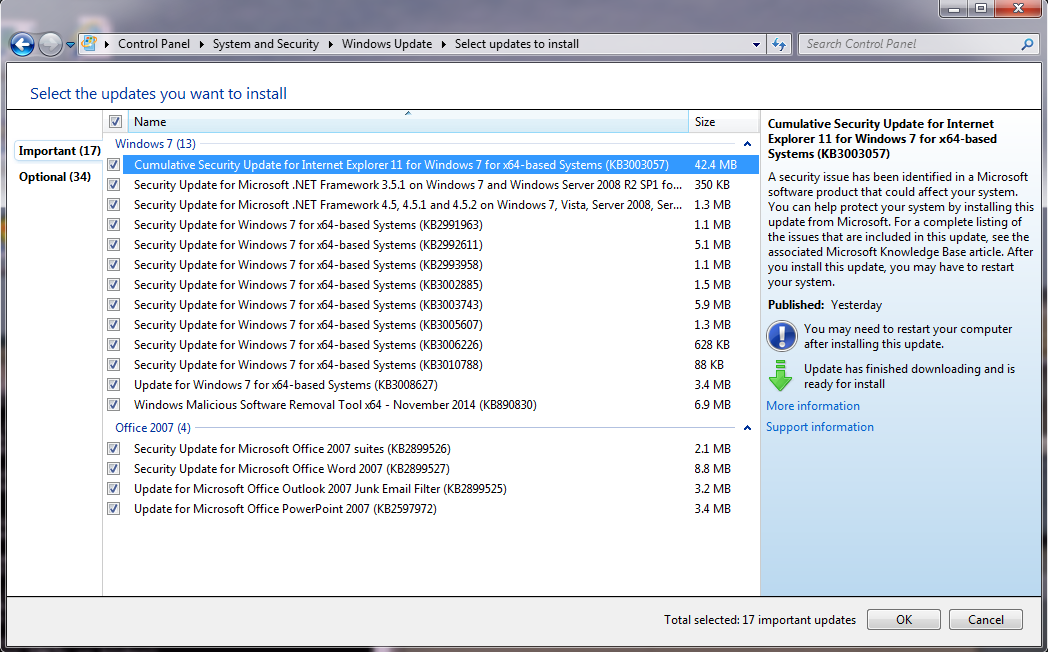
Update to Windows 10

x

Get ready!

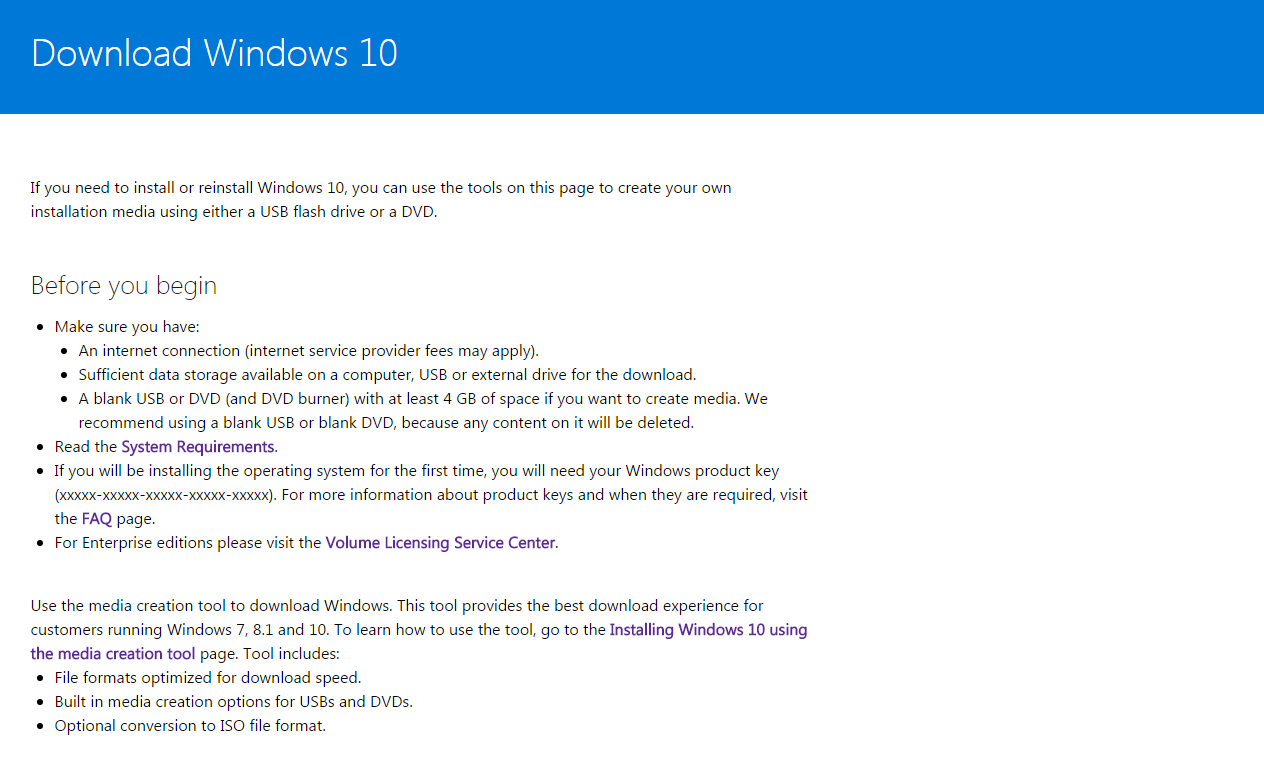
I know I’m crazy, but for some reason the update didn’t kick off automagically on my 7 box, so I fished around and found the direct download here.

From what I’ve read VMware Player 7 updates should work with 10.

Time to see what breaks, and what works!

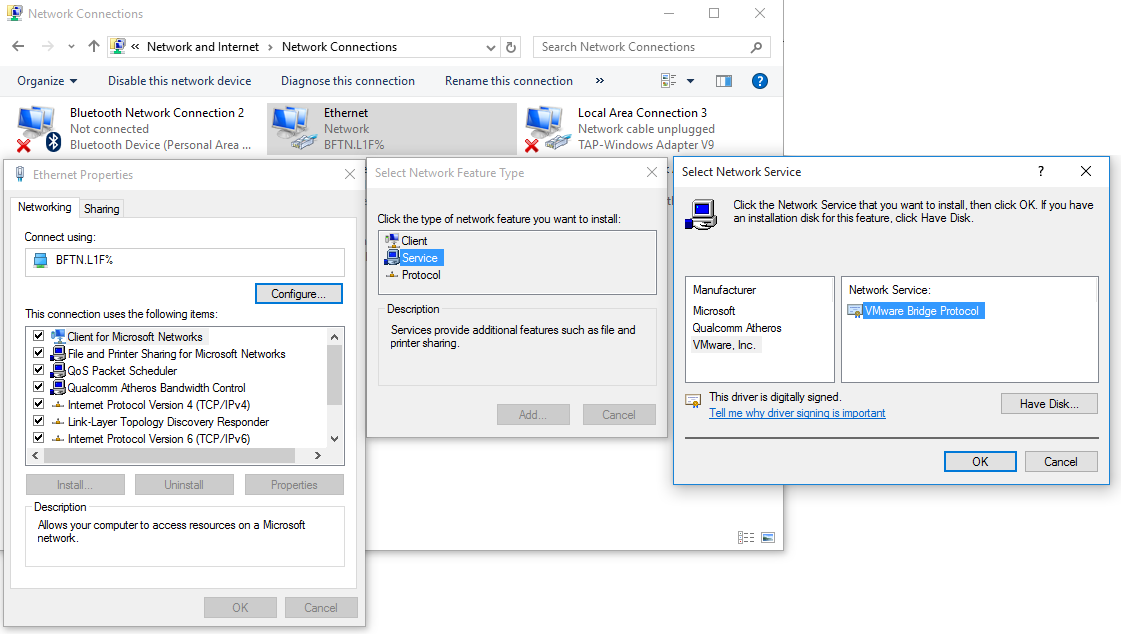
The first issue I had is that after the upgrade, VMware Player couldn’t connect to the bridge adapters. Luckily the fix is really easy.

Bring up your network connections, go to your physical Ethernet adapter, bring up it’s properties, and add in a ‘service’.

add

Restoring the VMware Bridge service

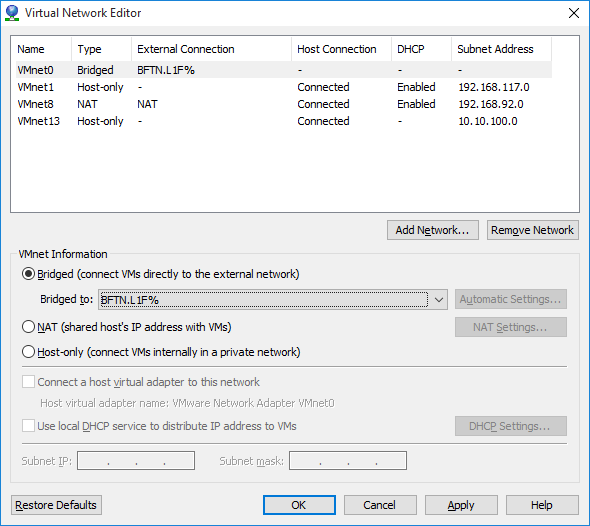
Then select the VMware Inc, vendor and the VMware Bridge Protocol.  Now with that done, all I had to do is then bind the bridge to the Ethernet adapter.

x

Configuring the Bridged virtual interface

And now my VM’s can talk to my network without any of that NAT nonsense.  And I didn’t have to re-install VMware Player to fix this either!

Some real fun came from upgrading my wife to 2015.  She uses Outlook 2013 to talk to an IMAP server.  No big deal right? Well after upgrading when she tried to send an email she would get the ever so helpful error 0x800CCC13 .  So her server is setup to use SSL to talk to the outbound SMTP server.  It even has a valid certificate!  The best part is that verifying her account and IT WILL SEND THE TEST EMAIL. Yes, that is right, Outlook 2013 cannot send to SMTP servers, but the test and diagnostics work.  And in the age of multigigabyte installations all the user is left with is a hexadecimal error code of 0x800CCC13.  Frankly this is totally inexcusable in 2015, let alone in the 1990s. Hell even OS/2 had a system to look up cryptic error messages.  I guess that was an IBM thing.

So anyways, the best part is the ‘fix’. Apparently according to here, the upgrade to Windows 10 corrupts some DLL’s that are a part of Outlook 2013, and they need to be repaired.  Simply run the following command as administrator:

sfc /scannow

It can take upwards of 10 minutes to complete.  After we ran this, we re-ran Outlook 2013, and all of our dozens of attempted test messages sent.

Another possible problem is that the Exchange server plugin is interfering with the IMAP/SMTP plugins, and it needs to be disabled/deleted. I haven’t had to go there since she can send emails now.

Windows 3.0 Debug Release 1.14

Well from popular request I finally got around to loading this up.  I went ahead with my favourite retro emulator, PCem for this, as it can nicely emulate an EGA display, unlike most emulators which do VGA, however when it comes to older versions of Microsoft products they really can detect the difference between EGA and VGA.

So, to start off, I downloaded from the project page, this version of PCem, compiled it, and installed MS-DOS 4.01 , from April of 1989.  The Windows 3.0 Debug Release 1.14 itself is dated from February 22nd, 1989.  Which I figured is close enough to the time period.  I’m using the 486SX2/50 because I’m too impatient for the 386 speeds, but it does work fine on 386 or higher emulators.  It does NOT work with any 286 emulation. I’m also using the HIMEM.SYS from MS-DOS 4.01 vs the one with the Windows 3.0 (Alpha? Beta? Technical Preview?) since it is slightly newer.

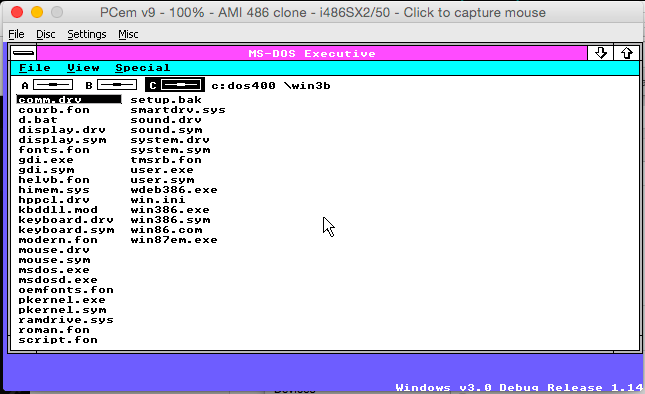
There is no setup program per say, rather it just xcopies all the files to a directory, and from there you run ‘d.bat’ and away you go.  This version is hard coded to an EGA display, which again is the reason I went with PCem.  Once you start it up, you are greeted with:

Win

Windows v3.0 Debug Release 1.14

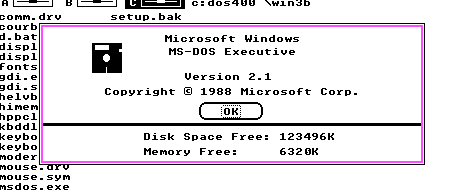
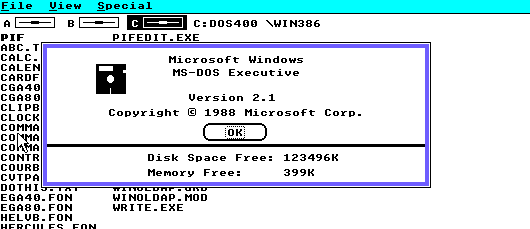
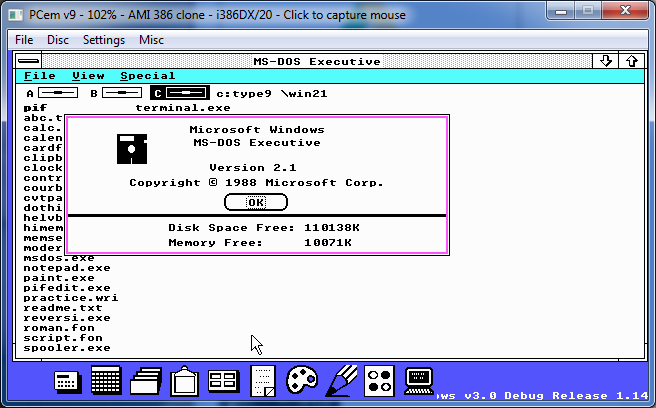
And it identifies itself as Windows Version 2.1

w

Look at all the memory!

And first thing to notice is that on my setup with 8MB of ram, I have over 6MB of RAM free.  Compare this to regular Windows 2.1 which gives me 399Kb of ram in my current setup.

Windows 2.1 running in real mode

Windows 2.1 running in real mode

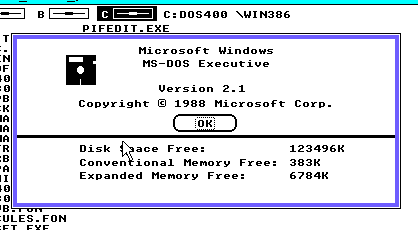
And with Windows/386 Version 2.1 it provides 383Kb of real memory, along with 6.7MB of EMS memory, as the Windows/386 Hypervisor includes EMS emulation.

Windows/386 memory

Windows/386 memory

Of course the major limitation of Windows 2 is that it runs in real mode, or in the case of Windows/386 an 8086VM.  As I mentioned a while back in a post about Windows 3.0, This was game changing.

As now with Windows running in protected mode, all the memory in my PC is available to Windows, and I am using MS-DOS, with nothing special.

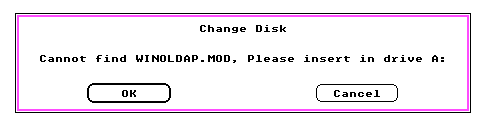
Besides the limitation of being EGA only, the Debug version of 3.0 is that there is no support for MS-DOS applications, as WINOLDAP.MOD is missing.

NO MS-DOS for you!

NO MS-DOS for you!

This is clearly an interim build of Windows 3.0 as mentioned in Murray Sargent’s MSDN blog Saving Windows from the OS/2 Bulldozer.  As mentioned from the article they began their work in the summer of 1988, so considering this is early 1989 it shows just how much progress they had made in getting Windows 2 to run in protected mode.  Along with Larry Osterman’s MSDN blog post Farewell to one of the great ones, which details how the Windows 3.0 skunkworks project was writing the new improved 386 hypervisor, and how Windows 3.0 got the green light, and changed the direction of not only Microsoft but the entire software industry.

I’ve been able to run most of the Windows 2.1 applets, however I’ve not been able to run Excel 2, or Word 1.  I suspect at this point that  only small memory model stuff from Windows 1 or 2 is capable of running.  Although at the same time, when 3.0 did ship, you really needed updated versions of Word 2 and Excel 3 to operate correctly.

Windows 3.0 Debug Release 1.14

Windows 3.0 Debug Release 1.14 on a 12MB system

The applets from Windows 2.1 seem to work a LOT better than the one from Windows/386 2.1 if that helps any.

This is an interesting peek at an exceptionally early build of Microsoft Windows.

Getting Qemu’s NetWare 3.12 onto the LAN with Tun/Tap

I could also call this ‘going with the flow’… So instead of fighting the system, like I usually do today we are going to do things the way everyone else enjoys doing things, and that is building stuff with tun/tap and bridges.

YUCK.

Ok, so I’m using Windows, and that is what I’m assuming you are as well for this ‘guide’.

The first thing you’ll need is the tun/tap driver for Windows, and the easiest way to get that is via OpenVPN.  The next thing you’ll need is Qemu, again I’m just using the pre-compiled stuff right here.

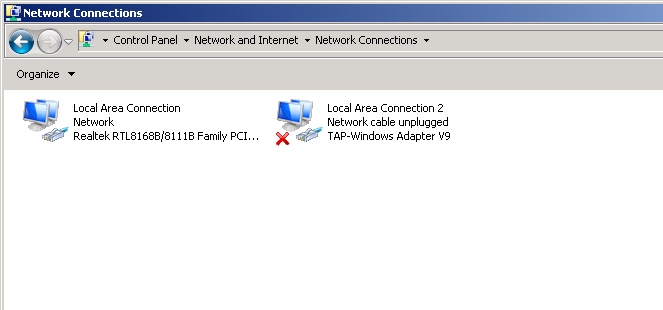
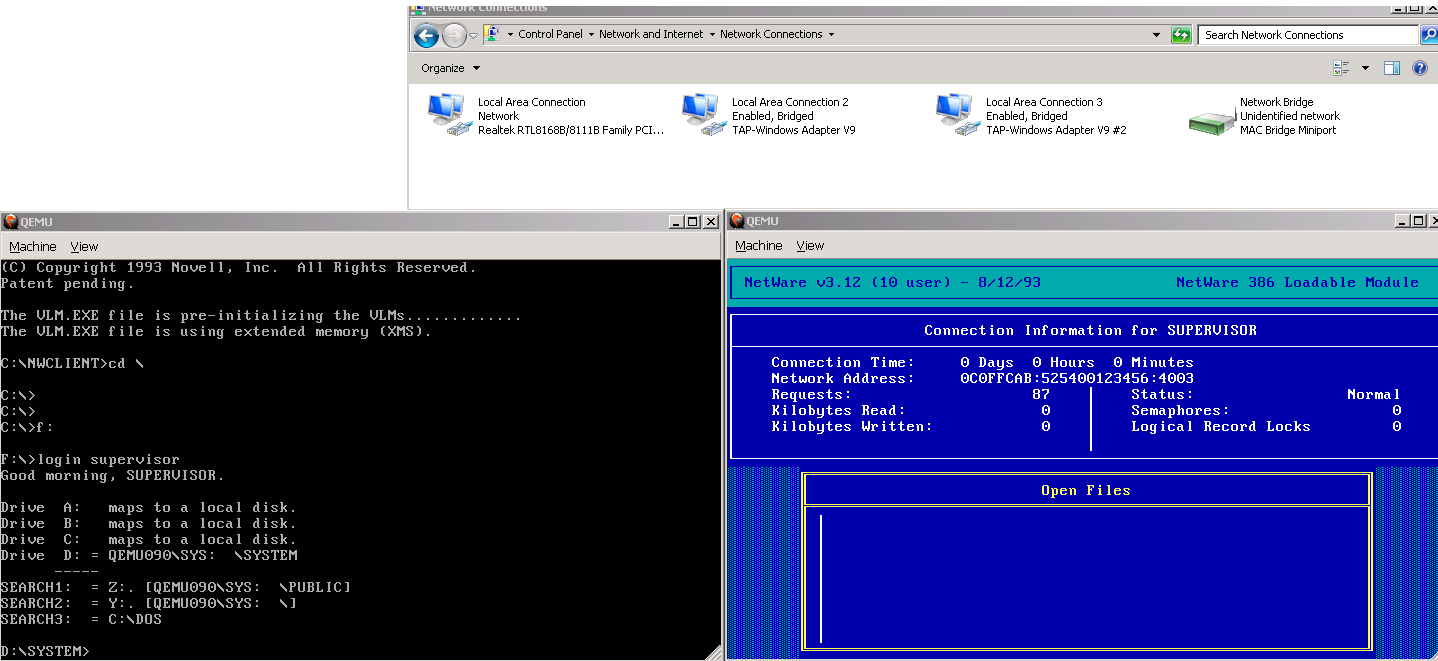
Go ahead, and install them both.  With OpenVPN installed, when you open your control panel, and check out your network interfaces you’ll see something like this:

One NIC, One Tap

One NIC, One Tap

Good.

Now for my example, I’m going to add another TAP interface.  TAP’s are only good for a 1:1 relationship with the VMs.  Yes, that is why I prefer something else, but again we are going to do things today the way everyone else does them.

Now for me, I run the ‘addtap’ batch file located in the C:\Program Files\TAP-Windows\bin folder as Administrator, and this now gives me two TAP adapters.  I highly recommend disabling TCP/IP v4 and v6 on the TAP adapters, along with the MS client/server stuff.  We are only using these for bridging the VMs so we dont’ need the host computer to participate in this network.

Now for the fun part.  I’m assuming you have your NetWare server and client images all ready to go (I guess I can go over installation again some other day), and now we get to bind each one to a SINGLE TAP instance.  Also don’t forget that each machine needs a UNIQUE MAC address.  One of them can use the default settings, but the other one cannot.

I’m going to start my server like this:

\Progra~1\qemu\qemu-system-i386.exe -m 16 -hda netware312.disk -device ne2k_isa,netdev=usernet,mac=52:43:aa:00:00:11,irq=10,iobase=0x300 -netdev “tap,ifname=Local Area Connection 2,id=usernet”

As you can see, this gives me a NE2000 on port 0x300, IRQ 10 and sets the MAC address to 52:43:aa:00:00:11 .  And this sets it on the first TAP adapter, lovingly called “Local Area Connection 2″ because the primary adapter is called “Local Area Connection“.  Also take note of the quotes in this command line, as it’ll encapsulate the full default name of the TAP adapter.  The other alternative is to just rename the adapters, but where is the fun in that?

Now for my client:

\Program Files\qemu\qemu-system-i386.exe” -m 16 -hda client.disk -soundhw sb16,adlib,pcspk -device ne2k_isa,irq=10,iobase=0x300,netdev=usernet -netdev “tap,ifname=Local Area Connection 3,id=usernet”

As you can see the primary difference here is that it’s connected to “Local Area Connection 3” which is my second TAP interface.

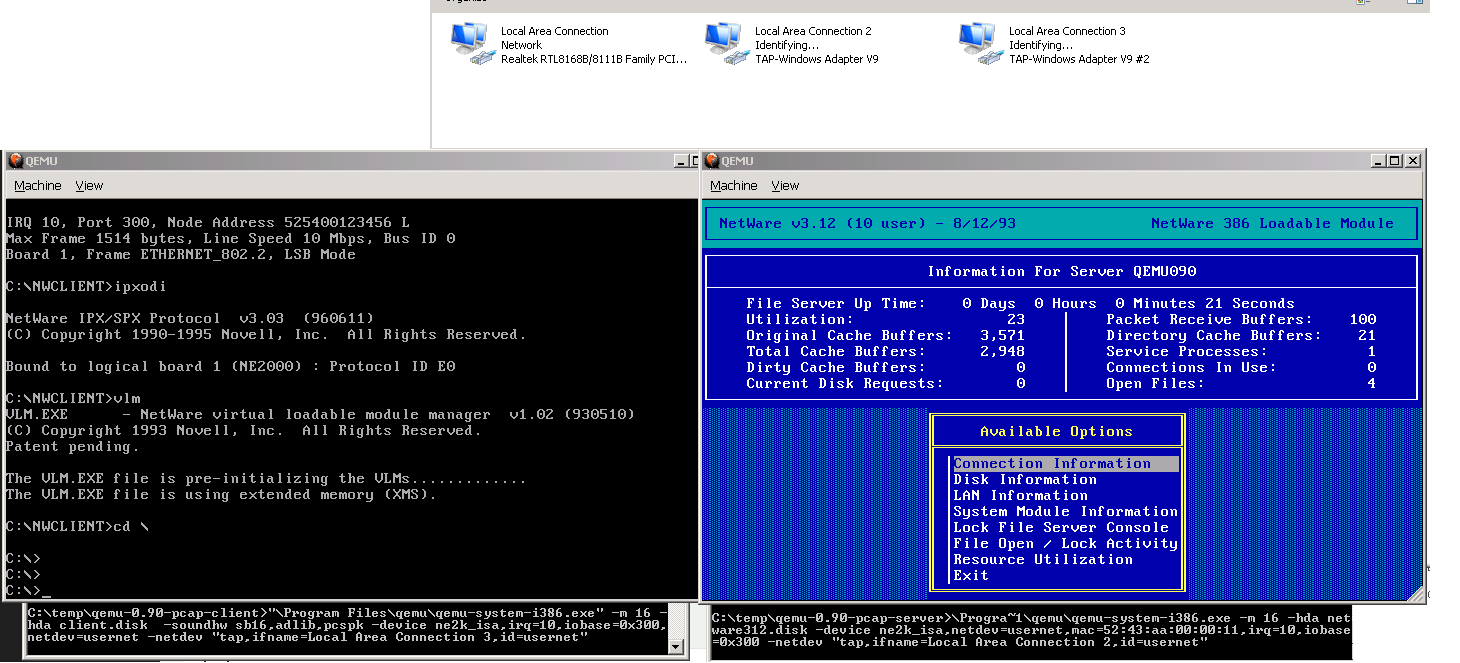
Now with both virtual machines running the interfaces will turn on!

But as you’ll quickly discover, neither machine can talk to each-other, as they are islands so to speak.

Two virtual machines on islands.

Two virtual machines on islands.

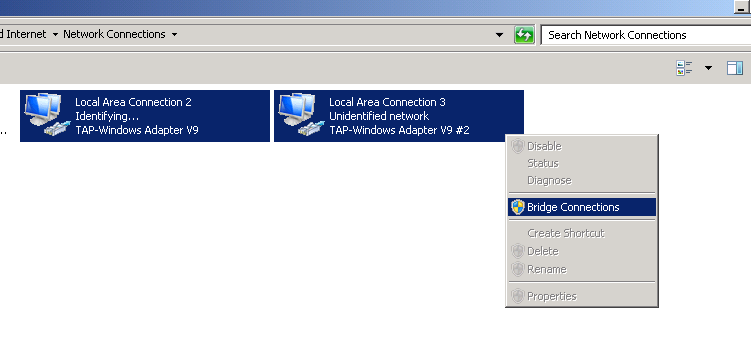
Now for the fun part, we highlight the two TAP interfaces, right click, and turn on the built in bridge function of Windows!

highlight and select

highlight and select

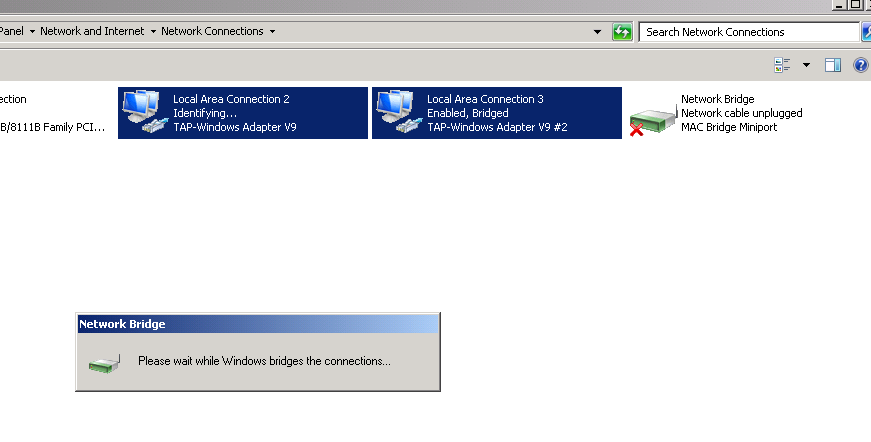
And once that is done, a new Network Bridge interface will show up, transfer what layer 3 settings there are, and then setup the layer 2 bridge between the TAP interfaces.

Bridge activating...

Bridge activating…

And once the bridge interface has gone live, give spanning tree 15 seconds to do it’s thing, and YES you can now login to the NetWare server!

Logging in from the MS-DOS VM to the NetWare 3.12 VM

Logging in from the MS-DOS VM to the NetWare 3.12 VM

And there you go!  This is the ‘approved’ way to do virtual networking with Qemu.

Now I know what you are thinking, this is great for VM’s and all that jazz, but what if I say have an office FULL of old PC’s and I want them onto my new fangled ancient server?

No problem, right click on the bridge, and select delete.  This will put everything back the way it was, sending the VMs back to their own TAP interfaces.  Now select all the interfaces, and then setup a bridge (I suppose you could edit the existing one to include the physical interface…) and now once the bridge has been setup, it’ll now be talking out the local Ethernet interface.

One quick note, bridging and WiFi tend to not go hand in hand.  Some interfaces will work, but the rule seems to be the vast majority of setups will not.  So don’t complain if yours didn’t work, you are just part of the 99.99999%.  And if you did get yours to work, well good for you.

So I was crazy, and updated from Windows 7 to 10

Yes. I know.

Ok first off Windows 10 was not activating.  In the control panel it’d mention the error:

Error code: 0x8007232B Cannot activate Windows 10

Good thing we’re back to crap error codes. But google to the rescue, and I found this article.

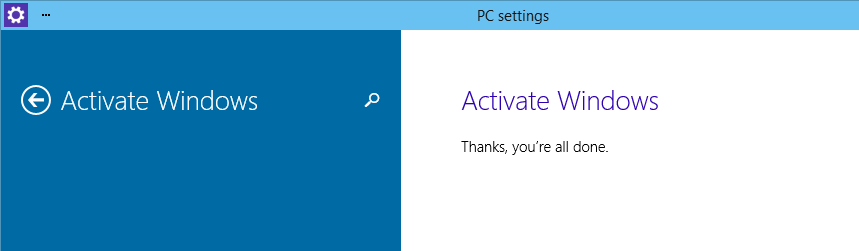
Run “SLUI 3” as administrator, and use the following product key: PBHCJ-Q2NYD-2PX34-T2TD6-233PK

windows 10 activated

Then re-run the activation and all is well.

Also the upgrade tries to leave things like device drivers in place.  Sounds good but nothing I had game or AV wise would work properly.  And worse anything OpenGL/D3D based would actually crash the system out.  So I went and removed all of the old NVidia, drivers I could find, along with everything else driver related, re-ran windows update and rebooted and it’s working again!

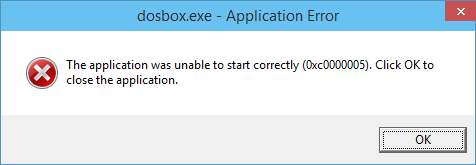
Sadly old games on Steam that use DOSBox seem to be failing…

dosbox crashNo idea why just yet.  But of course I can just go and get a newer version of DOSBox.

VMware’s networking won’t work at all, no matter what you do.  I had to uninstall & re-install to get my networking back.  That even includes the builtin NAT (non VMnet8). However bridging physical NIC’s doesn’t work.

I’ll probably add more stuff as I find it.

Now why the interest in Windows 10?  It’s those $100 USD Windows 8.1 tablets.  Surface was just too expensive, but a $100 tablets, such as the Toshiba Encore Mini WT7-C16MS, HP Stream 7 and Pipo W4 really could change the game as it were by lowering the cost of ownership of a computer.  Make no mistake these are quad core x86 processors, running real Windows.

Looking back years ago and spending far more for a 286 I had to assemble in parts, back in 1991 an AT clone keyboard cost me more than $100.  Amazing times indeed!


Windows 10 technical preview

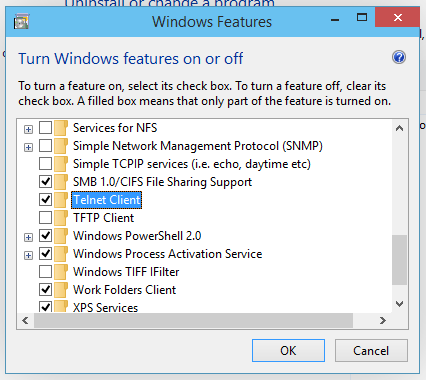
Telnet & echo, daytime?!

Telnet & echo, daytime?!

So, I went ahead and downloaded the Microsoft Windows 10 technical preview, and while I was enabling .net 2.0 (how is that optional??) I went to see what else was in there.  Telnet is the same since Windows 2000, but daytime/echo and friends go back to what? NT 3.1?

How is it we lost the OS/2 and POSIX subsystems, but we still have echo and daytime?

Even worse, they bought Interix, and have completely destroyed it.  I know it’s missing from 2012r2 but I was hoping that now we got back the desktop, and something like a start menu, why can’t we have SFU/SUA?

If only the whole subsystem thing was ‘open’ maybe someone could step in and provide a real *NIX layer on Windows.  MinGW/Cygwin on top of Win32 is all we have left, and it’s so slow compared to a subsystem, but way to go Microsoft!

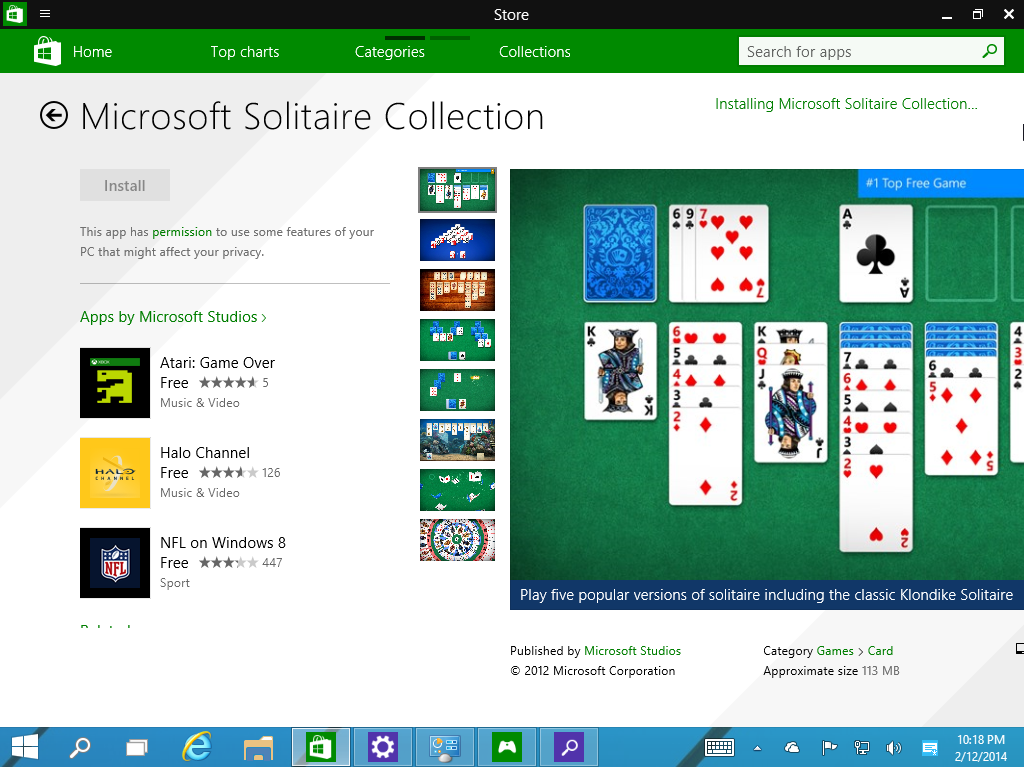
Microsoft Solitaire Collection

Microsoft Solitaire Collection

Even more crazy, the game that established Windows dominance, partially due to its buggy shuffling, Solitaire is an optional download.  I’d still think they’d install that on everything.

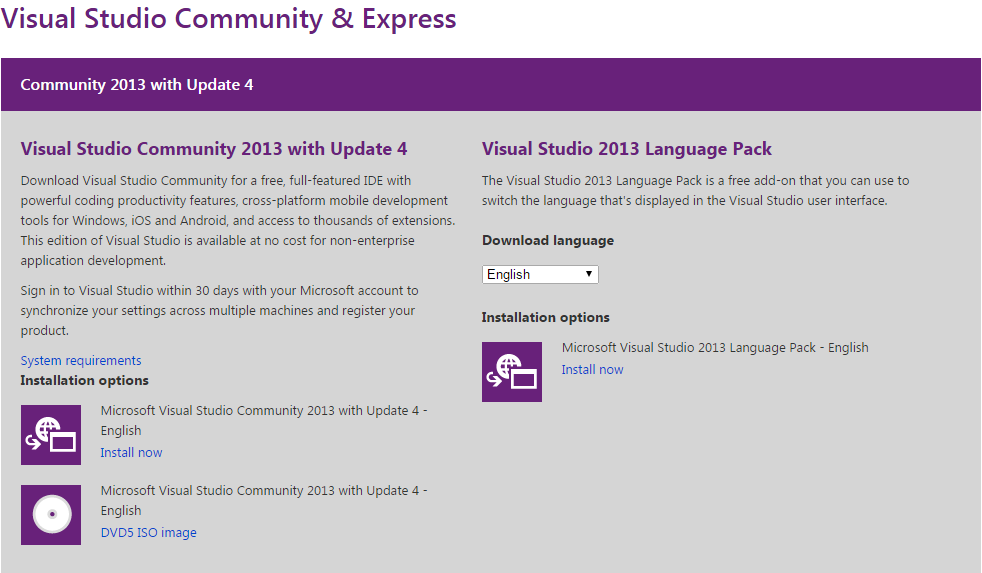
Visual Studio Community 2013 with Update 4

Visual Studio Community 2013 update 4

Free stuff!

If you are like me buying a compiler is something I don’t do terribly often.  Or I end up doing it for projects or even worse, I end up using old versions I bought over 10 years ago, because Visual C++ 5.0 should be good enough for anyone, right? (I also own Visual Studio 2003, so it’s not THAT bad….)

So it was interesting that Microsoft released Visual Studio Community & Express as part of their Connect (); event.  It’s a whopper of a download though, a 6GB iso file.

I haven’t installed it yet, I’m actually still downloading it.  But it certainly implies that it is far more capable than the older Express Editions.

And of course, for the upcoming 2015 release:

“Built from the ground up with support for iOS, Android and Windows, Visual Studio 2015 Preview makes it easier for developers to build applications and services for any device, on any platform.”

Not to mention they are also apparently going to open up the source to .NET .  The press release also claims:

expanding .NET to run on the Linux and Mac OS platforms.

I guess that’ll only be a matter of time to tell.

If anything it’ll be a good excuse to crank out some Quake benchmarks.

Exchange 5.5 OWA vs Outlook 2003

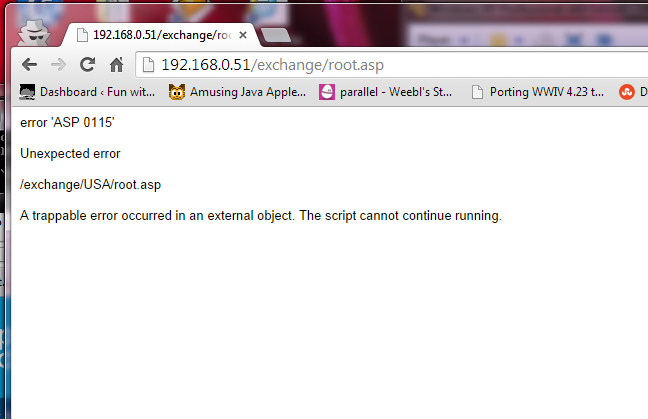
ASP 0115

ASP 0115

error ‘ASP 0115’

Unexpected error

/exchange/USA/root.asp

A trappable error occurred in an external object. The script cannot continue running.

So, call me crazy, but I’ve been running an Exchange 5.5 server a home for a while without issues.  It’s perfect for a single user, I can keep up to 16GB worth of email on there, and best of all I can use real email clients like Outlook (or is it LookOut!?).  Anyways I noticed something weird which is that Outlook 2003 always is unsure if the server is there, and I have to tell it that it’s OK to connect.  Also once the Outlook 2003 client connects, it kills OWA, giving me these weird ASP 0115 Unexpected errors.

googling around for a fix was a bit futile, and I’d largely written off OWA, as in this day & age, who really wants some ASP 3.0 app?  But for some reason, today was going to be the day to fix it, as I don’t have Outlook on my macbook air.

So with the Outlook 2003 clue in mind I finally found KB-818709, aka “Outlook Web Access stops responding when you try to access a mailbox on an Exchange 5.5 computer”.

As the cause states:

This problem occurs when you try to access a user account that was previously accessed by a client computer that is running Microsoft Office Outlook 2003.

Outlook 2003 adds a fourth entry to the PR_FREEBUSY_ENTRYIDS property. PR_FREEBUSY_ENTRYIDS is a multi-valued MAPI property that is stored on the Inbox folder. CDO expects three entries. The unexpected fourth entry causes heap corruption that causes OWA or the third-party program to stop responding.

Well how about that?

So with the hotfix in hand, and a reboot, it now works perfectly, like it did back in 1997.  And the best part is that it works great in Chrome.

And for anyone crazy like me with Exchange 5.5, remember to install SP4, and of course the KB829436 hotfix!