While without fail Windows XP may have been the most popular version of Windows ever, it did remove the OS/2 subsystem, something I had grown used to having around.
But without fail the MS-DOS and DPMI environments were still in place.
Windows XP of course also entered the home market with the aptly named Windows XP Home Edition, which was limited to a single processor and couldn’t join any domains. For the sake of my upgrade path, the ‘workstation’ versions became PRO with Windows 2000 & XP, so that is what I’ve upgraded to is XP Pro, without the slipstreamed SP1/2/3.
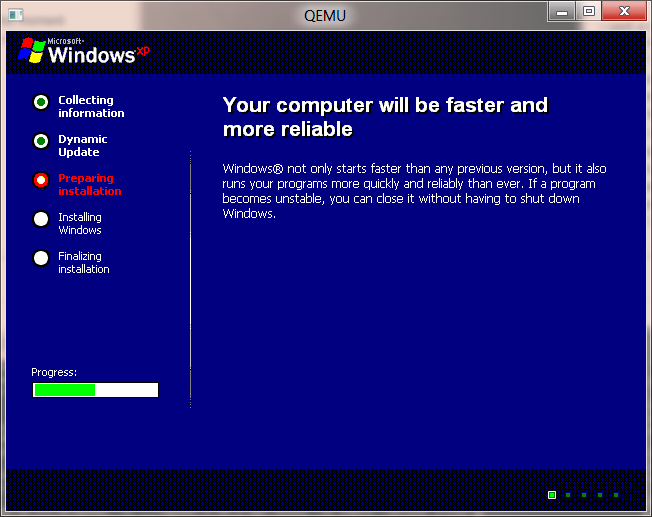
Faster, more reliable!
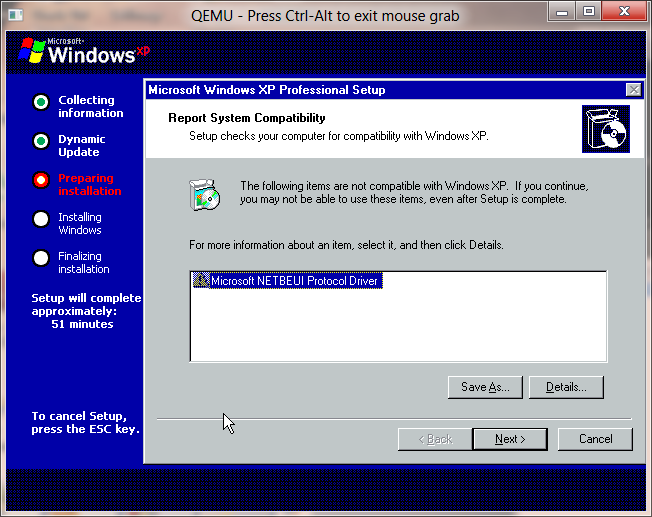
Unfortunately right now this is the end of the road, XP doesn’t upgrade correctly from Windows 2000, and it leaves me with a black screen at best, or a BSOD related to Bug Check 0x19: BAD_POOL_HEADER … Error code was 20 so … there you go.
I’ve always thought Windows 2000 was weird, from the moment it proclaims that it is built on NT Technology! No doubt this was from some kind of marketing slip up, but I guess at this point it was clear who was going to come up with the great names of Windows from here on out.
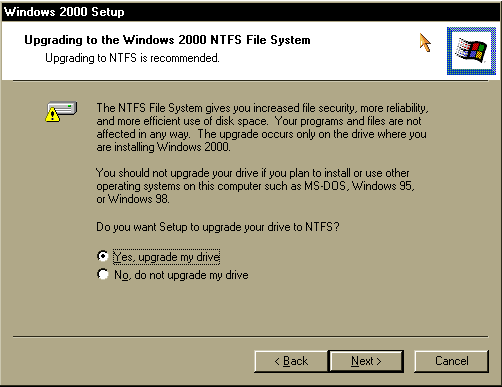
On the way to upgrading my Windows NT 4.0 install to Windows 2000, I got this interesting prompt:
NTFS
One nice thing vs the OS/2 upgrade path is that Windows NT converts filesystems, not blindly encourages into new filesystems and destroys your data. While upgrading using Qemu I ran into this ‘disk full’ snag that either has to be fixed by using the -win2k-hack flag, or by the following advice:
There are problems when installing Windows 2000. Windows setup will generate a lot of edb*.log files, one after the other containing nothing but blank spaces in C:\WINNT\SECURITY which quickly fill the virtual hard disk. A workaround is to open a Windows command prompt as early as possible during setup (by pressing Shift+F10) which will allow you to remove these log files as they appear by typing:
del %windir%\security\*.log
With that in mind the Windows 2000 upgrade takes a while to complete. This is largely from some bizarre fault with Qemu. But it will complete.
Windows 2000 adds quite a few things from NT 4.0, including:
the new shell
USB Support
Plug & Play (although it hid in NT 4.0 SP3)
NTFS defragmentation
no more bluescreen boots
Active Directory (from the server side)
support for multiple displays
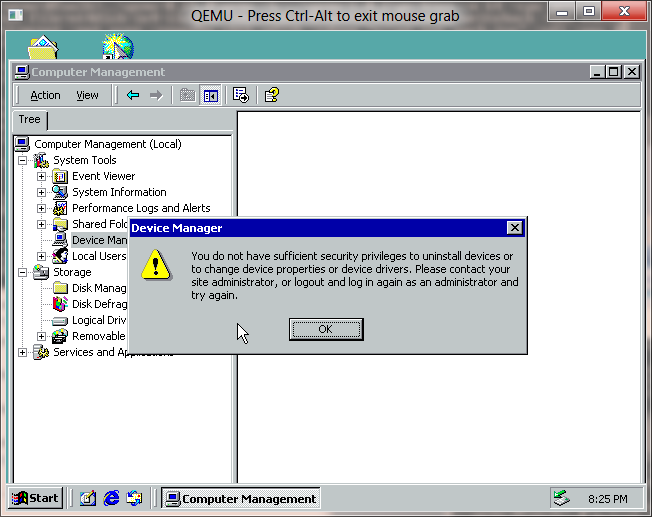
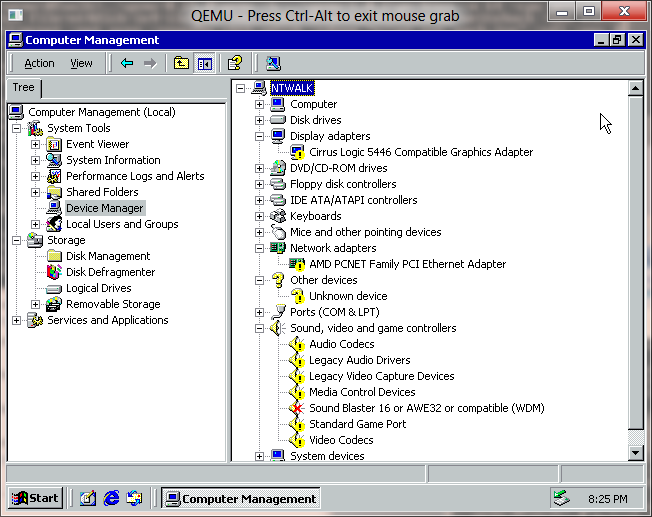
After performing the upgrade, I did find that there was some weirdness going on, as I now had no network, and no sound! So looking at the device manager I got this strange error as administrator!
Not an Administrator?
Well, that is odd, looking at the hardware pane below…
WTF?
I don’t understand what went wrong here, but basically all the hardware is screwed up. In the meantime, I’m installing SP4 for Windows 2000 to see if that helps in the slightest. The only plus side is that my old applications work well.
I just found out, the local security database is screwed up! running:
esentutl /P secedit.sdb
then deleted the log files in the %systemroot%\security directory.
seems to have fixed it. Also, I did this:
Start>Programs>Administrative Tools>Local Security Policy> Expand
“Local Policies” click on “User Rights Assignement” and double click on
“Load and unload device drivers”. Make sure that Administrators are
Assigned To and put a check mark in the “Local Policy Setting” box.
I’m still having issues even trying to upgrade to XP so … hold tight.
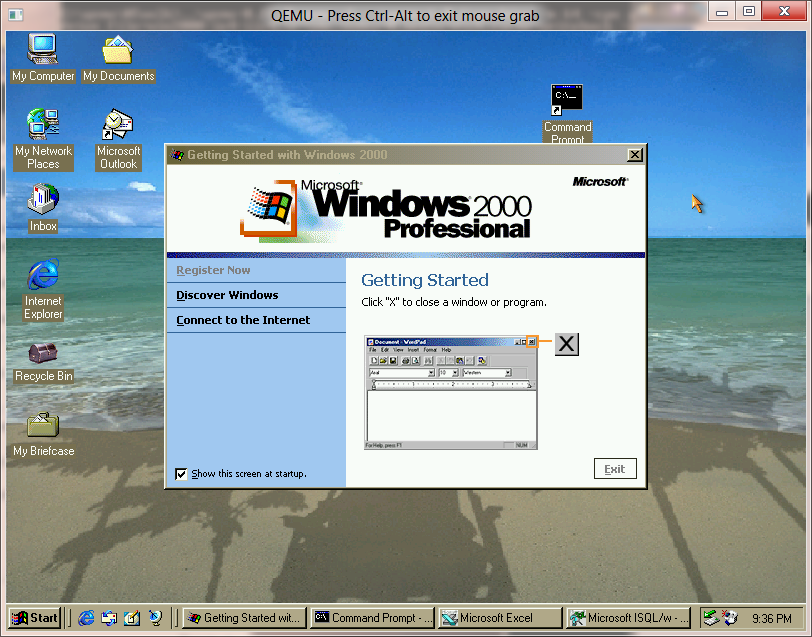
Windows 2000 Professional
I went ahead and re-upgraded my NT 4.0 but this time with the correct -win2k-hack flag, and still had to delete log files, but most of the hardware is in place. However I still do get errors saying my administrator user isn’t an administrator to correct anything.
I remember at the time more and more users that would try to game on Windows 98 moving onto either NT 4.0 or Windows 2000. At the time there was a feeling that Windows 2000 was ready for ‘normal users’, there even was project Neptune at Microsoft to try to make this happen but best I can figure it slipped but someone liked what they saw, and they combined it with other components for Whistler AKA Windows XP. With Windows 2000 all the RISC fans basically saw the writing on the wall for mainstream RISC support. It was effectively over, the Pentium PRO and it’s ilk had basically destroyed the MIPS/PowerPC/Alpha market.
Windows 2000 saw four service packs, and the number of platforms NT was supported on cut down from four to one. There were hopes of a Windows 2000 for the new Itanium but the pre-release 2000 for the Itanium looks far more like a Windows .NET server beta which it probably is.
It wasn’t until 2001 when the successor to 2000 was released, Windows XP.
Windows NT 4.0 was without a doubt the smash through success that Microsoft had been hoping for with Windows NT. There is no doubt that NT 4.0 was at the right time, right place for all of this to happen.
First corporate computers were finally out of the 386/486 class machines, for people to have at least a Pentium class computer in 1996 with 32MB of ram, computers had effectively caught up to something capable of running Windows NT.
The other big tipping point was that the internet was starting to gain mainstream acceptance, this meant that NetBEUI and IPX/SPX were starting to face their decline in corporate networks and being replace by TCP/IP based systems. This was a big win for Windows NT as not only did it include TCP/IP but it could network over TCP/IP out of the box, unlike Netware. In addition Internet Explorer 2.0 shipped with NT 4.0, although even back then I don’t think anyone seriously used it, Netscape was still the king back then. Another interesting feature was PPTP, the ability to setup VPNs, although at launch time I was still dialing directly into work with IPX/SPX. The final ‘big’ thing was the inclusion of IIS in both Workstation & Server versions. Now it was a trivial thing to setup & deploy a web server.
Windows NT 4.0 shipped with support for the Dec Alpha, i486, MIPS and PowerPC CPU’s. The discs are super rare to find, but the original shipment of NT 4.0 had a catastrophic SMP bug that wasn’t addressed until SP1. Almost all NT 4.0 media you will encounter has SP1 slip streamed in. Shortly after SP1, the MIPS platform was dropped. Before SP3 the PowerPC had been dropped as well. The Dec Alpha survived all the way to SP6, being dropped between NT 4.0 and Windows 2000 as Compaq who had bought DEC saw the AlphaNT product cannibalizing sales of its high end Pentium systems, and sinking too much R&D money into the product.
The most obvious change from NT 3.51 to 4.0 was the user interface. Gone was the program manager, and in was explorer. Another big change was that the video subsystem was moved into the kernel space which resulted in significantly faster video performance. Windows NT also included DirectX support (2.0 in the box, 3.0 with SP3) and even hardware OpenGL support for cards like the Diamond Fire GL 1000 (which was a big letdown as it couldn’t run GLQuake correctly…)
Also around the time of NT 4.0’s launch SMP capable motherboards were now starting to appear that didn’t cost an insane amount of money. I had a Tyan Tomcat dual Pentium 100 board at the time, which was fantastic IMHO… While two CPUs don’t make things run twice as fast, they certainly are more responsive had handling a larger workload of various processes.
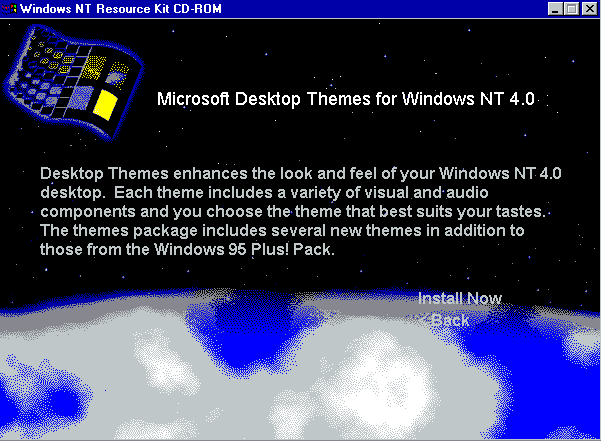
Windows NT 4.0 Resource Kit.
With the release of Windows NT 4.0 Workstation, the Resource kit was an excellent resource to have (OK I Know that sounds horrible… but nothing like built on NT Technology). The number one thing was the desktop themes which were copied from the Windows 95 Plus! Pack. This made Windows NT 4.0 feel far more like something that would be acceptable to an end user. My personal favorite was the ‘Tropical Interlude’
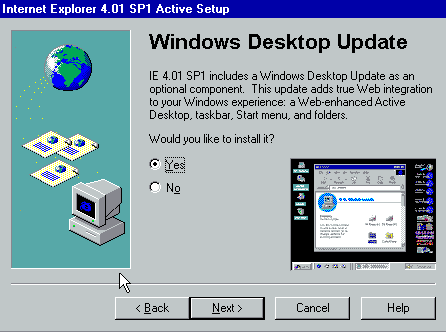
Windows Desktop Update
With the release of Internet Explorer 4.0, the full downloadable version also included an option to install a Windows 98 like shell, AKA the Active Desktop. Oddly this was left out of IE 5, 5.5 & 6.0 . Internet Explorer 3 added things like POP support to the mail client, 4.0 expanded on this with Outlook Express, Netmeeting, FrontPage express, and Microsoft Chat, the ‘comic chat’ IRC client.
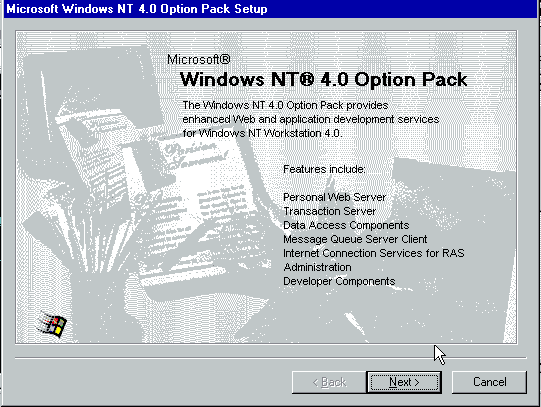
The Option Pack
Later in NT 4.0’s life saw the release of the “Option Pack” which was a bunch of Windows 2000 technology that was ready for release while ‘NT 5.0’ was stalling for release. This included things like the MMC (Microsoft Management Console), a SMTP Server, Transaction Server, and a stronger platform for hosting DCOM components (oh the horror!).
Besides IIS, NT 4.0 was the platform for Exchange 5.0/5.5 which pretty much gutted the old email systems that corporations relied on. SQL Server 6.5 & 7.0 also gained quite a bit of ground for people wanting to move off expensive mainframes or midranges, heck you could even run it on your own workstation!
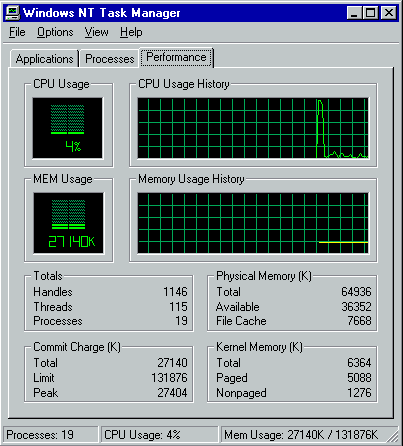
taskman!
One of my favorite and small addition to NT 4.0 was the new task manager. Gone was the simple list of programs running but now you could quickly view the CPU level, see who the hog was without resorting to perfmon, but you could easily kill processes, change their priority and affinity.
It is hard to imagine (impossible really) to imagine Windows NT without this great feature.
During Windows NT 4.0’s lifetime patching had started to become somewhat of a problem. While there were 6 major service packs, and one security rollup, there were tonnes of vulnerabilities that were found while NT 4.0 / IIS 4.0 were actively supported and needed to be corrected via hotfixes. Starting with IE 5.0 there was a ‘windows update’ feature which could then scan the OS, and determine what fixes needed to be applied. While on the one hand there were constant updates, and no real good, automated way to push them, there was at least a way to finally get updates onto NT 4.0 systems. Even later with SUS/WSUS this is something that IT shops still struggle with.
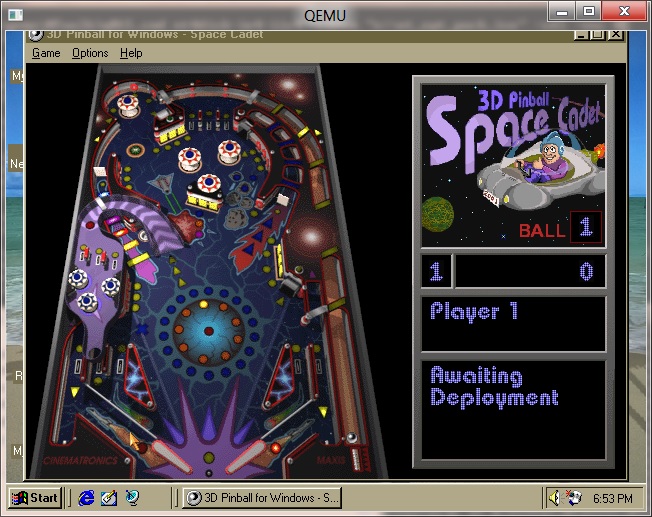
As far as application compatibility goes, much to my amazement ALL of my applications are continuing to work, this includes Excel 3.0, MS-Word 5.5, SQL Server 4.21 and Doom 1.1 . I should also add that NT 4.0 added something really cool, pinball! Although all I ever did see is people addicted to solitaire. And of course, WinDoom works GREAT as well! One thing to point out is though NT 4.0 can still run OS/2 16bit text based exe’s there was an addon pack to run 16bit PM applications for 4.0. Also, by this point the HPFS filesystem had been removed from Windows NT. While it was possible to put 3.51’s pinball.sys driver into a 4.0 system, and restore HPFS functionality, even us diehard OS/2 fans had given up at this point and either went Linux or NT.
Pinball!
Another great thing that was added into NT 4.0 was Hyperterminal. While the old Windows 3.0 terminal had been ported to the Win32 subsystem, and was present in NT 3.1-3.51 it was finally nice to get something in the box that supported ANSI & Zmodem.. even if it was frankly too little too late, as everything was going internet.
And speaking of the internet in late 1996 we saw the release of Office 97 and it’s “internet centric” thinking. One interesting thing is that Office 97 leaves my Excel 3.0a install alone. And much to everyone’s enjoyment Office 97 came with Clippy! .. Who’s removal in Office 2003 was a selling feature. Also included in Office 97 was Outlook 97, the first real email client for Windows. Much like the ancient Office 4.2 for Windows NT, there were versions of Write 97 & Excel 97 for the Dec Alpha… Although for the ‘full’ office suite I just ended up running !FX32 to run i386 Win32 binaries on the Dec Alpha.
Windows NT 4.0 ended up being available in a Terminal Server Edition which would support multiple users on special Windows Terminal appliances, or old workstations. There also was an enterprise version which could use eight physical processors, and allow programs to access 3GB of ram directly, and page memory out to more ram to allow bigger working sets. It was like LIM EMS it didn’t get around that arrays couldn’t directly be larger than 3GB. Already in 1998, we were starting to actually hit the physical limitations of 32bit computing.
Though 4.0 was a major release there were several things lacking in Windows NT 4.0, such as good PCMCIA support (it came from many 3rd parties) USB support, power management, and multiple displays. All of this was addressed in Windows 2000.
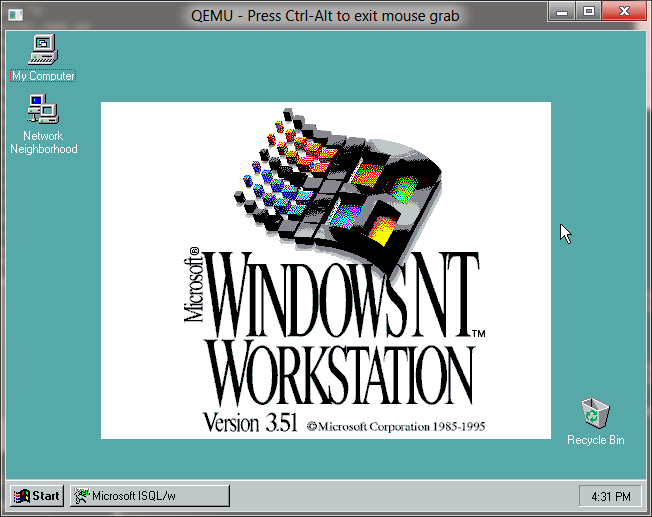
Windows NT 3.51 was significant in adding support for the PowerPC processor from IBM. Because this release was delayed for the PowerPC port, it was very stable when it came out as over a thousand bugs had been addressed in between 3.5 & 3.51 .
3.51 was released in May of 1995 right before the launch of Windows 95. This made NT 3.51 feel somewhat dated as it still retained the program manager/file manager feel to them, while in August Windows 95 would feature the new explorer shell.
However, after the launch of Windows 95, there was work to port the new UI to Windows NT in the form of newshell.
NT Starting to look like 95
Newshell only made it to Beta 2, and was never updated beyond that.
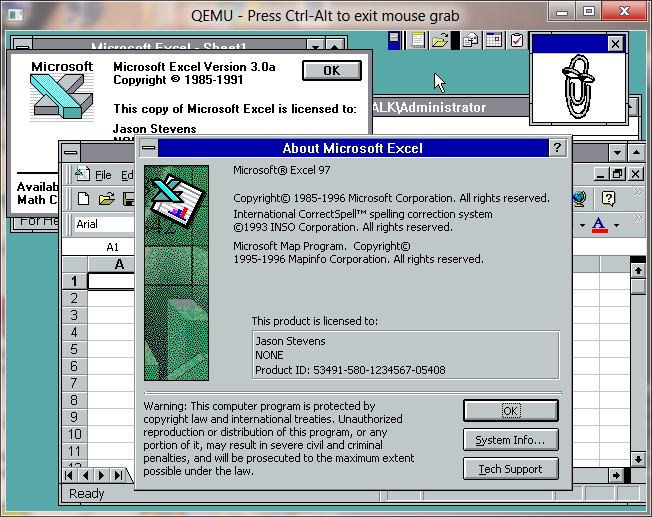
Excel 3.0a and 97 running on NT 3.51
One cool feature of NT 3.51 is that it was supported by Office 95 & 97. Combined with the newshell beta it gave NT 3.51 the feeling of being more modern than the dated program manager feeling NT 3.1-3.51 …
Of my test programs, they all continue to run flawlessly. Even SQL Server 4.21 happily runs as a service on NT 3.51.
I figured it was worth doing a quick video of what the new shell experience was like on NT.
By this time NT was starting to look and feel like a dated system because of the reliance on Program manager. Of course, we all knew it would be addressed in the next version of NT, Windows NT 4.0
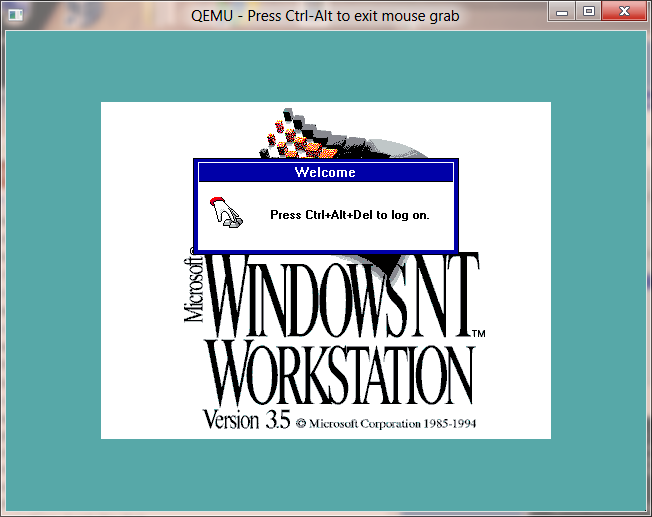
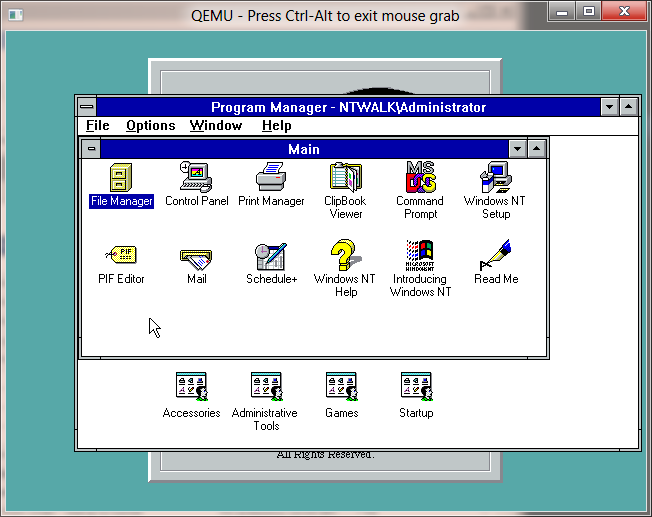
With Windows NT 3.1 out the door there was a LOT of work to be done behind the scenes to bring Windows NT up to a more polished level, and this was most certainly achieved with Windows NT 3.5 . This version did something pretty much unheard of, which is that it dropped the hardware requirements from Windows NT 3.1 . It is almost all too easy to get lost in all the new features but I’ll try to keep a list.
OpenGL (software only)
New TCP/IP Stack
More complete Win32 support
Ability to run Win16 apps in separate WOW instances.
Added complete support for the Dec Alpha
IDE CD-ROM support
AppleTalk
Netware Requester
PPP/Slip
For me this was a major release, in that now Windows NT was actually usable, esp with the memory requirement dropped, and the overall speed increased NT 3.5 could actually be used. The dialup PPP support that was a SNAP to configure was the thing that won me over, I never could get the dialup scripts for CHAP/PAP/PPP on Linux to work right, but within a few minutes of installing NT 3.5, I was on the internet.
One of the cools things that came out of the Microsoft SGi collaborative was OpenGL on Windows NT. This was no doubt to bring NT into the real ‘workstation’ level of OS, and to give us great real-time 3d graphics. This was also the source of a lot of ‘server issues’ because people *LOVED* the OpenGL screen savers so much they enabled them everywhere, not realizing that they would easily take 100% of the CPU. The OpenGL was so good, that it even scaled on SMP systems, again killing them for 100% of the CPU across all CPUs. You wouldn’t be very popular loading them on the departmental SQL server.
Outside of internet applications all I pretty much ran at the time was old Win16 stuff like Turbo C++ for Windows, Watcom C++ and I’d try to run windows games, but NT just needed too much memory compared to MS-DOS/Windows 3.1 … it was a while before memory got cheap enough to tip the balance, but I did only have 8MB back then.
As for the applications I installed on NT 3.1, they all worked fine, MS-Word for DOS & OS/2, Excel 3, and Doom 1.1 ran great.
I should also mention that there was a 32bit version of Office for NT 3.5, Office 4.2 for NT. This added 32bit versions of Word & Excel for NT Alpha/i386. I don’t think there was ever native versions for the MIPS.
Windows NT 3.5 received three service packs before it was ultimately superseded by Windows NT 3.51
On the heels of my OS/2 upgrade path, I thought I’d take on Windows NT.
Windows NT 3.1
Originally planned as OS/2 3.0, OS/2 NT, or Portable OS/2, Windows NT began life as a portable version of OS/2 2.0 for RISC processors. Even in the early design phase, it was decided that it was going to have multiple OS personalities. With the arrival of Windows 3.0 everything changed, and it was decided to use WLO, or project porthole the port of Windows 3.0 to OS/2 1.2 as the basis of what would become Win32, the primary personality for OS/2 NT, however they could keep all the kernel work, as none of the initial design would have to be changed when they dumped the OS/2 2.0 cruiser personality.
Because NT was going to be the successor to OS/2, it naturally supported the FAT & HPFS file systems, but in addition it also supported the NTFS filesystem which included the journaling capability allowing it to survive some data loss, and to be able to quickly check the disk.
The NT 3.1 desktop
So after all the betas NT finally shipped in July of 1993. The first thing that I was amazed by was the sheer size of it. There was an incredible amount of floppy disks, and fully installed it could easily consume some 50MB for the OS + space for a swapfile. What was also amazing, and confusing for the users is that NT 3.1 looked just like Windows 3.1. Even the same games/accessories were included and the look and feel were so much the same that most people couldn’t tell NT from Windows.
Windows NT 3.1 could run MS-DOS applications via the NTVDM (which is still around in 32bit versions of Windows 7!), OS/2 16bit text mode applications, specially compiled POSIX applications (vi was popular among unix people), Win16 applications which again rain inside of the NTVDM, along with a ‘speical’ version of Windows 3.1 which would then translate the system calls to the Win32 subsystem via thunking so that the applications could run seamlessly on the desktop, without requiring complicated drivers, unlike OS/2. And of course it could run the new breed of Win32 executables which included console, gui and service applications.
The ability for Windows NT to support multiple user accounts was a big change from the typical Microsoft one user / one computer approach, but it also changed the playing field with being able to run server programs on Windows that you didn’t have to login to the machine, and start yourself. The best part being that you could manage these applications with Windows programs! While it may seem impossible to imagine now, the big ‘database’ program at the time was Oracle, and if you didn’t have a mainframe or a mini computer to run it on, but wanted to go down the microcomputer path you either ran Oracle for MS-DOS, or you ran it on Novell Netware. While networking was in Novell’s blood, setting up networking on MS-DOS could prove a chore. Windows NT 3.1 may have shipped without a NetWare requester, but it did include support for DLC, IPX/SPX, TCP/IP and NetBEUI. This meant that Microsoft SQL Server could talk to more network types than a typical Netware setup. Another game changer was that the networking support, and namely TCP/IP was included in the box! Up until this time TCP/IP solutions were typically 3rd party for both Windows, Netware, and even some UNIX (like Xenix!).
It is also worth noting that the TCP/IP in this version is from a 3rd party, SpiderTCP although once Microsoft was ready they did release their own stack which was in NT 3.5, an update for Windows for Workgroups that supported things like DHCP.
One major annoyance of OS/2 was that command prompts were either full screen or windowed, but they could not be switched, and some programs were flagged as full screen, so if you ran them from a window the system would flash to full screen, sawn a full screen session, maybe kick out some text, then switch back to the graphical screen. It was VERY annoying for tools that expected flags, as then you’d have to switch to a full screen session to even see what was going on. Windows NT addressed this off the bat, that VGA based systems could switch between fullscreen & windowed sessions by simply hitting alt+enter, and RISC / framebuffer video systems would be stuck in ‘windowed’ command prompts much like Windows Vista and other systems won’t let the ‘Command prompt’ window go full screen.
One big annoyance about Windows NT 3.1 is that all the Win16 applications (which was what almost everyone was using) ran in a SINGLE VM which meant that a single rouge application could crash out the VM, losing all the other Win16 applications work. It wasn’t any better than what Windows 3.0/3.1 users were facing, and only OS/2 allowed people to run Windows application in separate sessions.
Another serious shortcoming in Windows NT is that the POSIX subsystem is basically brain dead, it doesn’t support any networking calls. The inability to port any networking UNIX code to NT made it pretty much worthless, and all I ever saw people do was setup vi on it.
Other than that, for a 1.0 release it supported an incredible amount of printers, sound cards, and even network cards the OS was far more stable than MS-DOS+Windows, although it did need a LOT of memory.. Microsoft gave away a TONNE of boxed copies of it back in the day, for all intents and purposes NT 3.1 was a commercial bust, lots of people I know tried it but nobody really used it, it was too slow, and too resource hungry at the time. But NT wasn’t written with 80386’s in mind, but rather the future. Windows NT 3.1 shipped with support for the MIPS R4000 CPU, and the Intel i386/i486/Pentium. The Dec Alpha had not shipped at this point so Alpha support was held back, and offered as a coupon upgrade.
For a test, I thought it’d be a good test to install Microsoft Word 5.5 for MS-DOS / OS/2 as a test, SQL Server 4.21, and Excel 3.0a for Windows. For fun I even installed Doom 1.1 for MS-DOS, which plays however there is no music as NTVDM has no pass through support to the sound hardware ports (unlike OS/2, I suspect it’d violate the whole principal of a ‘secure’ OS) and since there isn’t any soundblaster emulated devices there won’t be any sound.
Here is some videos of installing Windows NT 3.1 (from within MS-DOS because the CD-ROM support in NT 3.1 is all SCSI based that Qemu doesn’t emulate), and using Windows NT..
Windows NT 3.1 was later replaced by the smaller & more capable Windows NT 3.5 .
I get notes every now and then about people not being able to use Qemu. Â While Qemu is great, cross platform, and free it can be a little crazy to use, esp to people who are scared of the command line.
But rest assured it really isn’t that bad, once when you see the order of its seeming chaos.
Take this string for example:
C:\qemu\NTwalk>..\qemu-1.0.1\qemu-system-i386.exe -L ..\qemu-1.0.1\pc-bios -m 64
-cpu pentium -drive file=nt31disk,if=ide,index=0,media=disk,cache=writeback -ne
t nic,model=pcnet -net user -cdrom “Windows NT 3.1, Win32 SDK.iso” -fda “\temp\extensions.img” -soundhw sb16,adlib
Lets break it down as follows:
C:\qemu\NTwalk>..\qemu-1.0.1\qemu-system-i386.exe
First I specify the Qemu emulator I’m going to use. Â I’m using the i386 one here, and as you can see, I’m running this from a different directory than where I’m working with disk images.
-L ..\qemu-1.0.1\pc-bios
Next is where I tell Qemu where it can find the needed BIOS files. Â I think there is some global install path, but I tend to run all kinds of versions of Qemu all at once so this will *not* work for me, and it is just easier to tell it where to find them.
-m 64
I’ve set my VM to a maximum of sixty four megabytes of RAM.  The default is 128MB, but  sometimes you want less, as some OS’s can’t use more than 8/16/64 anyways and they may have issues finding RAM where they aren’t expecting it.
-cpu pentium
Most OS’s will run and boot on a modern CPU, this includes MS-DOS 3.30 which I have booted via a USB floppy controller on my 8core AMD processor.  However some OS’s fell into the trap of how to identify the processor, and configure themselves accordingly.  All was well until the Pentium 4, Itanium, and the CORE CPU’s came into existence.
 -drive file=nt31disk,if=ide,index=0,media=disk,cache=writeback
With a lot of experimentation I’ve found that this combination works best for qcow2 disk images. Â While a lot more complicated than “-hda nt31disk” it does perform significantly quicker. Â Another ‘tip’ I like is that you can have Qemu mount a directory (as long as it is under 500MB) and it’ll create a virtual FAT-16 formatted disk. Â The flags are [ -hdb fat:<path> ] Â this is a great way to copy in things like device drivers, and even programs. Â However this disk is read only, so you cannot copy data out.
-net nic,model=pcnet -net user
This enables the AMD PCNet PCI network card, and sets it to User mode NAT. Â I like the AMD card as it has really good support. Â With that in mind, Qemu supports the following models:
ne2k_pci
ne2k_isa
i82551
i82557b
i82559er
rtl8139
e1000
pcnet
virtio
I’ve never really messed with the tun/tap stuff as you can only have one host on it, so its kind of useless to me. Â With the usermode NAT the VM should be configured the following way if it doesn’t support DHCP:
Address 10.0.2.15
NetMask 255.255.255.0
Gateway 10.0.2.2
DNS 10.0.2.3
If you have DNS issues, you may want to try a DNS server that you are using on your physical computer, or perhaps 4.2.2.4/8.8.8.8 . Also you will *NOT* be able to ping outside of the VM, but you *CAN* ping the gateway, 10.0.2.2 .
-cdrom “Windows NT 3.1, Win32 SDK.iso”
Just as it appears, this adds an ISO image into the VM which is typically located on the second IDE interface, on the primary port. To force the VM to boot from CD, add the flag ‘-boot d’ and the BIOS will attempt to boot from the CD-ROM.
-fda “extensions.img”
And like the CD-ROM, this is for the floppy disk.  Sizes can be 360k, 720k, 1.2M and 1.4M. If you wish to boot from the floppy disk you simply add the flag ‘-boot a’  Older floppies will not contain a boot check sum, so to force them to boot, you’ll need the additional flag ‘-no-fd-bootchk’ to ignore the check sum that later diskettes used.  In my above example I’m just using a disk image, not booting from it.
-soundhw sb16,adlib
And finally I’m enabling both the SoundBlaster 16 & Adlib emulation. Â By default in the builds of Qemu the adlib is turned off, but I just turn it back on when I build Qemu. Â Other sound cards include the recent HDA & AC97 chipsets.
Remember the Sound Blaster is configured for an IO base of 0×220, IRQ 5, DMA 1 and High DMA 5.
I hope this gives some insight to users on how to effectively use QEMU.
I just found out about, PX00307.pdf, basically its when Microsoft was thinking about breaking away from OS/2 and making the future all Windows based….
Its funny how they say that OS/2 PM has a better API, and at the same time were talking about having NT continue using an INT 21 interface for Windows.. No doubt this is all high level talk, Cutler would have killed anyone for even mentioning INT 21… lol
I wanted to run some old 68000 programs on OS X, but as luck would have it, OS X 10.5 doesn’t support the classical environment, and the 10.4 discs that I have won’t boot on a G5. Â So I don’t have a good way to get there from here. Â However I did remember the great mini vMac is very portable, runs 68000 code great, and even can run 68020 programs with the experimental branches.. So I had to install OS 7 on a Windows machine with my last binary, configure the source there, then import it to my PowerPC, then build it on my G5. Â The OS X PowerPC build is lacking sound (did the intel OS X have it?) but it runs!
In 1987 the first announcement went out that Stallman had introduced perhaps the most important piece of GNU software ever:  GCC.
I haven’t been able to locate the 1.0 release or even the 0.9 beta (*Edit as an update, yes I’ve found it, and installed it!), as close as I could find was 1.21 from May 1st, 1988. Even at this time, GCC supported the following CPUs:
m68k
ns23k
spur
vax
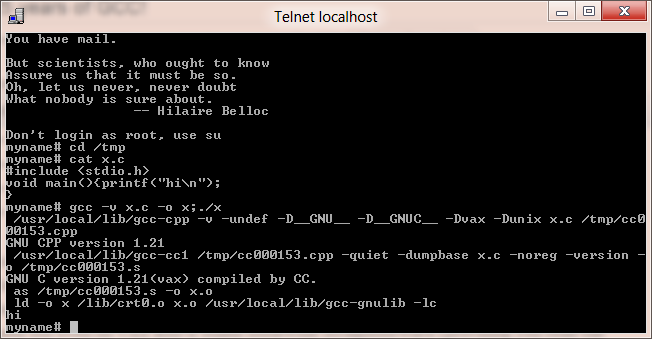
Amazingly GCC at this point is pretty snappy, and very ANSI compliant unlike PCC.  At this point it still relies on native assemblers, linkers, librarians it still was pretty versatile. Back then there was no auto configuration tools you have to link configuration scripts by hand but even on VAX BSD it builds somewhat straightforward (providing you read the documentation)..
GCC 1.21 on 4.2 BSD
I don’t know if it serves any practical value but I went ahead and built a source package for GCC 1.21, along with a 4.2 BSD binary package.. I suspect it’d only be an interest to a select few.. Although if anyone has 1.0 or 0.9 I’d be interested!
By 1991 GCC 1.40 supported not only the i386, but Linux kernel.. And as they say the rest is history.
And finally a video summation of all the changes to GCC…