Gravis UltraSound under Qemu

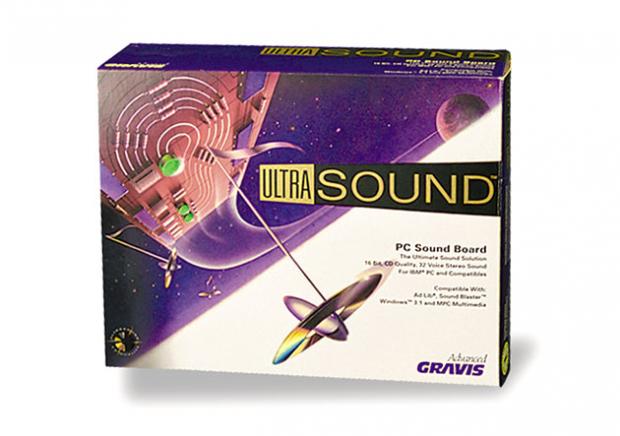
Gravis Ultrasound

Back when the Adlib & Sound Blaster cards were king, there also was the far more expensive, and far better sounding Gravis UltraSound. What really separated the GUS from the Adlib cards was a wavetable approach to midi file playback. The GUS was driven by a ‘soft’ table, meaning programs had to upload samples to the card before it could use them.  This was unlike cards like the SoundBlaster AWE editions which stored their wavetables in ROM.

Qemu has included GUS emulation for some time now, however because of the softset files it is rather involved to get working.

The first thing you will need to do is download the soft files here.  You will need to inject them into your MS-DOS disk image.  I prefer to use the following method:

 -hdb fat:xfer/

Where xfer is the directory where I’ve extracted my files. This will make the directory show up as a second hard disk.  Now the drive is read-only so getting files OUT of the emulator still requires either virtual floppy disks (yuck) or a network client.  The archive contains two versions of the wavetables, one that is stock that I couldn’t get to work, and a ‘patched’ version.  Copy the ULTRASND411 directory to c:\ultrasound  .

Next we need to setup the environment variables.  The Gravis UltraSound in Qemu is setup for IO port 240, Irq 7, and DMA channel 3.  As you can see from gus.c in Qemu source:

static Property gus_properties[] = {
DEFINE_PROP_UINT32 (“freq”, GUSState, freq, 44100),
DEFINE_PROP_HEX32 (“iobase”, GUSState, port, 0x240),
DEFINE_PROP_UINT32 (“irq”, GUSState, emu.gusirq, 7),
DEFINE_PROP_UINT32 (“dma”, GUSState, emu.gusdma, 3),
DEFINE_PROP_END_OF_LIST (),
};

This means we need to setup the following environment varriables in the autoexec.bat

SET ULTRASND=240,3,3,7,7
SET ULTRADIR=C:\ULTRASND

 Re-launch Qemu and specify the soundcard emulation something like this:

-soundhw gus,pcspk -parallel none

This will give us both the PC speaker, and the Gravis UltraSound.  Additionally this disables the parallel port which also uses IRQ 7.  We should be able to run games now.  For anyone interested, Maraakate has given me a link to share of his GUS archive.

I found this information on a Qemu patch page (before the GUS support was mainlined), and Vogons support for DOSBox & GUS emulation.

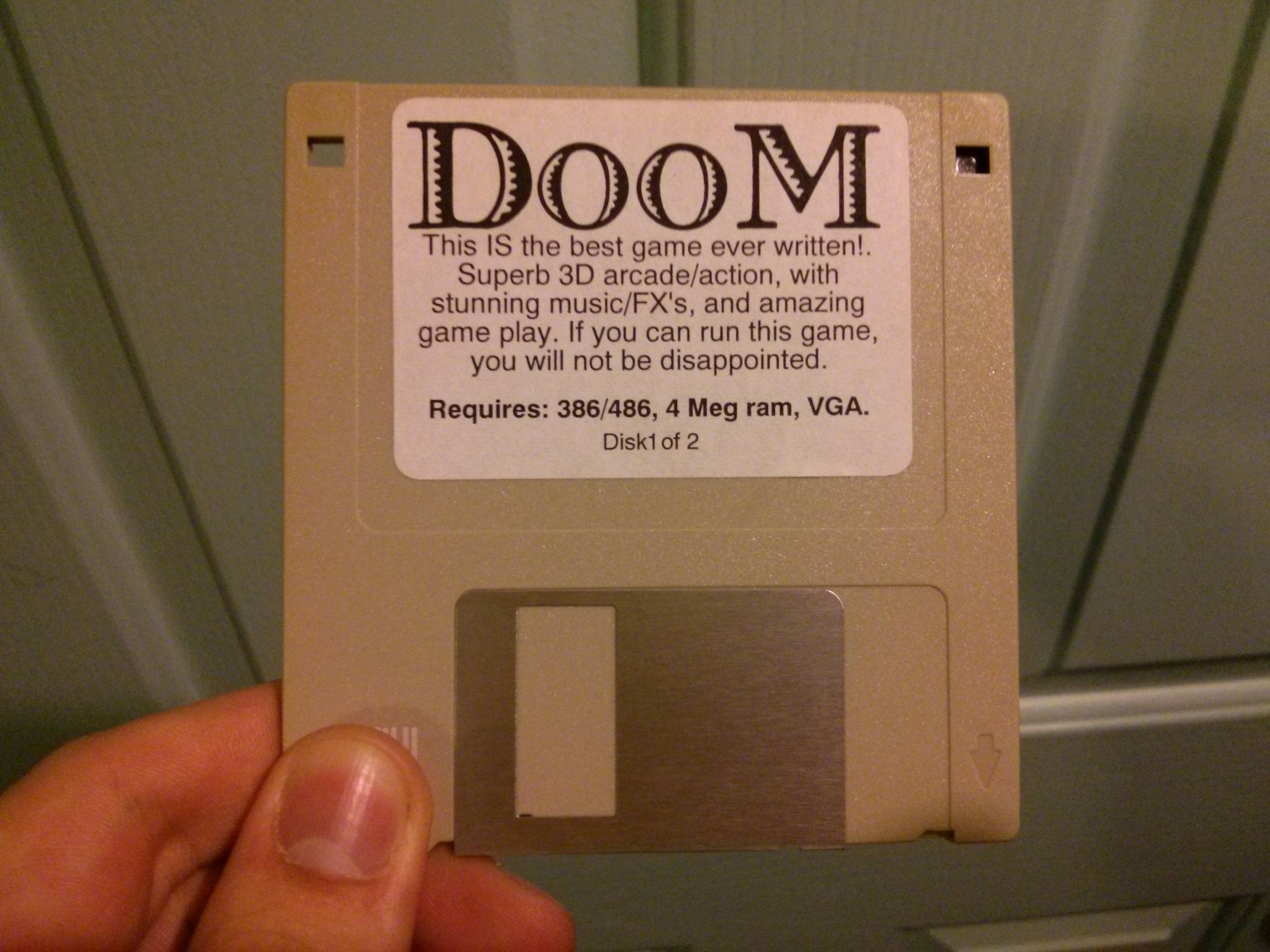
I’ve tested Doom, and Heretic which work fine on Qemu 1.6.1 on OS X.

For anyone who cares, this is what the SoundBlaster/Adlib sounds like, and this is the Gravis UltraSound emulation in Qemu.

Or even better, embedded audio!


UltraSound


SoundBlaster

Doom IPX revisited

So, since I’ve been starting up my virtual network thing, I got distracted with this thread on reddit

Fun times ahead!

Fun times ahead!

, talking about the good old days of Doom.  Now Doom was revolutionary for the music, the sound effects, the 2.5D environment, the fast pace, the violence, the unlimited lives, dynamic lighting and of course LAN play.  Now what was cool is that it could easily run over IPX/SPX networks.  Although you did have to be on the same network it was very easy to setup, and get going. But as anyone can tell you, the moment you setup a four player deathmatch on a company LAN people would go nuts, as you would without a doubt bring the entire network to a halt.  Back when I used to play this we would just disconnect the 10base2 cable from the lab 486DX2/50 PC’s and just make our own four computer segment.  We did notice that if we had 3 four player games on the same network (afterhours!) that it was unplayable.  I never did have access to a sniffer back then, and when I got a corporate job, being caught with something like Doom was grounds for termination so I never did get to see what the big deal was.

So I figured I’d cook up a super quick lab to check it out.  This is my Dynagen configuration.  Sadly I do need a cisco router to preform the network capture, although I don’t need to configure it to see what is going on.

autostart = True

[localhost]

[[7200]]
image = ../C7200-JS.BIN
npe = npe-400
ram = 160
idlepc = 0x60529c84
disk0 = 0
mmap = False
ghostios = True

[[ROUTER corertr1]]
model = 7200
slot1 = PA-8E
F0/0 = coresw1 5

[[ethsw coresw1]]
1 = access 1 NIO_udp:41300:127.0.0.1:51300
2 = access 1 NIO_udp:41301:127.0.0.1:51301
3 = access 1 NIO_udp:41302:127.0.0.1:51302
4 = access 1 NIO_udp:41303:127.0.0.1:51303
5 = access 1

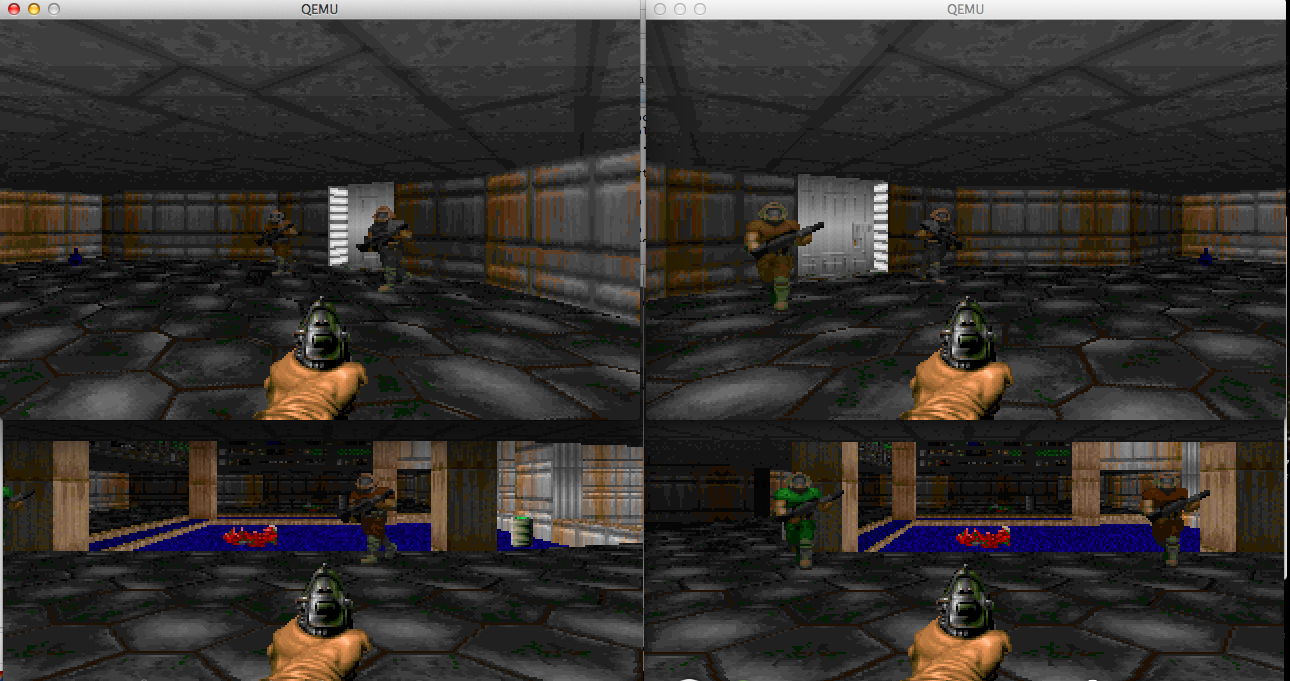
As you can see this is very simple, a switch with four ports setup for four virtual computers, and a fifth port for the router.  Next I run four instances of Qemu with a copy of Doom v1.1 shareware, and a IPX/SPX client.  I fire them up like this:

./qemu/qemu-system-i386 -cpu pentium -L ./qemu/pc-bios/ -m 16 -hda doom11-00.img -soundhw sb16,adlib -net nic,model=pcnet,macaddr=00:11:22:33:44:00 -net socket,udp=localhost:41300,localaddr=0.0.0.0:51300 &
#
./qemu/qemu-system-i386 -cpu pentium -L ./qemu/pc-bios/ -m 16 -hda doom11-01.img -soundhw sb16,adlib -net nic,model=pcnet,macaddr=00:11:22:33:44:01 -net socket,udp=localhost:41301,localaddr=0.0.0.0:51301 &
#
./qemu/qemu-system-i386 -cpu pentium -L ./qemu/pc-bios/ -m 16 -hda doom11-02.img -soundhw sb16,adlib -net nic,model=pcnet,macaddr=00:11:22:33:44:02 -net socket,udp=localhost:41302,localaddr=0.0.0.0:51302 &
#
./qemu/qemu-system-i386 -cpu pentium -L ./qemu/pc-bios/ -m 16 -hda doom11-03.img -soundhw sb16,adlib -net nic,model=pcnet,macaddr=00:11:22:33:44:03 -net socket,udp=localhost:41303,localaddr=0.0.0.0:51303 &

Again all very simple.

From there I configure each of the four VM’s for a four player game, start the game, then connect.

Loneliest deathmatch

Loneliest deathmatch

I only had the game running for a few seconds when I went to my Dynagen console, and setup a capture session:

=> capture corertr1 fa0/0 doom.cap
=>

As you can see very simple.  I walk the guys around a little bit, shoot someone, then just quit all the clients, and turn off the VM’s.  Then I end the capture

=> no capture corertr1 fa0/0
=>

And now I’m left with a 50MB file!

$ ls -alh *cap
-rw-r–r– 1 jsteve staff 50M 25 Oct 14:27 doom.cap

I’m shocked!  I wasn’t even running Doom that long!  A quick peek reveals why Doom was never popular on corporate networks.

14:25:57.464031 IPX 00000000.00:11:22:33:44:00.869c > 00000000.ff:ff:ff:ff:ff:ff.869c: ipx-#869c 444

14:27:28.996489 IPX 00000000.00:11:22:33:44:01.869c > 00000000.ff:ff:ff:ff:ff:ff.869c: ipx-#869c 444
14:27:28.997618 IPX 00000000.00:11:22:33:44:03.869c > 00000000.ff:ff:ff:ff:ff:ff.869c: ipx-#869c 444
14:27:29.019568 IPX 00000000.00:11:22:33:44:01.869c > 00000000.ff:ff:ff:ff:ff:ff.869c: ipx-#869c 444
14:27:29.026000 IPX 00000000.00:11:22:33:44:03.869c > 00000000.ff:ff:ff:ff:ff:ff.869c: ipx-#869c 444
14:27:29.026205 IPX 00000000.00:11:22:33:44:01.869c > 00000000.ff:ff:ff:ff:ff:ff.869c: ipx-#869c 444
14:27:29.054425 IPX 00000000.00:11:22:33:44:01.869c > 00000000.ff:ff:ff:ff:ff:ff.869c: ipx-#869c 444

If you see the destination it is ff:ff:ff:ff:ff:ff, a broadcast packet.  And I have 50MB of this in the span of a minute and a half!  Even worse, opening the packet stream most of it is empty packets!

14:26:22.806014 IPX 00000000.00:11:22:33:44:00.869c > 00000000.ff:ff:ff:ff:ff:ff.869c: ipx-#869c 444
0x0000: e0e0 03ff ff01 da00 0000 0000 00ff ffff …………….
0x0010: ffff ff86 9c00 0000 0000 1122 3344 0086 ………..”3D..
0x0020: 9c00 0000 0000 0000 0001 0000 0001 0000 …………….
0x0030: 0002 0000 0000 0000 0000 0065 0000 0000 ………..e….
0x0040: 0000 0000 0000 0000 0000 0000 0000 0000 …………….
0x0050: 0000 0000 0000 0000 0000 0000 0000 0000 …………….
0x0060: 0000 0000 0000 0000 0000 0000 0000 0000 …………….
0x0070: 0000 0000 0000 0000 0000 0000 0000 0000 …………….
0x0080: 0000 0000 0000 0000 0000 0000 0000 0000 …………….
0x0090: 0000 0000 0000 0000 0000 0000 0000 0000 …………….
0x00a0: 0000 0000 0000 0000 0000 0000 0000 0000 …………….
0x00b0: 0000 0000 0000 0000 0000 0000 0000 0000 …………….
0x00c0: 0000 0000 0000 0000 0000 0000 0000 0000 …………….
0x00d0: 0000 0000 0000 0000 0000 0000 0000 0000 …………….
0x00e0: 0000 0000 0000 0000 0000 0000 0000 0000 …………….
0x00f0: 0000 0000 0000 0000 0000 0000 0000 0000 …………….
0x0100: 0000 0000 0000 0000 0000 0000 0000 0000 …………….
0x0110: 0000 0000 0000 0000 0000 0000 0000 0000 …………….
0x0120: 0000 0000 0000 0000 0000 0000 0000 0000 …………….
0x0130: 0000 0000 0000 0000 0000 0000 0000 0000 …………….
0x0140: 0000 0000 0000 0000 0000 0000 0000 0000 …………….
0x0150: 0000 0000 0000 0000 0000 0000 0000 0000 …………….
0x0160: 0000 0000 0000 0000 0000 0000 0000 0000 …………….
0x0170: 0000 0000 0000 0000 0000 0000 0000 0000 …………….
0x0180: 0000 0000 0000 0000 0000 0000 0000 0000 …………….
0x0190: 0000 0000 0000 0000 0000 0000 0000 0000 …………….
0x01a0: 0000 0000 0000 0000 0000 0000 0000 0000 …………….
0x01b0: 0000 0000 0000 0000 0000 0000 0000 0000 …………….
0x01c0: 0000 0000 0000 0000 0000 0000 0000 0000 …………….
0x01d0: 0000 0000 0000 0000 0069 0000 00 ………i…

Needless to say this could have been optimized a little better.. but at the same time back in 1993 this was the coolest thing ever.  Even if it did have a reputation of destroying networks.

I can remember how loudly network people would complain about Doom, but it is kind of interesting to see it first hand how chatty it is. But at the same time, how exhilarating it was, for the first time we were playing against each other, not bots.

And speaking of this era, for those who may not have ever read about the rise & fall of iD, you may want to check out the book ‘Masters of Doom‘. Although the end is pretty much Old Man Murray. There is no mention of the soundcard disaster that was DMX, or anything about how deathmatch could crush a LAN. But I guess everything can’t be 100% for the time.

Some random updates

First I just found out about the KVM Forum 2013, taking place in Edinburgh, Scotland.

You can find all kinds of information and videos of the presentation on the G+ page!

This is an incredible resource for anyone thinking of deploying KVM (Proxmox/VE!) in a serious setting.  Unlike VMWare ESX this is a free solution with no insane license restrictions.  Not to mention that KVM+Qemu is far more flexible than any traditional x86 focused hypervisor will ever be.  And poor Microsoft still doesn’t yet offer x86_64 solution.

I also got a ping back from Linux Lifestyle, about a challenge to find an ancient version of Linux.  Although the real credit goes to the excellent preservation work of oldlinux.org .

Personal note, I got the flu (again!) and have been sick.. which is why the lag in the network stuff, but I’ll bang more on it tomorrow.  I’ll finally get to adding remote sites, routing protocols, and all that fun stuff.  Internet/NAT/Firewalls afterwards.  ASA stuff too, as much as I don’t like them.

Configuring IPX/SPX

Much like my prior article on Configuring TCP/IP, the process for configuring IPX/SPX on a cisco router is pretty much the same thing.

The first big ‘gottcha’ in the world of IPX is that it supports multiple frame types.  This winds up leading to all kinds of troubles when various people setup various servers.  It is inevitable that people pick their own and incompatible frame type.  The only to ‘fix’ this is for everyone to be on the same type.  I have heard of people using different frame types for different environments, much like using 802.1q (trunking) to separate various peoples traffic who do not want to see each-others resources.  But back when IPX was prevalent, people were still using HUBS which mirror all traffic, and primitive layer two switching at best.  Not to mention with the advent of Netware 4, you could have virtual NIC’s in the server and workstations, and bind to all possible frame types.

Things got messy, and quick.

But I digress, for this example I’m going to use the ‘default’ frame type of ETHERNET_802.2 or SAP is cisco speak.  Mostly because I don’t feel like fully configuring the MS-DOS client I managed to dig up, and mostly because at this point (2013) I really don’t care what frame type I use.

I’m going to setup the following IPX networks:

WAN C0000001
SERVER C0010001
USER C0010002

The first step is to enable the ipx protocol on the router.  This is done with the ‘ipx routing’ command.

corertr1#config t
Enter configuration commands, one per line. End with CNTL/Z.
corertr1(config)#ipx routing
corertr1(config)#exit
corertr1#

Now the IPX protocol is enabled.  The next step is to configure the ethernet interfaces.  This is pretty straightfoward, we put in the network numbers, and assign the correct frame types.

corertr1#config t
Enter configuration commands, one per line. End with CNTL/Z.
corertr1(config)#int eth1/0
corertr1(config-if)#ipx encapsulation SAP
corertr1(config-if)#ipx network c0010001
corertr1(config-if)#exit
corertr1(config)#int eth1/1
corertr1(config-if)#ipx encapsulation SAP
corertr1(config-if)#ipx network c0010002
corertr1(config-if)#exit
corertr1(config)#int fa0/0
corertr1(config-if)#ipx network c0000001
corertr1(config-if)#ipx encapsulation SAP
corertr1(config-if)#exit
corertr1(config)#exit
corertr1#

Now we can quickly check the interfaces that IPX is running on with the ‘show ipx interface brief’ command.  You should get something like this:

corertr1#show ipx interface brief
Interface IPX Network Encapsulation Status IPX State
FastEthernet0/0 C0000001 SAP up [up]
FastEthernet0/1 unassigned not config’d admin down n/a
Ethernet1/0 C0010001 SAP up [up]
Ethernet1/1 C0010002 SAP up [up]
Ethernet1/2 unassigned not config’d admin down n/a
Ethernet1/3 unassigned not config’d admin down n/a
Ethernet1/4 unassigned not config’d admin down n/a
Ethernet1/5 unassigned not config’d admin down n/a
Ethernet1/6 unassigned not config’d admin down n/a
Ethernet1/7 unassigned not config’d admin down n/a

So far, so good.  Now the next question is, does the router see the server?  And what kind of services are available on the network?  This can be found with the ‘sho ipx servers’ command.

corertr1#sho ipx servers
Codes: S – Static, P – Periodic, E – EIGRP, N – NLSP, H – Holddown, + = detail
U – Per-user static
3 Total IPX Servers

Table ordering is based on routing and server info

Type Name Net Address Port Route Hops Itf
P 4 FPNWDC_NW DEAD0001.0000.0000.0001:0451 2/01 1 Et1/0
P 444 VIRTUALLYFUN!FPNWDC DEAD0001.0000.0000.0001:84C8 2/01 1 Et1/0
P 640 FPNWDC DEAD0001.0000.0000.0001:E885 2/01 1 Et1/0

Everything is looking good!  As you can see my virtual Netware server (FPNW on NT 4.0) is type 4, and called FPNWDC_NW.  SAP types 444 and 640 are for Windows NT, with 444 being the NetBIOS Browser/Domain control service.

IPX is a rather chatty protocol, and it is easy for things to go wrong.  Another fun command is ‘show ipx traffic’ which will let you get some idea of what kind of chat is going on.

corertr1#show ipx traffic
System Traffic for 0.0000.0000.0001 System-Name: corertr1
Time since last clear: never
Rcvd: 149 total, 34 format errors, 0 checksum errors, 0 bad hop count,
100 packets pitched, 29 local destination, 0 multicast
Bcast: 126 received, 64 sent
Sent: 79 generated, 18 forwarded
0 encapsulation failed, 2 no route
SAP: 0 Total SAP requests, 0 Total SAP replies, 3 servers
0 SAP general requests received, 4 sent, 0 ignored, 0 replies
0 SAP Get Nearest Server requests, 0 replies
0 SAP Nearest Name requests, 0 replies
0 SAP General Name requests, 0 replies
18 SAP advertisements received, 15 sent, 0 Throttled
4 SAP flash updates sent, 0 SAP format errors
RIP: 2 RIP requests, 0 ignored, 2 RIP replies, 4 routes
9 RIP advertisements received, 30 sent 0 Throttled
7 RIP flash updates sent, 0 atlr sent
4 RIP general requests sent
0 RIP format errors
Echo: Rcvd 0 requests, 0 replies
Sent 10 requests, 0 replies
0 unknown: 0 no socket, 0 filtered, 0 no helper
0 SAPs throttled, freed NDB len 0
Watchdog:
0 packets received, 0 replies spoofed
Queue lengths:
IPX input: 0, SAP 0, RIP 0, GNS 0
SAP throttling length: 0/(no limit), 0 nets pending lost route reply
Delayed process creation: 0
EIGRP: Total received 0, sent 0
Updates received 0, sent 0
Queries received 0, sent 0
Replies received 0, sent 0
SAPs received 0, sent 0
Trace: Rcvd 0 requests, 0 replies
Sent 0 requests, 0 replies

In this brief guide, I’m not going to even get into all of this, however it is important to know that the router has sent things, and received things back.

Another thing that is different about IPX vs TCP/IP is that each server has it’s own internal network, where the services originate from.  You can see this with the show ipx route command

corertr1#show ipx route
Codes: C – Connected primary network, c – Connected secondary network
S – Static, F – Floating static, L – Local (internal), W – IPXWAN
R – RIP, E – EIGRP, N – NLSP, X – External, A – Aggregate
s – seconds, u – uses, U – Per-user static/Unknown, H – Hold-down

4 Total IPX routes. Up to 1 parallel paths and 16 hops allowed.

No default route known.

C C0000001 (SAP), Fa0/0
C C0010001 (SAP), Et1/0
C C0010002 (SAP), Et1/1
R DEAD0001 [02/01] via C0010001.5254.0012.3456, 10s, Et1/0

As you can see from the SAP advertisements above, and the route here, the server is configured for it’s internal network to be DEAD0001.  The router picked up the advertisement from C0010001.5254.0012.3456, which breaks down as c0010001 being the network the server is on (the server network), and 5254.0012.3456 being the MAC address of the server.

The real test comes from trying to use a client.
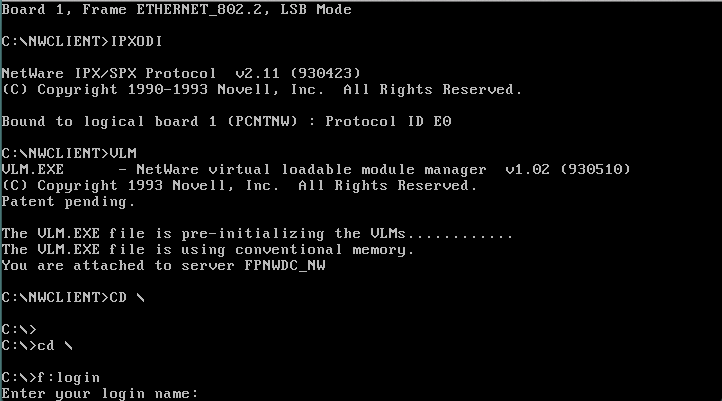
Screen Shot 2013-10-22 at 1.26.35 PM

Netware 3.12 client

As you can see, this MS-DOS client attached to the client vlan, can see and interoperate with the virtual NetWare server.

This pretty much covers the basics of getting IPX/SPX working.  Logically the next thing to do would be to configure routing and get IPX working throughout the WAN.  But I’m going to save that for a later time.

The more ‘advanced’ topics of IPX involve filtering, as it was a common problem in large networks where you could simply have too many servers, and they would be constantly talking among themselves.  Another problem is licensing, where some products are licensed in certain areas, and you want those licenses to stay in a geographic area.  Latency was another issue too, it was insane to say use a SNA server in Japan, to talk to a mainframe in Arizona when you were in Arizona.  Or if you had a 3rd party, and you only wanted them to connect to a print server, and a single file server, you would setup access-lists on your peer router, much in the same way that we setup firewalls in this fine modern age 😉

Qemu 1.6.1 released!

As always, the source code is here.

New updates from the changelog:


This release contains 48 build/bug fixes, including an
important security fix for CVE-2013-4344 involving SCSI disk
emulation:

  http://www.openwall.com/lists/oss-security/2013/10/02/2

Fixed by:

  scsi: Allocate SCSITargetReq r->buf dynamically

Thank you to everyone involved!

62ecc3a: Update VERSION for 1.6.1 release (Michael Roth)
fdcbe7d: scsi: Allocate SCSITargetReq r->buf dynamically (Asias He)
1b5f770: qemu: Add qemu xen logic for Xen HVM S3 resume (Liu, Jinsong)
bc05a48: qemu: Adjust qemu wakeup (Liu, Jinsong)
ba20326: coroutine: add ./configure --disable-coroutine-pool (Stefan Hajnoczi)
ae00a27: piix4: disable io on reset (Michael S. Tsirkin)
61fbeb6: vmdk: fix cluster size check for flat extents (Fam Zheng)
fc06b43: rbd: avoid qemu_rbd_snap_list() memory leaks (Stefan Hajnoczi)
6bbb9d8: tap: Use numbered tap/tun devices on all *BSD OS's (Brad Smith)
b314120: iov: avoid "orig_len may be used unitialized" warning (Michael Tokarev)
dc6fbaa: xhci: emulate intr endpoint intervals correctly (Gerd Hoffmann)
c8adc0d: virtio-blk: do not relay a previous driver's WCE configuration to the 
current (Paolo Bonzini)
aeab582: blockdev: do not default cache.no-flush to true (Paolo Bonzini)
5c20c1f: tci: Fix qemu-alpha on 32 bit hosts (wrong assertions) (Stefan Weil)
5d2de77: kvmvapic: Clear also physical ROM address when entering INACTIVE state 
(Jan Kiszka)
7ea8a3c: kvmvapic: Enter inactive state on hardware reset (Jan Kiszka)
50b31e8: kvmvapic: Catch invalid ROM size (Jan Kiszka)
4b5b472: chardev: fix pty_chr_timer (Gerd Hoffmann)
76f6989: pcnet-pci: mark I/O and MMIO as LITTLE_ENDIAN (Aurelien Jarno)
8b4b3a7: qapi-types.py: Fix enum struct sizes on i686 (Cole Robinson)
41900b0: pc_q35: Initialize Xen. (Anthony PERARD)
755ec4c: pc: Initializing ram_memory under Xen. (Anthony PERARD)
dc0973b: qxl: fix local renderer (Gerd Hoffmann)
b6d163f: ehci: save device pointer in EHCIState (Gerd Hoffmann)
a1991d0: ne2000: mark I/O as LITTLE_ENDIAN (Aurelien Jarno)
1110014: exec: check offset_within_address_space for register subpage (Hu Tao)
2a93d3d: Revert "memory: Return -1 again on reads from unsigned regions" (Jan 
Kiszka)
7ab1044: memory: Provide separate handling of unassigned io ports accesses (Jan 
Kiszka)
e8601a4: w32: Fix access to host devices (regression) (Stefan Weil)
96b14d0: usb: parallelize usb3 streams (Gerd Hoffmann)
9dbfbb8: xhci: reset port when disabling slot (Gerd Hoffmann)
57ea2d2: exec: always use MADV_DONTFORK (Andrea Arcangeli)
1cd7138: virtio_pci: fix level interrupts with irqfd (Michael S. Tsirkin)
9fab8e1: exec: fix writing to MMIO area with non-power-of-two length (Paolo 
Bonzini)
2ffbe03: adlib: sort offsets in portio registration (Hervé Poussineau)
f9fd82e: target-i386: fix disassembly with PAE=1, PG=0 (Paolo Bonzini)
da4e203: block: expect errors from bdrv_co_is_allocated (Paolo Bonzini)
c09a463: Revert "usb-hub: report status changes only once" (Gerd Hoffmann)
c0a5eb8: xhci: fix endpoint interval calculation (Gerd Hoffmann)
358bb0d: virtio: virtqueue_get_avail_bytes: fix desc_pa when loop over the 
indirect descriptor table (yinyin)
3fe494e: pseries: Fix stalls on hypervisor virtual console (Anton Blanchard)
a73c74f: pc: fix regression for 64 bit PCI memory (Michael S. Tsirkin)
964e0d4: scsi: Fix scsi_bus_legacy_add_drive() scsi-generic with serial (Markus 
Armbruster)
11b0ab7: usb/dev-hid: Modified usb-tablet category from Misc to Input (Marcel 
Apfelbaum)
d6dcfd6: scripts/qapi.py: Avoid syntax not supported by Python 2.4 (Peter 
Maydell)
2607906: rdma: silly ipv6 bugfix (Michael R. Hines)
52f99b0: target-ppc: fix bit extraction for FPBF and FPL (Aurelien Jarno)
c0c080c: gdbstub: Fix gdb_register_coprocessor() register counting (Andreas 
Färber)
670599a: block: ensure bdrv_drain_all() works during bdrv_delete() (Stefan 
Hajnoczi)

I have not done a build as of yet.

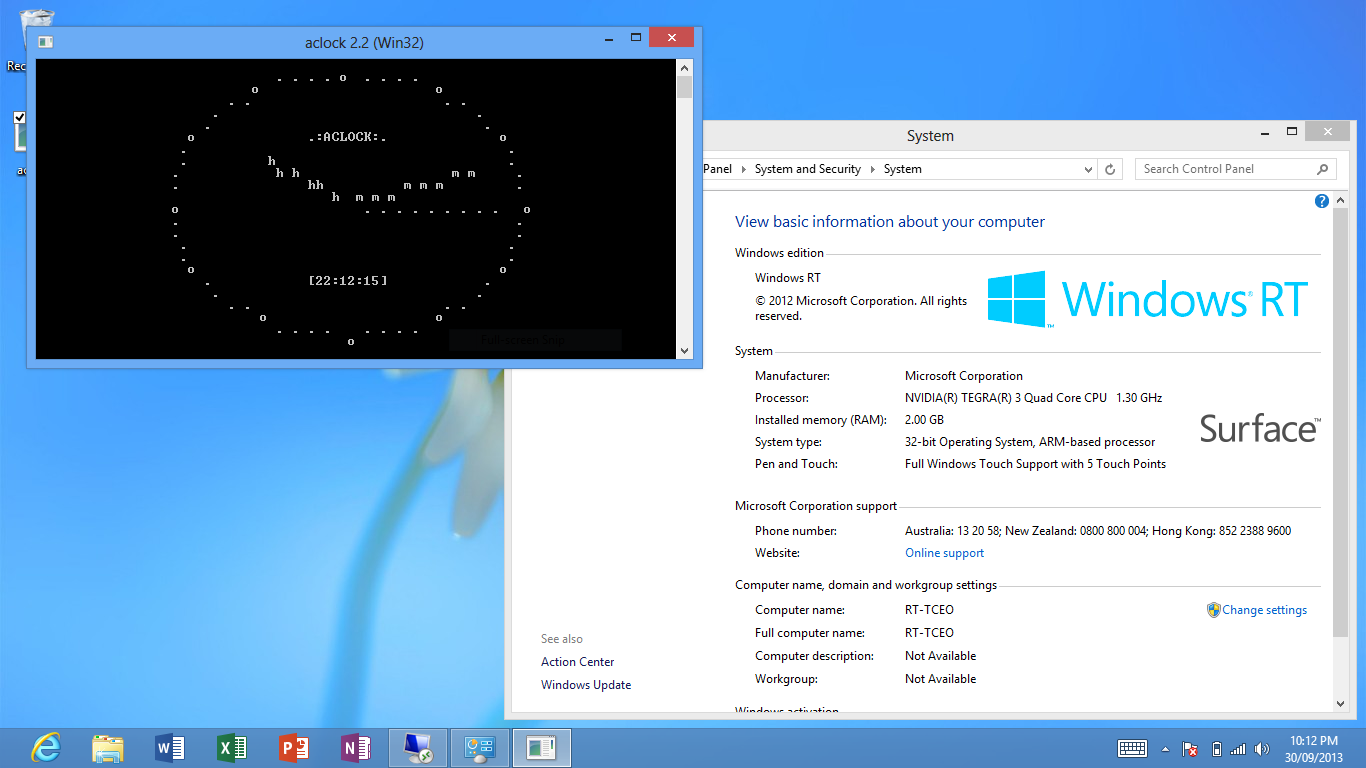
Aclock Reaches #200 Ports!

(this is a guest post from Tenox)

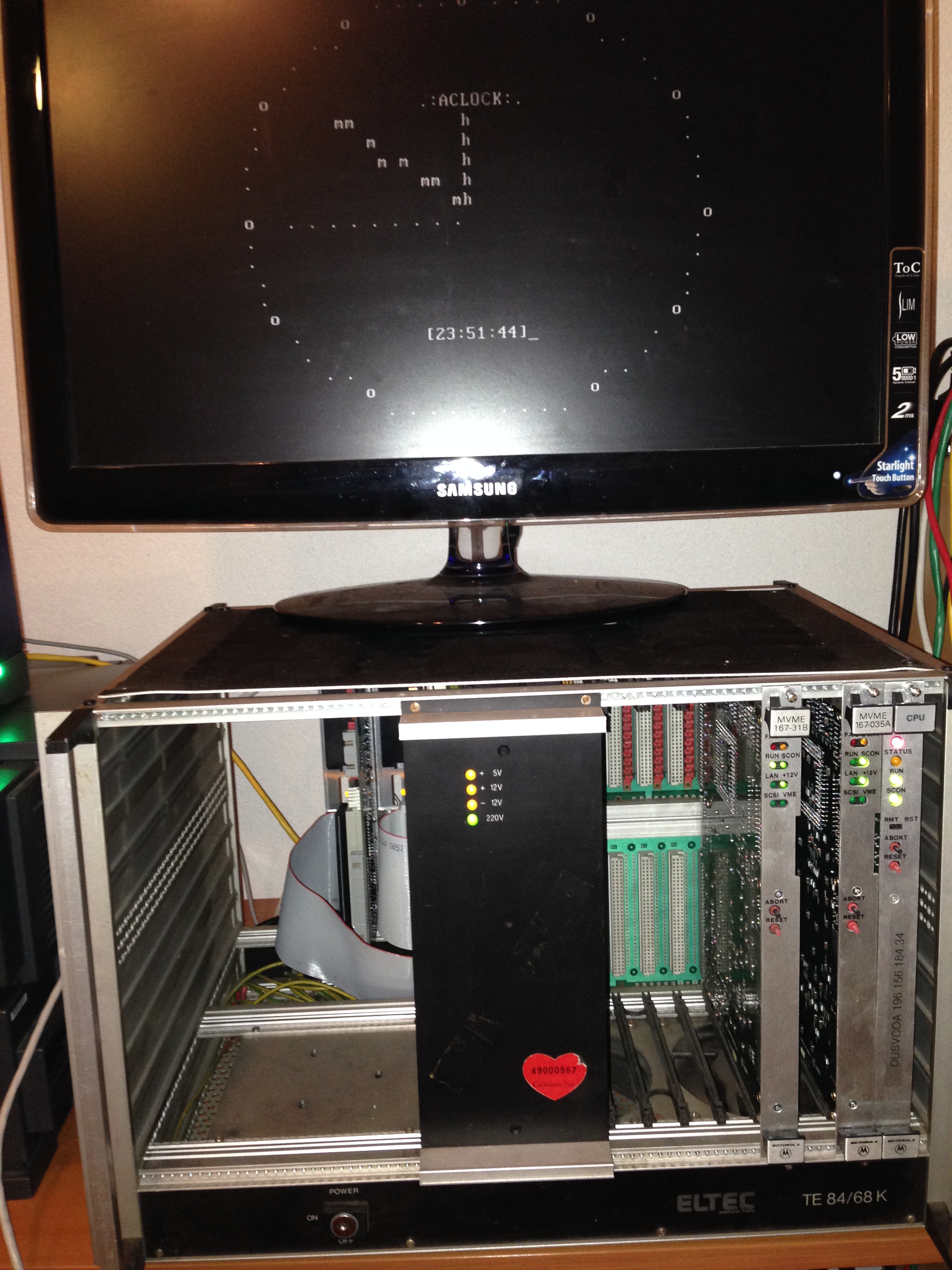
aclock-arm#197 – Aclock ARM Windows RT by Peter Godwin

IMG_1880#198 – Alock M68K LynxOS by Plamen Mihaylov

aclock-demos#199 – Aclock PDP11 DEMOS by Dima Naumov

And long long long awaited…

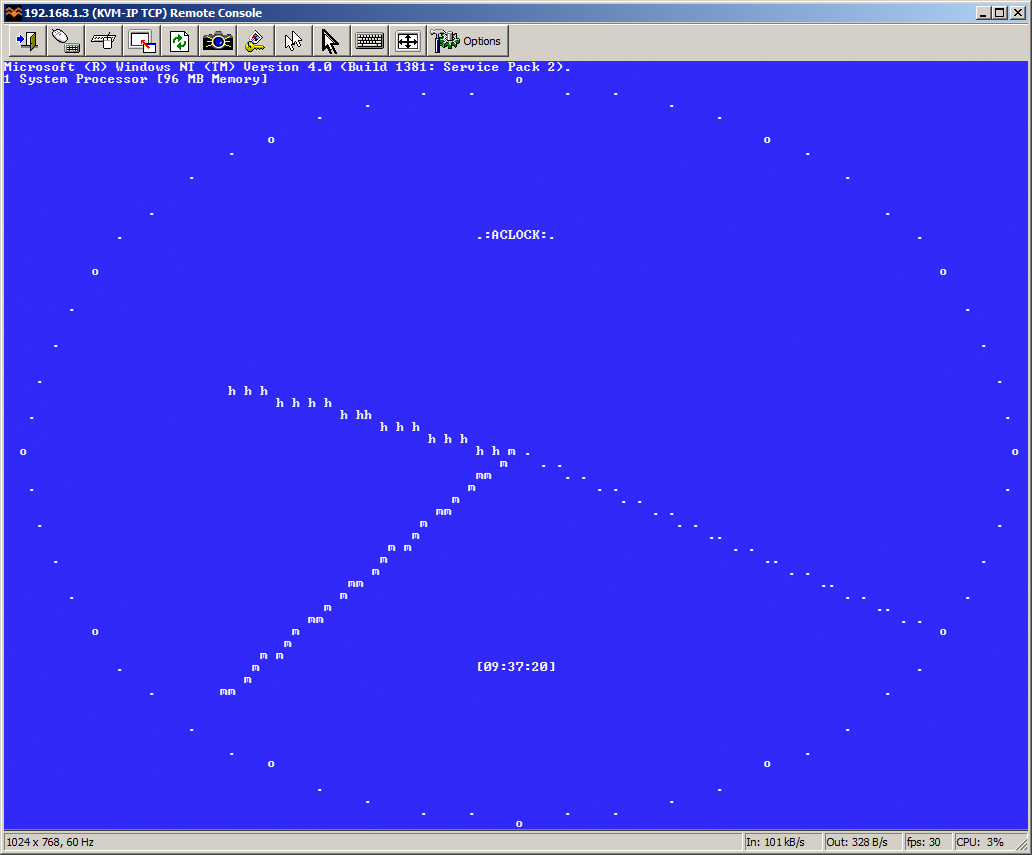
aclock-ppc-nthal#200 Aclock PowerPC WindowsNT HAL Driver by myself

No cheating with numbers! Compiled and ran today on my ThinkPad 860. Just realized it’s #200. I think celebration with BSOD is in order! The screenshot was made using IP KVM. I will make an actual photo of the laptop screen another day.

Again thanks for everyone for contributions!

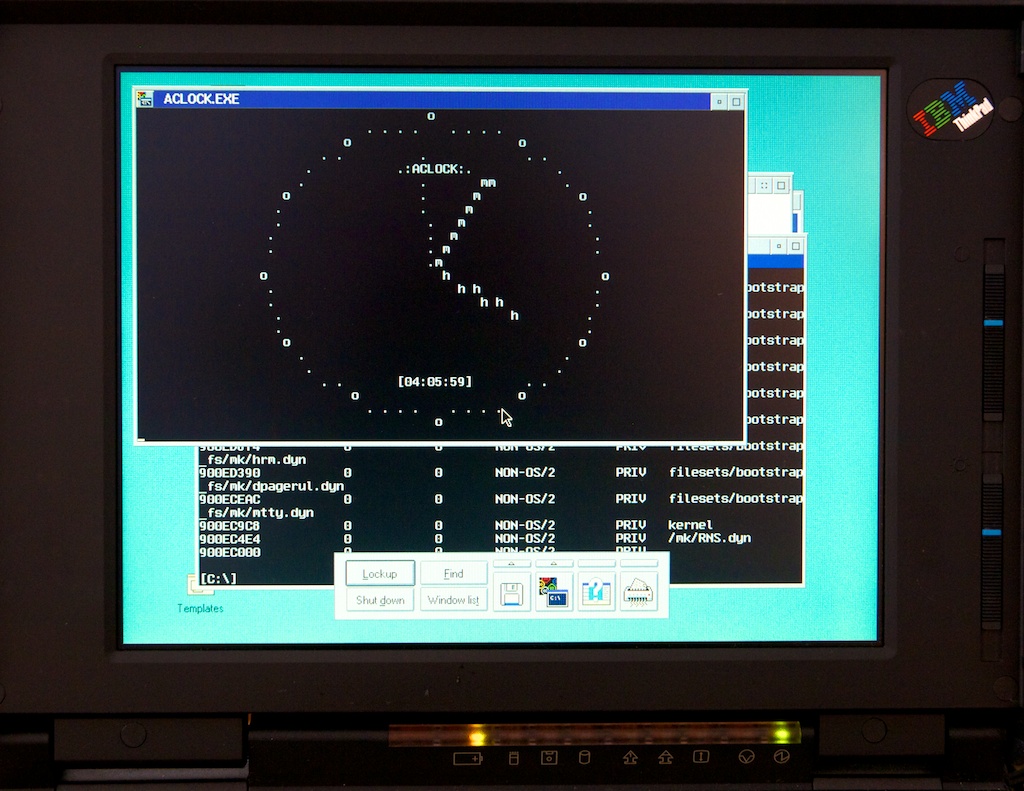
Last but not least there is a screenshot of previously cross compiled Aclock PowerPC OS/2 running on ThinkPad 850. Both the port and picture are courtesy of Michal Necasek of OS/2 Museum. Hope he won’t kill me for leaking the photo:

Aclock PPC OS/2

Adding some substance to my example network

So thanks to fakenamegenerator.com I thought I should add some people and setup various workstations around my fake network. With that said, here is my list:

name user id country PC
Hazel B. Forrest hforrest USA MS-DOS
James M. White jwhite USA Windows 3.1
Russell I. Ward rward USA
Valerie H. Shimp vshimp USA
Vera H. Williams vwilliams USA
Marie J. Brown mbrown UK Windows 95
Jason S. Seymore jseymore UK
Mingmei Hao mhao HK OS/2 1.21
Guang Huang ghuang HK
Wit Pawlak wpawlak PL WindowsNT 4.0
Fabio Napolitani fnapolitani IT

Which is enough to get me started in creating some users.

For starters I thought it would be fun to make up some applications the users can ‘use’ on this fine network.  A mainframe is a must, however Hercules doesn’t emulate SNA networks.  Which is kind of sad.  I did find an evaluation copy of Microsoft SNA Server 2.11 which runs great on NT 3.5 and higher.  However it is limited to two sessions, but to be honest back when I used a mainframe for work, Microsoft SNA server was honestly the best thing out there.  I had a NT 4.0 / SNA 2.11 install that had uptime in YEARS, while the later SNA 3.0, 4.0 and HIS stuff constantly had issues.

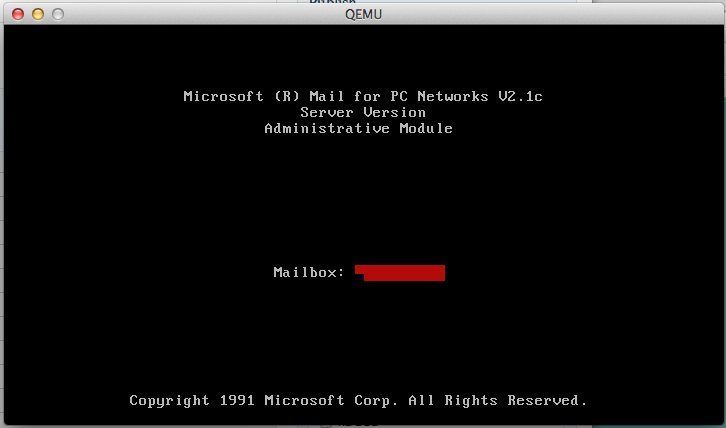
For email, I thought I’d go with something positively ancient, Microsoft Mail 2.1c.

Microsoft Mail

Microsoft Mail

Back then, email programs were just flat databases that allowed multiple people to read/write/lock files over a network. It is very reminisce of how BBS multiuser doors & databases work. MS Mail 2.1 includes clients for MS-DOS, Windows 3.X while the later 3.5 version included an OS/2 client that used the WLO libraries, which was a port of Windows 3.0 to run on top of OS/2.  I kind of covered this thing back here, although it was mostly geared to version 3.5, it basically is the same thing.

I’ve been using a Windows NT 4.0 server loaded up with the FPNW, so it looks like a NetWare server.  Although Netware 3.12 runs on Qemu 0.90, it is lacking UDP bridge support to communicate with dynagen/dynamips.  I did find out that VirtualBOX does support the UDP bridge, and will even run Netware 3.12, HOWEVER, after transferring a few megabytes, the server will stop responding, and dynamips will crash.  Not a very satisfactory solution.  So until I get around to backporting the UDP code, this NT server will serve as my virtual ‘Netware’ server for the time being.

I was also going to run SQL Server 4.21a on WindowsNT, however I did come across SQL Server for OS/2, so I will be installing an OS/2 machine complete with Lan Manager, and SQL Server.  The only downside is that LanManager relies on the non-routable NetBEUI protocol.  However it is just as awkward as bridging mainframe traffic, so I guess that is a hidden plus. While a program to talk to the database outside of the old isql stuff would be nice, I suspect that doing anything beyond Visual Basic + ODBC would take too much time, and honestly not really be all that worth it.

Also looking at this fine program, Stomper, which lets your share a modem over a network, I thought it would be fun to try in combination with rlfossil for some BBSing adventures.  Back before the internet was open to commercial ISPs it wasn’t uncommon for corporations to pool modems over a LAN.  Remote access was typically handled with specialized hardware appliances like the Shiva LanRover. As far as I know, the only real dialup server that Microsoft had was incorporated with Windows NT 3.5.

Once I get this networking operating correctly, then I’ll start to add things like redundancy via HSRP in my core site, backup network connections, an internet connection, upgrade to an exchange server, some BGP peering, and a VPN server.

Just like the real world!

Configuring TCP/IP

Cisco routers are born to do TCP/IP.  And looking at the networking world today, it is pretty safe to say that you will be on a TCP/IP network.  Luckily configuring TCP/IP on the router is pretty easy.  IP addresses are assigned per interface, as a typical router will have many ip addresses.

As always it does help to have a ‘plan’ for what ip addresses will go where in your network.

I’m using the network that I described earlier, here.

From my corertr1 router I’m going to setup 3 networks, a server network, a user network, and finally a network to connect to my WAN router.  The IP networks that I’m going to use are the following:

WAN 138.1.0.0/24
SERVER 138.1.1.0/24
USER 138.1.10.0/24

The first thing I want to do is examine the existing configuration of the FastEthernet 0/0 port which will be my ‘wan’ network port.

corertr1#sho run int fa0/0
Building configuration…

Current configuration : 83 bytes
!
interface FastEthernet0/0
no ip address
shutdown
duplex auto
speed auto
end

As you can see it is shut down, and has no ip address assigned.  We can also check the ethernet’s status with a show interface fa0/0

corertr1#sho interfaces fastEthernet 0/0
FastEthernet0/0 is administratively down, line protocol is down
Hardware is i82543 (Livengood), address is ca00.383b.0008 (bia ca00.383b.0008)
MTU 1500 bytes, BW 100000 Kbit, DLY 100 usec,
reliability 255/255, txload 1/255, rxload 1/255
Encapsulation ARPA, loopback not set
Keepalive set (10 sec)
Full-duplex, 100Mb/s, 100BaseTX/FX
ARP type: ARPA, ARP Timeout 04:00:00
Last input 00:02:30, output 00:01:40, output hang never
Last clearing of “show interface” counters 00:00:01
Input queue: 0/75/0/0 (size/max/drops/flushes); Total output drops: 0
Queueing strategy: fifo
Output queue: 0/40 (size/max)
5 minute input rate 0 bits/sec, 0 packets/sec
5 minute output rate 0 bits/sec, 0 packets/sec
0 packets input, 0 bytes
Received 0 broadcasts, 0 runts, 0 giants, 0 throttles
0 input errors, 0 CRC, 0 frame, 0 overrun, 0 ignored
0 watchdog
0 input packets with dribble condition detected
0 packets output, 0 bytes, 0 underruns
0 output errors, 0 collisions, 0 interface resets
0 babbles, 0 late collision, 0 deferred
0 lost carrier, 0 no carrier
0 output buffer failures, 0 output buffers swapped out

The important part here is this line:

FastEthernet0/0 is administratively down, line protocol is down

First the interface is ‘administratively down’ meaning that it is configured this way. In cisco speak this interface is ‘down, down’. This is different from a ‘up/down’ interface that is configured to be ‘up’ or operational, but is not working.  That will appear like this:

FastEthernet0/0 is administratively up, line protocol is down

Which indicates that there is a hardware problem.

The first thing we are going to do is turn the interface ‘on’.

corertr1#config t
Enter configuration commands, one per line. End with CNTL/Z.
corertr1(config)#interface fastEthernet 0/0
corertr1(config-if)#no shut
corertr1(config-if)#exit
corertr1(config)#exit
corertr1#
16:41:01: %LINK-3-UPDOWN: Interface FastEthernet0/0, changed state to up
16:41:01: %SYS-5-CONFIG_I: Configured from console by console
16:41:02: %LINEPROTO-5-UPDOWN: Line protocol on Interface FastEthernet0/0, changed state to up
corertr1#

Notice that when we type in “interface fastEthernet 0/0” the prompt changes to (config-if) meaning that we are now configuring an interface.  Type in the question mark, and you can see all the possible options you have on this interface.  The physical interface is where you select things like speed, duplex, line encapsulation.  If the interface doesn’t have any ‘virtual’ members like 802.1Q, or frame relay as a few examples, you can put an ip address on the interface.  Also take note that when I typed in the first ‘exit’ the prompt changed back to (config) meaning we are no longer configuring the fastEthernet 0/0 interface.  The next exit then takes us out of the config mode all together.

The next thing that happens is that the router turns the interface on, and then generates a syslog event which is followed by a console message letting us know that that fastEthernet interface is now operational as its state is now up.

Now I’m going to go back into the configuration mode, and setup the IP address

corertr1#config t
Enter configuration commands, one per line. End with CNTL/Z.
corertr1(config)#interface fastEthernet 0/0
corertr1(config-if)# description WAN network
corertr1(config-if)# ip address 138.1.0.5 255.255.255.0
corertr1(config-if)#exit
corertr1(config)#exit
corertr1#

Notice that I also set a description on the interface.  This makes it easier to remember what goes where.  Always if possible put in descriptions! Now if we check the interface configuration we will now see:

corertr1#sho run interface fastEthernet 0/0
Building configuration…

Current configuration : 119 bytes
!
interface FastEthernet0/0
description WAN network
ip address 138.1.0.5 255.255.255.0
duplex auto
speed auto
end

Which looks fine.

Another GREAT feature of the cisco routers is the CDP protocol, or cisco discovery protocol.  CDP will broadcast on every interface a special packet that other cisco devices will pick up on, to let you know that who/what you are plugged into.  To take a look simply run the command show cdp neigh

corertr1#sho cdp neigh
Capability Codes: R – Router, T – Trans Bridge, B – Source Route Bridge
S – Switch, H – Host, I – IGMP, r – Repeater

Device ID Local Intrfce Holdtme Capability Platform Port ID
corewan1 Fas 0/0 134 R 7206VXR Fas 0/0

This tells us that our Fast ethernet 0/0 is connected to a 7206VXR called corewan1 on it’s Fast ethernet 0/0.  You can get even more information with the command ‘show cdp neighbors detail’

corertr1#show cdp neighbors detail
————————-
Device ID: corewan1
Entry address(es):
Platform: cisco 7206VXR, Capabilities: Router
Interface: FastEthernet0/0, Port ID (outgoing port): FastEthernet0/0
Holdtime : 129 sec

Version :
Cisco Internetwork Operating System Software
IOS ™ 7200 Software (C7200-JS-M), Version 12.2(31), RELEASE SOFTWARE (fc2)
Technical Support: http://www.cisco.com/techsupport
Copyright (c) 1986-2005 by cisco Systems, Inc.
Compiled Thu 11-Aug-05 15:57 by tinhuang

advertisement version: 2
Duplex: full

As you can see this even tells us what version of software our neighbour is running. Sometimes you don’t want to tell people (like 3rd parties) what you are running so you can turn off CDP on the router, or just the interface that is connected to the 3rd party.

So with our first interface configured, I’m going to go and setup the rest of my interfaces, then I’m going to show an overview with the ‘sho ip interface brief’ command like this:

corertr1#sho ip interface brief
Interface IP-Address OK? Method Status Protocol
FastEthernet0/0 138.1.0.5 YES manual up up
FastEthernet0/1 unassigned YES NVRAM administratively down down
Ethernet1/0 138.1.1.1 YES NVRAM up up
Ethernet1/1 138.1.10.1 YES NVRAM up up
Ethernet1/2 unassigned YES NVRAM administratively down down
Ethernet1/3 unassigned YES NVRAM administratively down down
Ethernet1/4 unassigned YES NVRAM administratively down down
Ethernet1/5 unassigned YES NVRAM administratively down down
Ethernet1/6 unassigned YES NVRAM administratively down down
Ethernet1/7 unassigned YES NVRAM administratively down down

As you see this shows the interfaces that are capable of having an ip address, and which ones do have an ip address.  Now let’s configure the ‘WAN’ router with an IP address so we can do a ping. From dynagen bring up the corewan1 console:

=> console corewan1

You will probably want to setup the router much like how we did in the prior page.

corewan1#config t
Enter configuration commands, one per line. End with CNTL/Z.
corewan1(config)#int fa0/0
corewan1(config-if)#desc WAN network
corewan1(config-if)#ip address 138.1.0.6 255.255.255.0
corewan1(config-if)#exit
corewan1(config)#exit

Notice that I gave it .6 not .5 as that would be a duplicate ip address!  CDP updates every 60 seconds by default, so after a minute this is what we now see from corertr1:

corertr1#show cdp neighbors detail
————————-
Device ID: corewan1
Entry address(es):
IP address: 138.1.0.6
Platform: cisco 7206VXR, Capabilities: Router
Interface: FastEthernet0/0, Port ID (outgoing port): FastEthernet0/0
Holdtime : 124 sec

Version :
Cisco Internetwork Operating System Software
IOS ™ 7200 Software (C7200-JS-M), Version 12.2(31), RELEASE SOFTWARE (fc2)
Technical Support: http://www.cisco.com/techsupport
Copyright (c) 1986-2005 by cisco Systems, Inc.
Compiled Thu 11-Aug-05 15:57 by tinhuang

advertisement version: 2
Duplex: full

Notice we now see the peer ip addres!  Now we can ping.

corertr1#ping 138.1.0.6

Type escape sequence to abort.
Sending 5, 100-byte ICMP Echos to 138.1.0.6, timeout is 2 seconds:
!!!!!
Success rate is 100 percent (5/5), round-trip min/avg/max = 20/21/24 ms

Although it may not be important now, but ping has an incredible featureset on cisco routers.  Simply type in ping this time, and be amazed.  Google will lead you to what all these options mean for now, but just be aware this is one of the reason people buy cisco routers.

corertr1#ping
Protocol [ip]:
Target IP address: 138.1.0.6
Repeat count [5]:
Datagram size [100]: 1000
Timeout in seconds [2]: 3
Extended commands [n]: y
Source address or interface: 138.1.0.5
Type of service [0]:
Set DF bit in IP header? [no]: y
Validate reply data? [no]: y
Data pattern [0xABCD]:
Loose, Strict, Record, Timestamp, Verbose[none]:
Sweep range of sizes [n]: y
Sweep min size [36]: 500
Sweep max size [18024]: 600
Sweep interval [1]:
Type escape sequence to abort.
Sending 505, [500..600]-byte ICMP Echos to 138.1.0.6, timeout is 3 seconds:
Packet sent with a source address of 138.1.0.5
Packet sent with the DF bit set
Reply data will be validated
!!!!!!!!!!!!!!!!!!!!!!!!!!!!!!!!!!!!!!!!!!!!!!!!!!!!!!!!!!!!!!!!!!!!!!
!!!!!!!!!!!!!!!!!!!!!!!!!!!!!!!!!!!!!!!!!!!!!!!!!!!!!!!!!!!!!!!!!!!!!!
!!!!!!!!!!!!!!!!!!!!!!!!!!!!!!!!!!!!!!!!!!!!!!!!!!!!!!!!!!!!!!!!!!!!!!
!!!!!!!!!!!!!!!!!!!!!!!!!!!!!!!!!!!!!!!!!!!!!!!!!!!!!!!!!!!!!!!!!!!!!!
!!!!!!!!!!!!!!!!!!!!!!!!!!!!!!!!!!!!!!!!!!!!!!!!!!!!!!!!!!!!!!!!!!!!!!
!!!!!!!!!!!!!!!!!!!!!!!!!!!!!!!!!!!!!!!!!!!!!!!!!!!!!!!!!!!!!!!!!!!!!!
!!!!!!!!!!!!!!!!!!!!!!!!!!!!!!!!!!!!!!!!!!!!!!!!!!!!!!!!!!!!!!!!!!!!!!
!!!!!!!!!!!!!!!
Success rate is 100 percent (505/505), round-trip min/avg/max = 16/21/44 ms
corertr1#

Now that we can ping, we can even telnet to the wan router from the core router.

corertr1#138.1.0.6
Trying 138.1.0.6 … Open

|\ _,,,—,,_
/,`.-‘`’ -. ;-;;,_
|,4- ) )-,_..;\ ( `’-‘
‘—”(_/–‘ `-‘\_) Welcome to the corewan1

Authorized users ONLY!!!!

User Access Verification

Password:

We can even check to see who is ‘on’ the router with the who command.

corewan1>who
Line User Host(s) Idle Location
0 con 0 idle 00:00:17
* 2 vty 0 idle 00:00:00 138.1.0.5

Interface User Mode Idle Peer Address

corewan1>q

Wasn’t that simple?

Physical network topologies

This is part of my on going thing about cisco networking.

I guess I can go on about various serial port standards from the good old fashioned RS-232, and V.35.  Not to mention things like T1/E1/J1’s with HDLC, Frame relay, Ethernet, TokenRing, ATM….


And of course various virtual technologies like VPN’s, and tunnelling.


So for now, my placeholder will just contain one little gem of wisdom about V35 cables.

A bunch of V35 cables

A bunch of V35 cables

When you are connecting V35’s remember to slowly screw them in, and try to screw both screws in at the same time, or a little bit on each side.  If you try to screw one side in all at once, you could break the screw, or worse it’ll help you strip the other screw trying to go in as it’ll be all lopsided.


Frame Relay

Frame relay is a great ‘slow’ networking cloud solution from back in the day.  For people who were going to deploy global WAN solutions that were going to be sub T1/E1 speeds, frame relay was the way to go.  You would simply get a T1 port installed in each of the sites, then the provider will then create PVC’s from each of the sites.  What is great is you can (theoretically) quickly provision new sites, and change service classes as needed.  Sadly for frame relay it is hampered by the port speed being only a T1/E1, limiting it to 1.5MB/2MB.  But heck it is from the mid 1980’s, so what do you expect?

Configuration

On the Dynamips / Dynagen simulation configuring frame relay is pretty simple.  The Frame Relay switch is already configured in my example here:

[FRSW F1]]
1:102 = 2:201
1:103 = 3:301

Which just specifies that on my WAN router pvc 102 goes to pvc 201 in New York, and pvc 103 goes to pvc 301 in Hong Kong. For simplicity sakes, all the physical serial ports are S1/0. With this in mind, let us first configure the physical interfaces in all the routers.

So the first step is to set the encapsulation on the serial interface to frame-relay.  Then turn the interface on.

nycrtr1#config t

Enter configuration commands, one per line. End with CNTL/Z.
nycrtr1(config)#int s1/0
nycrtr1(config-if)#encapsulation frame-relay
nycrtr1(config-if)#no shut
nycrtr1(config-if)#^Z
nycrtr1#

Now we wait for the interface to transition.

nycrtr1#
00:18:43: %LINK-3-UPDOWN: Interface Serial1/0, changed state to up
00:18:54: %LINEPROTO-5-UPDOWN: Line protocol on Interface Serial1/0, changed state to up
nycrtr1#

Now we can check to see if the router see’s the PVC going to the core wan router.

nycrtr1#sho frame-relay pvc

PVC Statistics for interface Serial1/0 (Frame Relay DTE)

Active Inactive Deleted Static
Local 0 0 0 0
Switched 0 0 0 0
Unused 1 0 0 0

DLCI = 201, DLCI USAGE = UNUSED, PVC STATUS = ACTIVE, INTERFACE = Serial1/0

input pkts 0 output pkts 0 in bytes 0
out bytes 0 dropped pkts 0 in pkts dropped 0
out pkts dropped 0 out bytes dropped 0
in FECN pkts 0 in BECN pkts 0 out FECN pkts 0
out BECN pkts 0 in DE pkts 0 out DE pkts 0
out bcast pkts 0 out bcast bytes 0
switched pkts 0
Detailed packet drop counters:
no out intf 0 out intf down 0 no out PVC 0
in PVC down 0 out PVC down 0 pkt too big 0
shaping Q full 0 pkt above DE 0 policing drop 0
pvc create time 00:02:12, last time pvc status changed 00:02:02

Looks good!

Now lets configure the DLC on the frame relay sub interface

nycrtr1#config t
Enter configuration commands, one per line. End with CNTL/Z.

nycrtr1(config)#int s1/0.201 point-to-point
nycrtr1(config-subif)#frame-relay interface-dlci 201
nycrtr1(config-subif)#ip address 135.0.0.6 255.255.255.252
nycrtr1(config-subif)#^Z

nycrtr1#

Now for the ultimate test once the other side is configured.

corewan1#sho run int s1/0.102
Building configuration…

Current configuration : 140 bytes
!
interface Serial1/0.102 point-to-point
description NewYork
ip address 135.0.0.5 255.255.255.252
frame-relay interface-dlci 102
end

corewan1#ping 135.0.0.6

Type escape sequence to abort.
Sending 5, 100-byte ICMP Echos to 135.0.0.6, timeout is 2 seconds:
!!!!!
Success rate is 100 percent (5/5), round-trip min/avg/max = 20/20/24 ms
corewan1#

And there we go, our Frame relay is up!

ThinkPad 860 Saga – Part 1

(note this is a guest post from Tenox)

Not long ago I have managed to purchase a working ThinkPad 850. This was no small achievement because in last 15 years I only scored 2 dead ones, for parts. As luck strikes twice, merely a week after 850 I’ve acquired the ultra uber and ultimate laptop of all – RS/6000 Notebook 860. Err what?

860-1

Technically 860 is a ThinkPad. However it was marketed for the business / RISC users, as a laptopized  RS/6000 to run AIX, instead of oddball an ThinkPad with weirdo CPU that couldn’t even run Microsoft Office which was 850. In fact both the sales manual and product brochure do not even mention Windows NT or OS/2 at all. Smart move, but too little too late.

What are the differences? Most importantly compared to it’s younger brothers the laptop has a whooping 12″ display and massive resolution of 1024×768. This is actually not bad even in today’s standards, compared to my MacBook Air 11″. Having 860 and 850 aside the difference is massive.

tp

Secondly the CPU is much faster running at 166 MHz vs 100 MHz for TP850. While 66 MHz in today’s standards is nothing, the actual difference is more than 50%.

That’s the good side. But there is the bad and ugly.

The laptop arrived with a rather nasty looking memory error:

mem

I’ve tracked down the error in a support document, it translates to “Memory Error. Run memory tests”. So I did and memory passed just fine. What is going on?

test

So I’ve decided to ignore and try to install an OS. So happen I did have a handy Windows NT 4.0 CD and ARC floppy disk. I’ve went and installed ARC, but Windows NT wouldn’t boot and it was freezing during driver load. Nothing would help.

I have spent days trying to fix the problem. Tried replacing memory cards, running diagnostics, everything else. Because lower 32MB RAM is soldered on the motherboard I was just about to order a replacement one.

Then by a coincidence I’ve found this FAQ question … “ThinkPad 860 prompts for HAL diskette”, wait what? The answer has it – “860 support was planned for NT 4.0 PowerPC edition which never shipped. There is an unsupported HAL disk image here…”

Once HAL disk was loaded to Windows installer the system booted correctly. Note that the HAL disk also contains a video driver for the GT20 graphics card which is S3 M65 (86CM65):

1

It also turns out that once the hard disk was formatted and Windows NT was installed the memory error went away! Completely. I haven’t seen it since. I’m thinking it wasn’t a memory error but rather corrupted boot record or partition table.

Anyway here it is Windows NT 4.0 PowerPC:

3

I’m not going to go through Windows setup or ARC screens as they are covered elsewhere.

So the next step was to get the beast on to the net. Not an easy task to find a suitable NIC nowadays! Fortunately Windows NT CD has a HCL.HLP – Hardware Compatibility List. Browsing the help file I was able to filter out a handful of PCMCIA network cards with PowerPC support:

  • 3Com 3C589 Etherlink III PCMCIA Ethernet Adapter
  • 3Com 3C589C Etherlink III PCMCIA Ethernet Adapter
  • IBM PCMCIA Ethernet Adapter II
  • National Semiconductor InfoMover NE4100 PCMCIA Ethernet Adapter
  • NoteWorthy Ethernet PCMCIA Adapter II
  • Socket Communications Socket EA PCMCIA

The last two are actually NE2000 compatible and use a common NE2K driver. Remembering some issues with the card I decided to go for a 3C859C from ebay instead. Later on I’ve found that the only supported PCMCIA LAN cards under AIX 4.1 are, surprise – IBM PCMCIA Ethernet Adapters. So I’ve got one of them on ebay as well.

4

The 3Com card worked flawlessly out of the box. Showed up in the PCMCIA control panel, driver installed automatically and I’ve got in on DHCP.

From there it was rather easy. First thing one needs is latest service pack and hotfixes. Unzip and wsftp32 also come handy. And then there is the text editor!

Finding a working web browser was a challenge again. The default IE1 wouldn’t even support HTTP/1.1. Mosaic is not much better. Fortunately Internet Explorer 3.01 saved the day!

6

Apart from that there is almost zero software available for download for Windows NT PowerPC. The only larger utility collection is Windows NT 4.0 Resource Kit which surprisingly has full support for PPC. There are also Dependency Walker, Psychedelic Screensaver, Winimage, PkZip, etc. If you have more software please send! I’m also porting some more.

On the hardware side interestingly Cygnus Supply has a very large stock of replacement parts for these laptops. If you have a broken one you can try your luck there. You could probably assemble a full laptop from the parts. Don’t be put of by “request a quote”. I used them many times before and they usually come up with reasonable prices for the parts. Make sure to have an exact IBM P/N. Also you can buy a “brand new” replacement battery. For failing hard drives a 2.5″ SCSI disk may be a problem. You can by a CF card adapter here.

Last but not least I’ve collected some links to sites with TP 8×0 stuff:

In the next part I will cover MSVC, SDK, DDK and some porting efforts I’ve been doing…

Updates:

  • Ronald Gaudet sent me some useful software like Putty, Vim, Emacs!
  • Working to compile some more like Lynx, VNC, maybe even early Mozilla
  • The hard disk started giving up. I have ordered CF Powermonster II 2.5″ SCSI to CF converter!
  • Few high res screenshots made with IP KVM:

splashSplash screen…

easysetupEasy Setup…

firmwareSecret Firmware Prompt…