This isn’t terribly useful for 99.9% of the people out there but I needed to do something creative on an F5. Â Luckily they run a somewhat sane version of Linux.
Unfortunately I am stuck on Windows 10 right now, so installing a matching Linux distro is out of the question. Â So on my OS X box, I thought I’d just build a cross compiler. Â Going back to my DJGPP cross compiler, I thought I’d stick with binutils 2.9.1 and gcc 2.95.3, since they worked so well before.
Plus to flesh it out, you’ll want libc, libg++, and the appropriate Linux includes.  I took all of these from Slackware 3.3 since it’s from around that era.
So on the plus side this cross compiler + library set , will crank out static ELF executables, which makes running things on alien platforms all the better.
On the realistic side, I doubt anyone will need it, but here it is.
Clang didn’t want to build anything this old, but luckily that backported GCC-4.2 has no issues.
This pic was taken for an interview in 1994 while making DOOM II. Jay, Adrian, Bobby, Kevin, John, me in front.
This original DOOM II box cover was painted by Julie Bell. The Cyberdemon didn’t look right so we switched to BROM
Here are Adrian’s scans from his sketchbook for various screens, pre-pixel edit
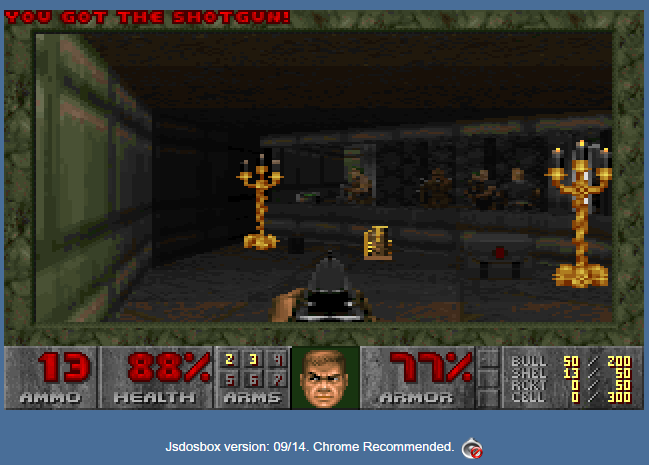
I would normally link to the jdsobox stuff so you can check out Doom in a browser, but Oracle has successfully screwed up Java so badly that it’s a nightmare to get any 3rd party applets to run.
I suppose as a consolation there is a javascript version of DOSBox, jsdosbox.
Ive always been a terrible player maybe getting 5 levels down max. Â It’s a complicated game that is for sure.
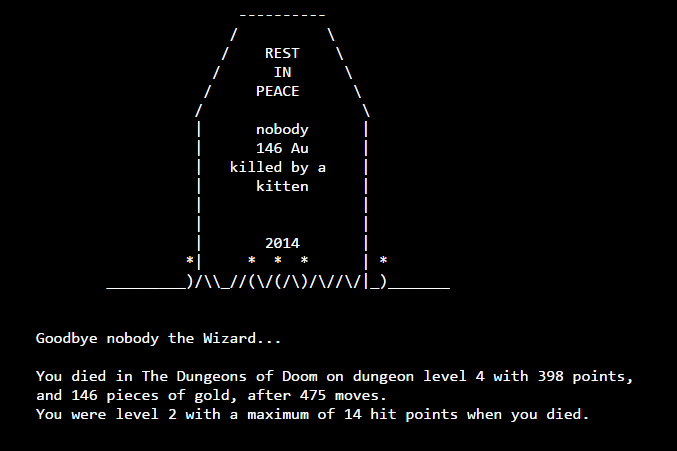
My typical luck in Nethack
So I thought with the shellinabox thing, I’d add in some gratuitous nethack. Â As always the nethack wiki is a good resource to get a better handle on what all the symbols mean, and what to do.
So I got this SPAM today.. Ebay now tracks if you’ve clicked on anything (even when not signed in) and will alert you (and the seller no doubt) that something is price reduced.
Ebay at it’s worst.
I was looking at some old setup, and I remembered back in the 80s I had an Okimate 10 printer. Â It was without a doubt the worst printer I’ve ever used. Â Not only was it god awfully slow, it required special ink cartridges that were almost impossible to find (and if you did they were very expensive) but to print properly it required special glossy paper.
The 10’s test page
And if you hit the wrong button on the printer, you’d get this fabulous test page. Over and over. Ugh. Â It banded a full Yellow/Magenta/Cyan stripe on every pass. Â If you got 10 pages out of a ribbon it was amazing. Â But on my nostalgic trip to remember how badly this printer sucked, I found a Virtual OkiMate 20! Â It’s a javascript program of all things, that’ll interpret the graphics output of an OkiMate 20 dump file.
Test file from an Amiga
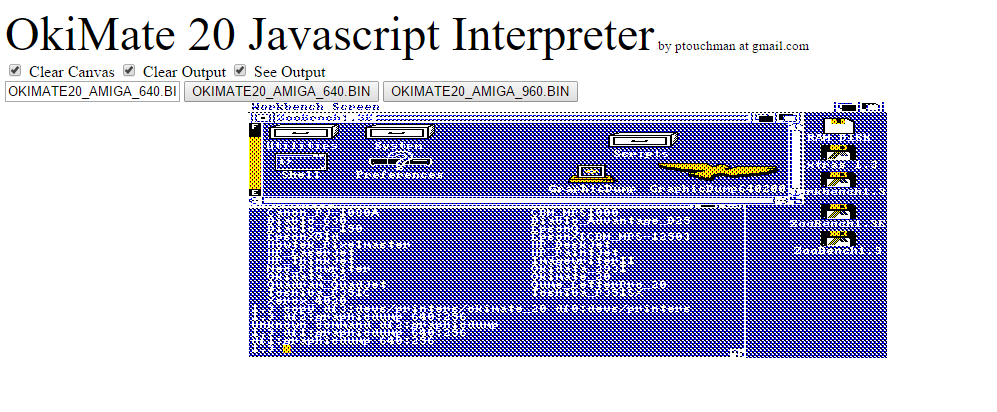
The test image is a picture from an Amiga Workbench. Â It’s immediately recognizable. Â But what is really cool, if you scroll down you’ll see something like this:
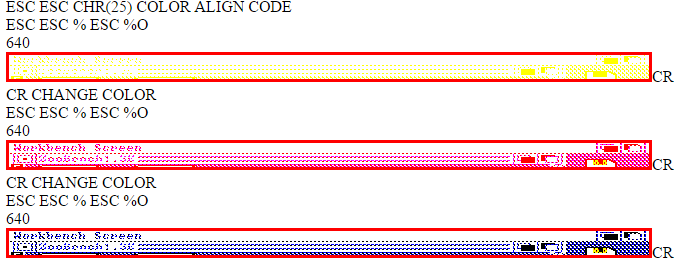
How the Oki works
And here you can see how the OkiMate 20 was busy devouring a colour band from it’s virtual cartridge.
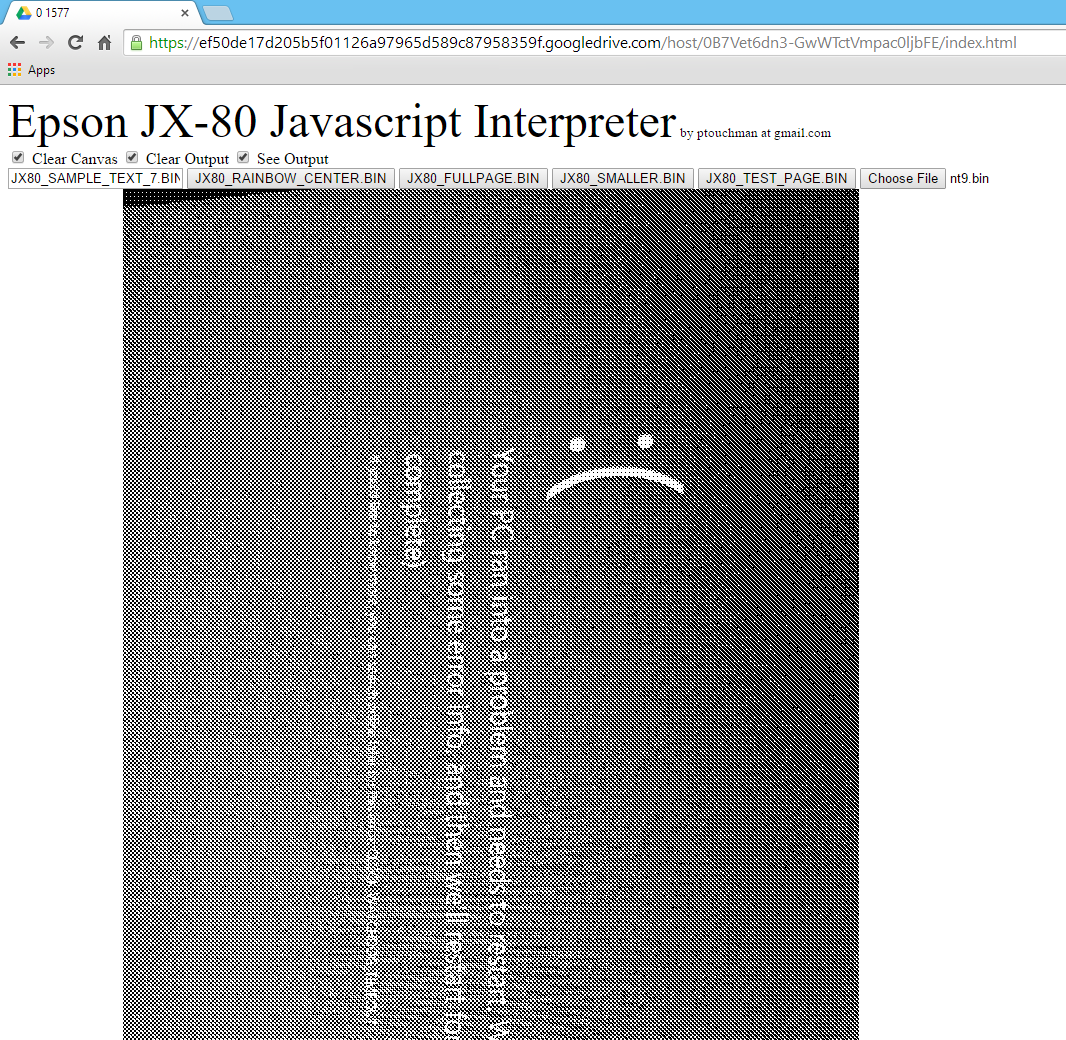
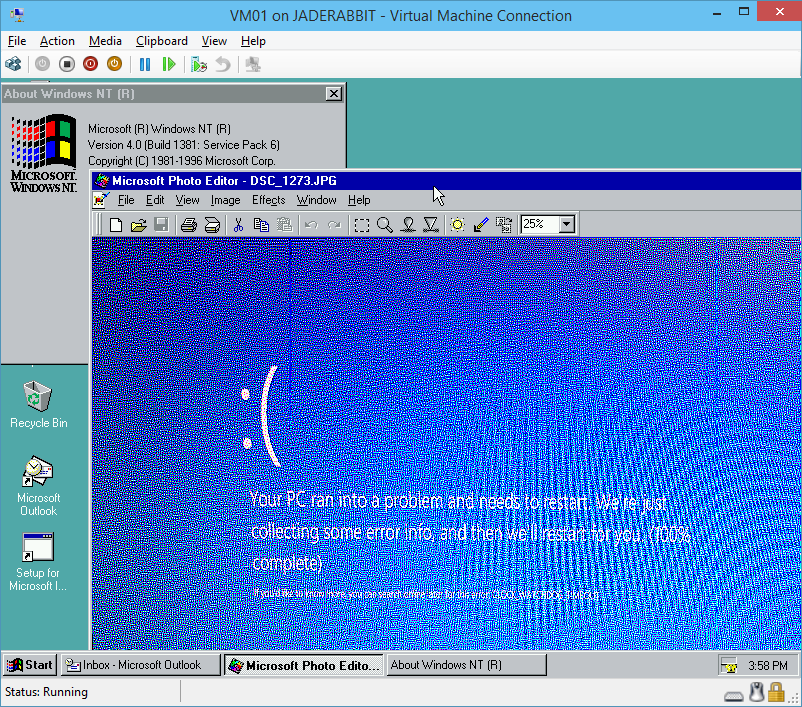
Peter has quite a few virtual printers on his blog, The one that caught my eye was the Epson JX-80. Â Windows NT supports that printer (probably many other OS’s but I was going to stick with something quick and easy). Â I took my 10 crash screen, and printed it out!
Printing from Windows NT 4.0 at 120×144
Pretty cool!
For some reason the printer emulator only is printing in monochrome, it’ll interpret the colour bands, but it doesn’t switch ink colours. Â I guess it automagically is doing that. Â Also I had to change the default Windows resolution of 144×240 to 144×120, to get it to print.
Of course if you wanted to the best thing to do is install an Apple Laser Write II printer, and have it output to a file, as they are PostScript printers. Â Then you can use ghostscript to convert your postscript file to a PDF, and print that email it, or remember what a pain write only devices are.
As an update you can download all of the printer emulators from the authors blog ptouchman.weebly.com
In this attempt to get NT 4.0 running on my machine, here is what I did. This holds true for 2008r2, and 2012 along with the Windows 10 preview.
old versions of Windows are not supported, but with a little bit of fun from PowerShell you can get them to work.
First make sure you run PowerShell as Administrator!
PS C:\WINDOWS\system32> get-vm
Name State CPUUsage(%) MemoryAssigned(M) Uptime Status —- —– ———– —————– —— —— NT40Â Off 0 0 00:00:00Â Operating normally Windows 2000(wks) Off 0 0 00:00:00 Operating normally
As you can see here I have two virtual machines. Â Both of them are ‘off’ since there is no memory assigned, nor is there any uptime. Â It’s weird to me how they are “Operating normally’ since they aren’t running but I guess that’s a feature. Â Make sure the VMs are powered off before trying to do this.
Restricting the CPU capabilities was the checkbox to enable in the first version of Hyper-V. Â Now it’s hidden from the user, so you need to enable this in Power Shell.
NT 4.0 Service Pack 6 on Hyper-V / Windows 10 Technical Preview 9879
Now for the networking part, remember to remove the existing network adapter, and add the ‘legacy’ network adapter. Â On my PC there was an additional snag, which is that every time a VM reboots, or is powered on the legacy adapter will receive NO packets. Â Go into the Hyper-V console, and disconnect the legacy adapter, and reconnect it, and network traffic will flow.
And additional note on installing Windows 2000. Â You *MUST* change the HAL uppon instalation. Â By default it’ll detect an ACPI system, but the driver ACPI.SYS will bluescreen the VM. Â Hit F5 when it prompts about storage adapters, and select the ‘STANDARD PC’ HAL from the list.
As much as I’ve been enjoying 10, there is one issue, which is that I use a lot of VMs. And I didn’t notice this until it was time to run updates on the Windows & Linux VMs.
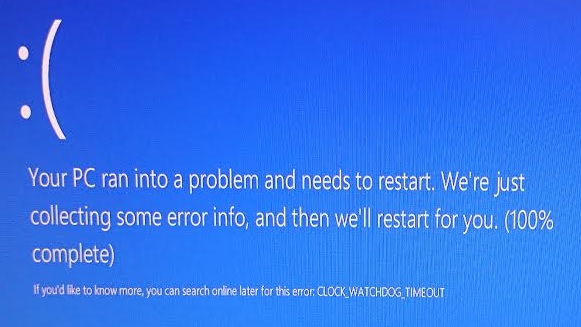
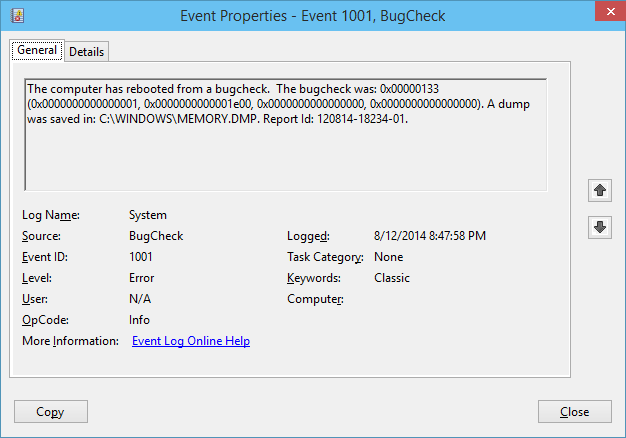
As they went to reboot the system locked up hard. Event viewer gave me this…
Event 1001, BugCheck
I tried updating one VM at a time… crash, updated my BIOS for the heck of it, crash. Downgraded from Player 7 to 6.0.1 and crash. crash crash crash!
So I had to look to the user forums where more people seem to be greiving for their Pentium 3’s with 256MB of ram. This issue was effects both Workstation & Player, as they have the same core tech. Since I’m cheap this hits Player 6 & 7. I saw this buried at the bottom of the Workstation 11 release notes (workstation & player have the same core)
Shutting down a virtual machine on a host running Windows 10 Tech Preview can cause a blue screen.
If you have Workstation installed on a host that runs Windows 10 Tech Preview, occasionally when you shut down the guest operating system in a virtual machine, the host computer might restart unexpectedly. In this case, you see the following error code on a blue screen: DPC_WATCHDOG_VIOLATION. This issue can sometimes also occur with power-off and suspend operations.
Workaround: If a newer build of Windows 10 Tech Preview is available, try updating to the newest version.
Fantastic.
Unfortunately, a new full build isn’t expected until after the first of the year.
One crazy thing I’ve found is that MS-DOS & Novel Netware 3.12 work fine. You can reboot/turn off/pause them without any issues. But if you think about installing NT/2000/XP or Linux onto a MS-DOS VM something that it does to the virtual hardware sets it up for the same issue where a reboot or shutdown will cause 10 to lock up.
I’m not sure how dependent this on my upgrade to Windows 10, but while trying to launch Fallout 3, I was getting this fun error:
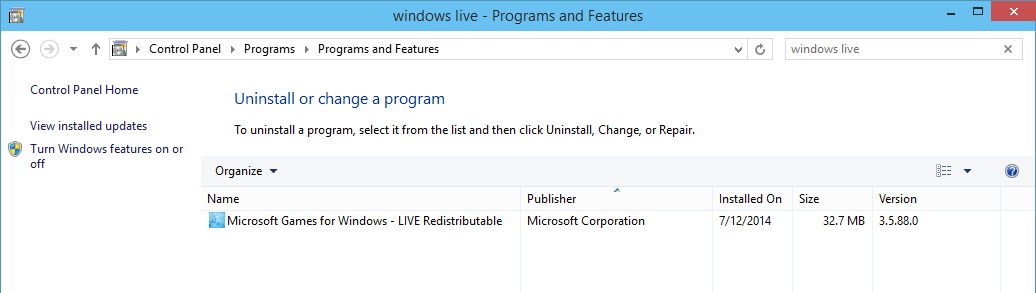
I hate errors like this, but it turns out the ‘Microsoft Games for Windows – LIVE Redistributable’ is too out of date.
So stepping up to version 3.5.88 from 2.0.672.0 did the trick.But of course a download location was a little bit crazy to find, I guess keeping up with the MDAC_TYP legacy, of naming every version the same thing, here is the 3.5.88.0 download / MIRROR (70MB)
Oh and now that my ‘new’ old laptop has an intel integrated video card it needs this DirectX bypass, otherwise itll crash once you launch fallout.
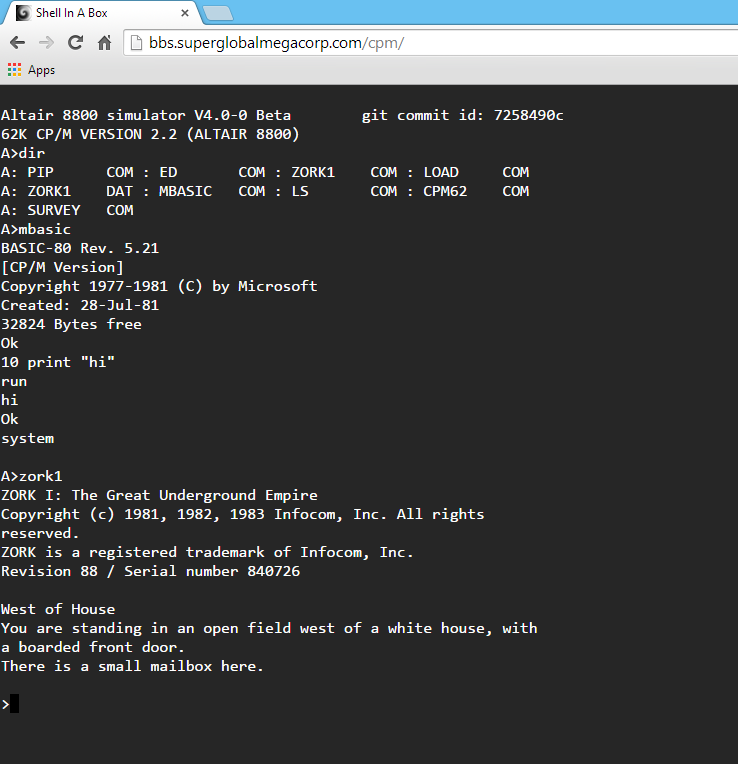
Ok starting with my shellinabox post, I’ve expanded to include SIMH’s Altair emulator!
CP/M 2.2 in a box!
Executing this is really simple! Â A small shell script will take care of the whole thing.
#!/bin/sh
set -m
PID=$$
mkdir /tmp/$PID
cd /tmp/$PID
cp /usr/local/altair/1.ini .
cp /usr/local/altair/cpm22.dsk .
/usr/local/altair/altair 1.ini
cd /tmp
rm -rf /tmp/$PID
Of course I’m assuming dead processes get reaped. Â But check it out!
I’ve put BASIC-80 rev 5.21 and ZORK I in there!
Some advice on SIMH thought, you can execute a shell with the ! command (hitting Control-E will interrupt SIMH) so to prevent that alter the line in scp.c to make sure it’s a noop_cmd instead of spawn_cmd. Â Not that anyone was doing anything sneaky as the nobody user, but to prevent it.
{ “!”, &noop_cmd, 0, HLP_SPAWN },
Also an ini file of:
attach dsk0 cpm22.dsk
set throttle 2%
go 177400
exit
Keeps SIMH pretty tame.
Additionally I guess I should do a 12 hour cronjob to kill displaced altairs.
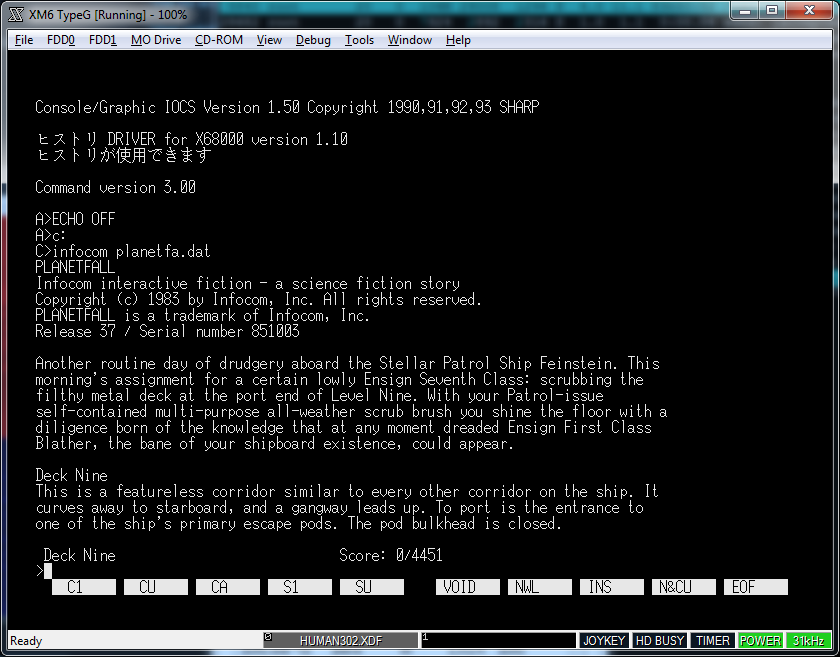
So while browsing reddit, I came across this neat package, shellinabox. Â Simply put, it runs as a process on your ‘box’ and fronts it with a javascript terminal interface. Â So as long as you have a halfway modern machine with javascript support you too can just connect to a machine and run CLI based stuff.
So this will create a new web server that by default listens on TCP port 4200 which in turn uses the virtual directories / for a login, /bbs which launches telent, and /tetris which starts the BSD tetris for terminals game.  Now as many of you are aware, not all people with internet connections have the luxury of having all outbound TCP/IP ports. Even the most excellent flashterm still establishes a TCP session.  That is what makes this different is that all the traffic is done via HTTP, which means it can be proxied.  Now the real trick is having a web server do the proxing for you, so that all the user has to do is hit a special URL, and the server will proxy the request to shellinabox’s web server.
Enter Apache2’s reverse proxy!
So on my BBS’es apache config, I add in the following lines:
Under my virtual server’s ‘root’ directory.  So now when you access https://virtuallyfun.com/tetris/ Apache will proxy your request into the shellinabox http server, and you’ll get…
So where to go from here? Â I was thinking some kind of SIMH CP/M on demand thing. Â There is a command line Wyse 60 emulator, so maybe that’d be fun. Â I may even bring back something I had ages ago, access into a bunch of legacy systems. Â This is a great ‘solution’ to enable multiplexing without having to use another software MUX.