NVIDIA GRID – GPU Virtualization under Windows

(this is a guest post by Tenox)

I spent a day evaluating NVIDIA GRID K1 card, which is a GPU for high end, graphics intensive desktop virtualization (VDI) deployments. Otherwise called vGPU. What does it actually mean?

gridk1As you can see on the stock photo, the card doesn’t have VGA, HDMI, DVI, DP or any video output port what so ever. The output happens purely through Remote Desktop Protocol (RDP) extension called RemoteFX. On VMware and Citrix it works little bit different but I will be covering Windows / Hyper-v installation only.

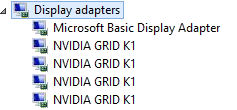
The GRID K1 is somewhat similar to Quadro card so the driver is not your usual GeForce package, but the experience is quite similar nevertheless. Upon installation you see 4 different physical GPUs in Device manager:

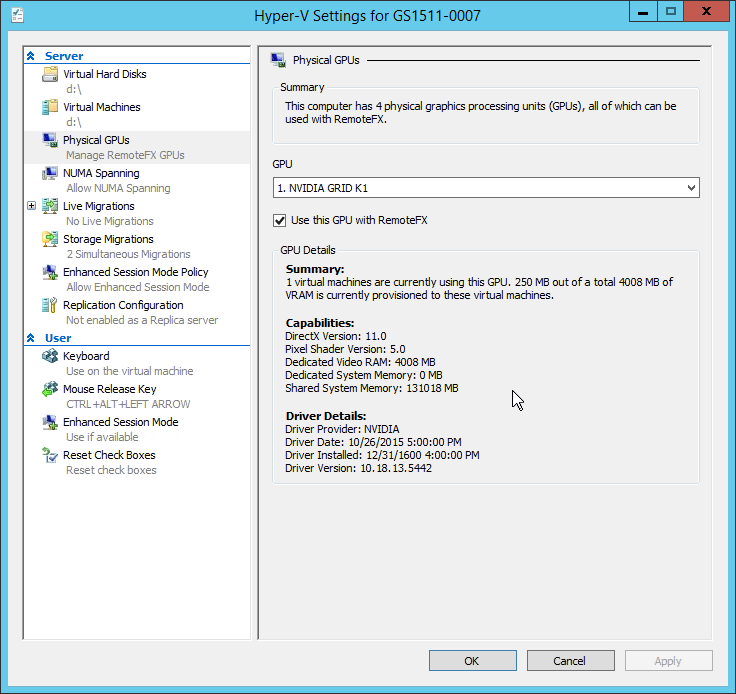
grid1This works similarly to having multiple CPU cores that show up as separate processors in the OS. Here is a first fun fact: you can’t actually use any of these directly, as they simply have no output port and can’t display any graphics… Instead, you have to use Hyper-v with RemoteFX extension:

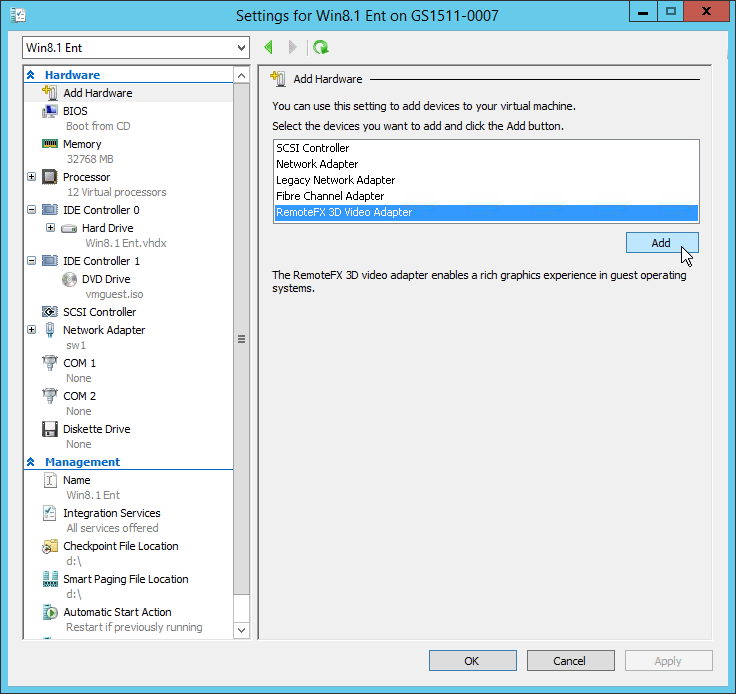
grid2Then for each guest machine, you add a RemoteFX graphics card as hardware:

grid3In order to use RemoteFX you need to Remote Desktop (RDP) to the guest machine. The protocol is fortunately available since version 7.1 so even Windows 7 can use it. However only Enterprise editions of Windows support it.

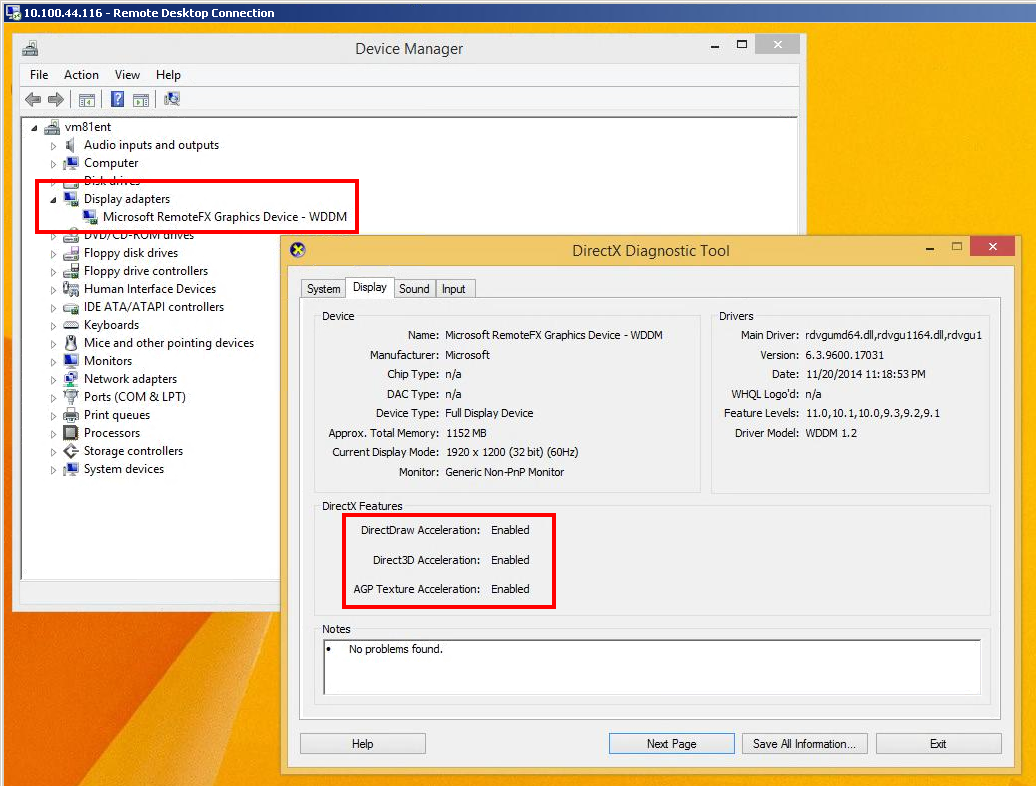
Inside the guest VM you see a virtual RemoteFX Display Adapter in the Device Manager:

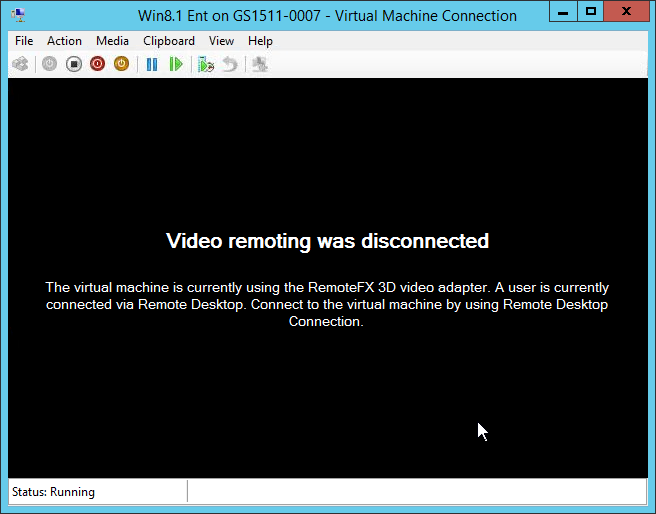
grid4And as you can see Direct3D is available and enabled. Note that this is over RDP to a VM! The VM’s console curiously displays following message:

grid5Hard to show on static screenshots, but I have to say that RemoteFX user experience is noticeably better compared to a regular RDP. Everything works smoother and faster, scrolling pages, moving windows is a snap. You can play videos / YouTube, etc. But I was more interested in real use case which are high end 3D applications. So I proceeded to install Steam…

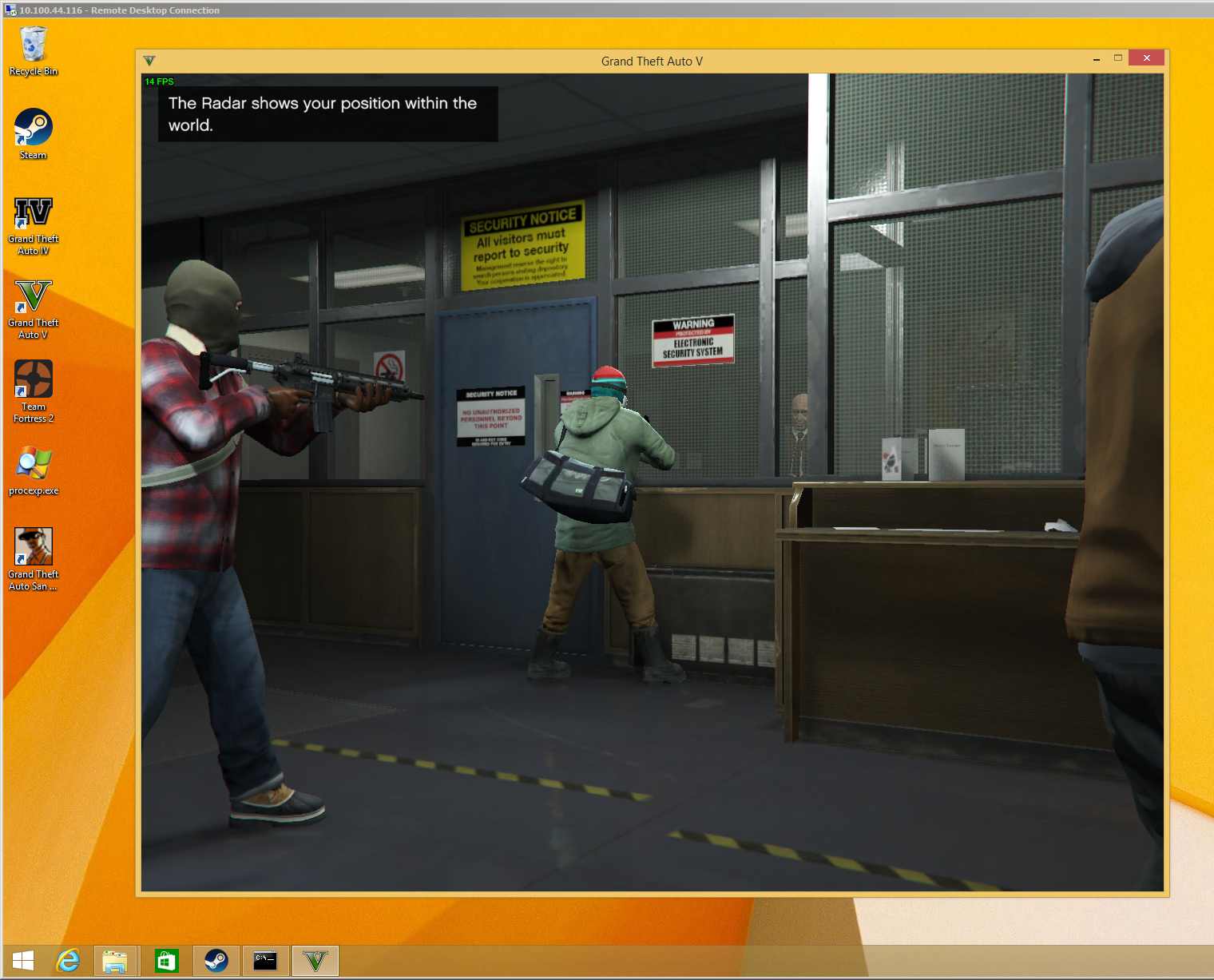
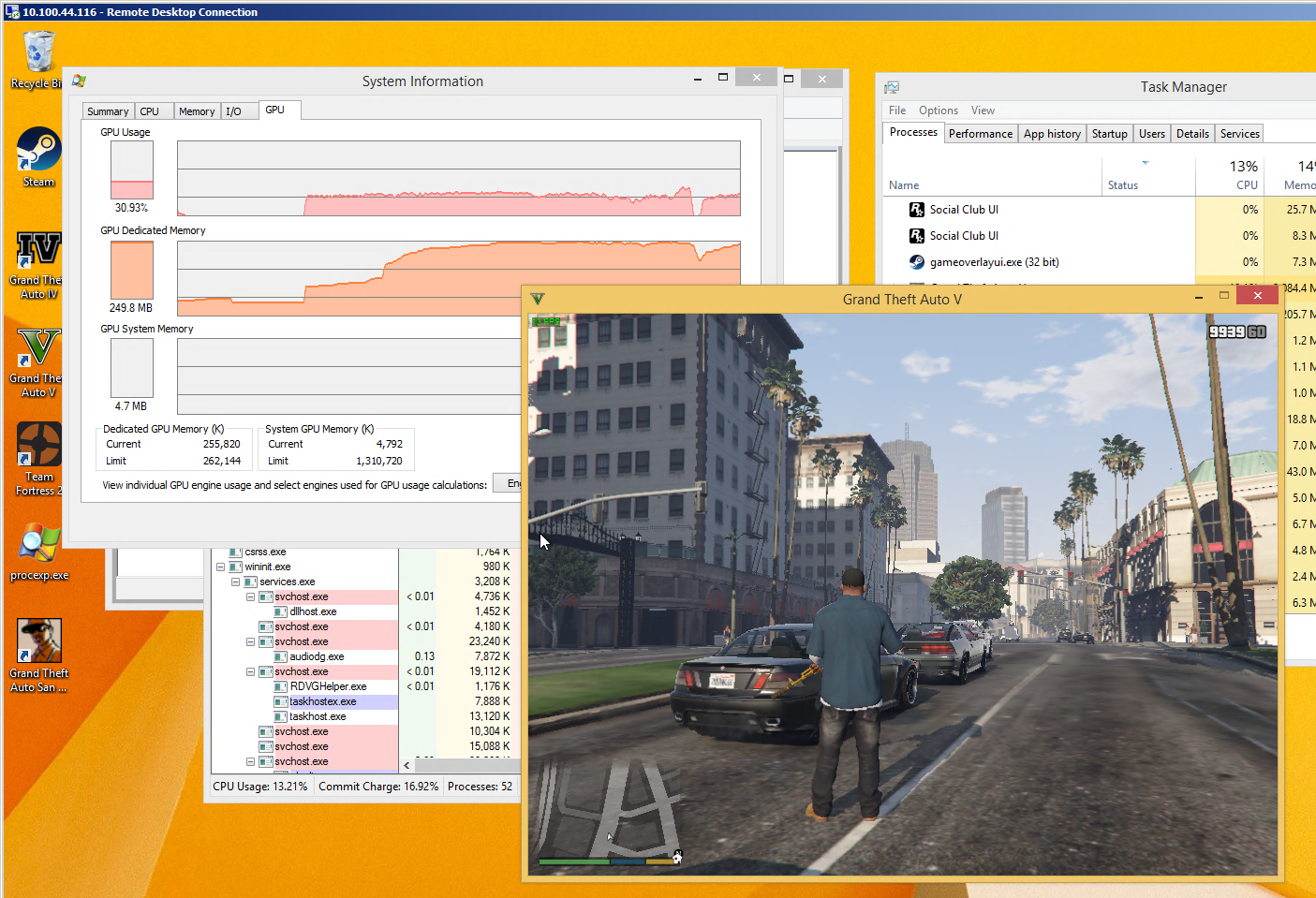
remotefx2Yes! this is GTA V running over Remote Desktop in a VM!

remotefx3The frame rate sucks quite considerably, even in safe mode, but it was playable and quite responsive (no lag). I actually spent couple of hours going through it and except for low FPS had no issues.

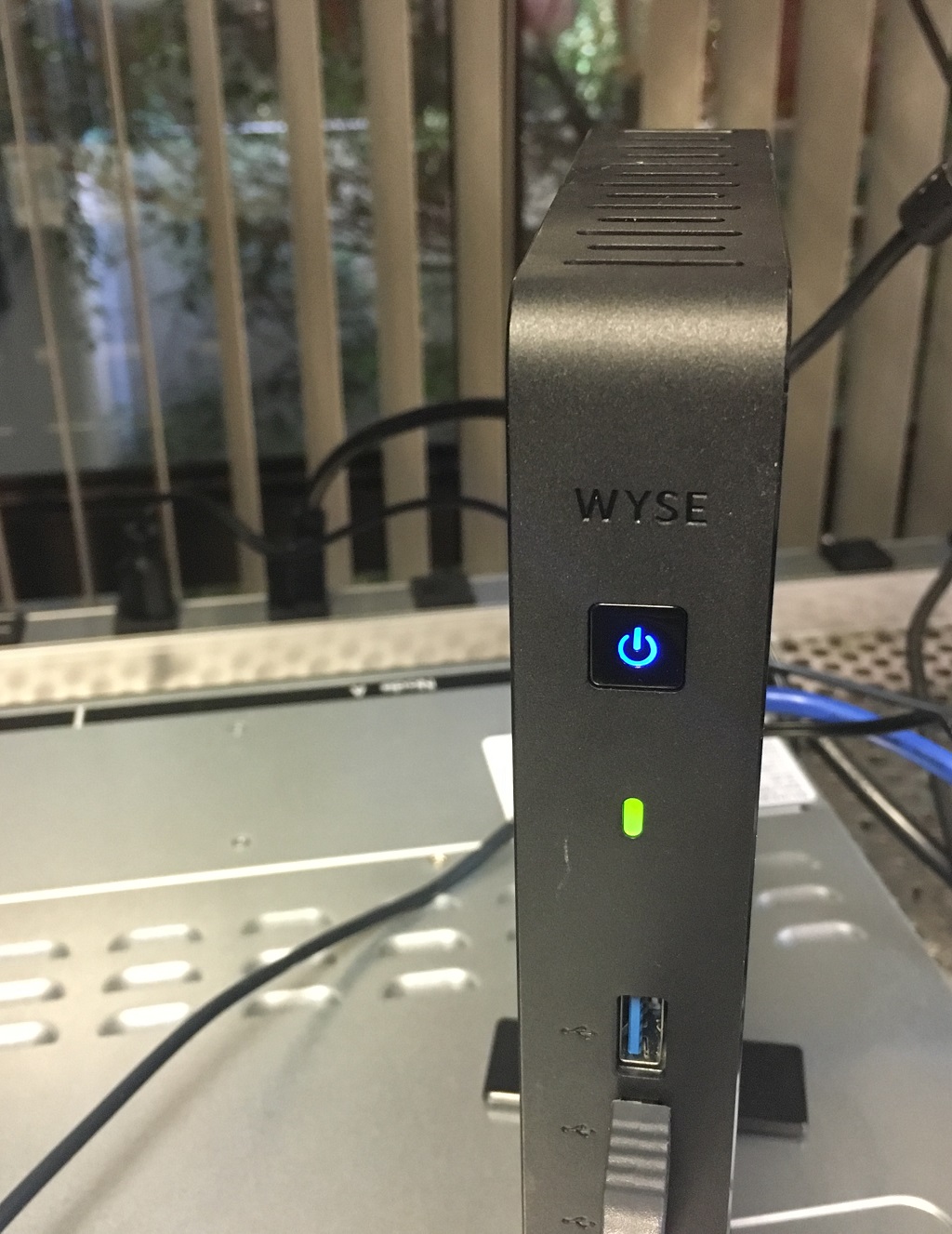
I also spun up this Wyse Thin Client terminal:

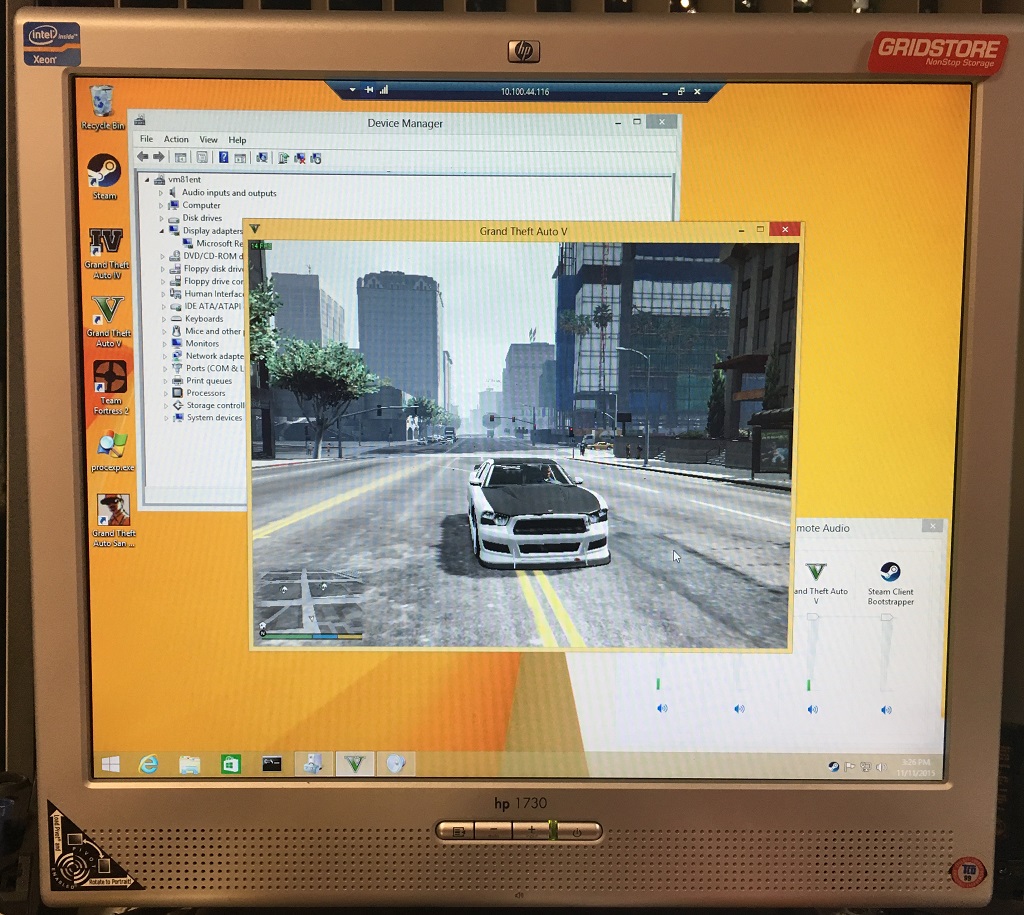
20151111_215651146_iOSdisconnected my RDP session and reconnected from the terminal… poof the game was still going:

20151111_232610662_iOSI even got sound out of the little thing.

I suspect that the low FPS is rather to do with small GPU horse power and vRAM assigned rather that with remote viewing or NVIDIA itself. Unfortunately in Hyper-v it’s impossible to control or fine tune assignment of GPU resources to a particular VM beyond simple on/off switch. The K1 card supports 32 users, so I was only getting 1/32th power and RAM. Perhaps I could have spawned 32 VMs with GTA. Or Call Of Duty multiplayer….

In ending notes I have to conclude that this is a rather interesting technology. According to NVIDIA, Cloud is future of Gaming. In fact they already have cloud game streaming service:

http://shield.nvidia.com/game-streaming-with-geforce-now

Beware of campers who now will be able to disconnect from online games for months at a time.


QNX Updates

(this is a guest post by Tenox)

A few interesting things have happened in QNX area in a last month or so.

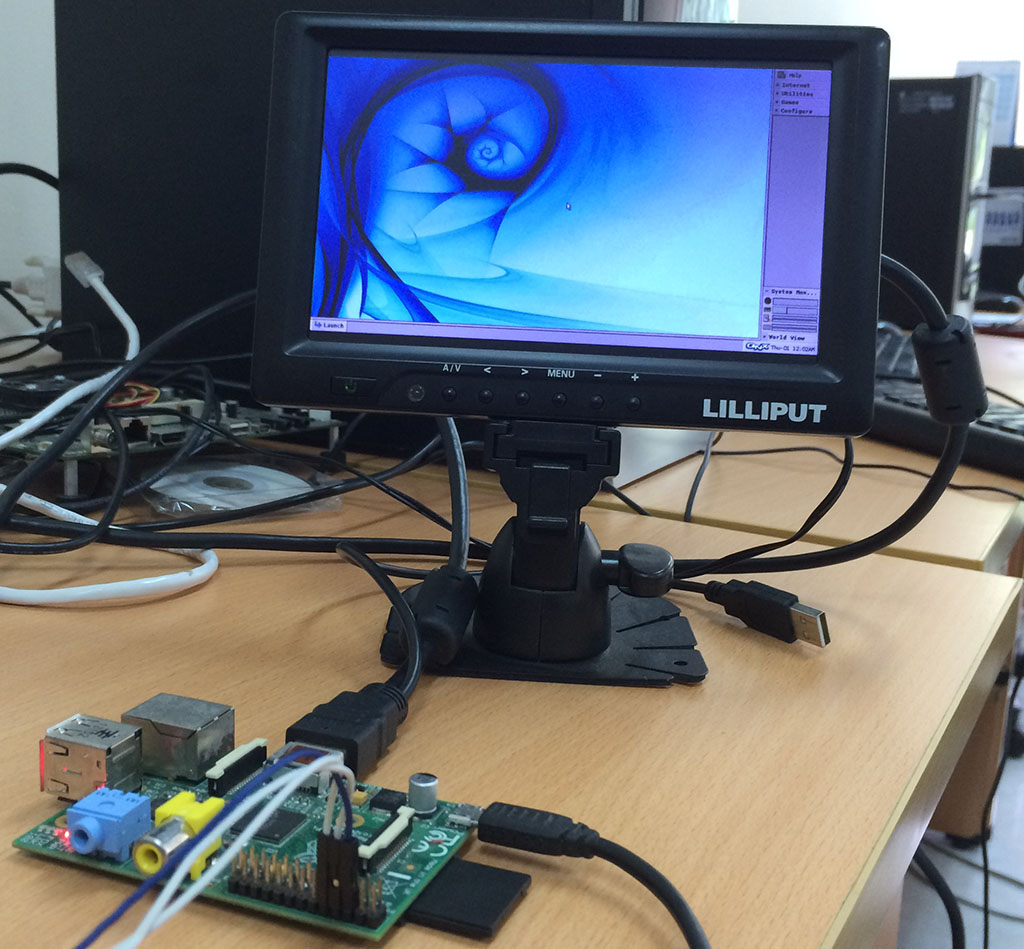
First of all, there is a QNX BSP for Raspberry PI:

qnxrpiIt’s an early developer release, not fully complete, but it does boot and work. It adds an interesting os beside RISC OS and Plan9 to the Pi family. The BSP is available from SHC Products. They have a binary and source code version.

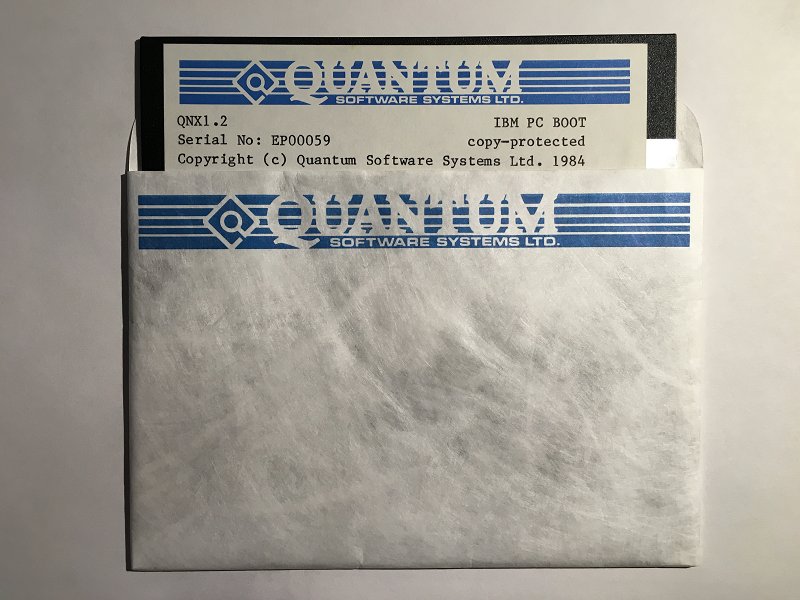
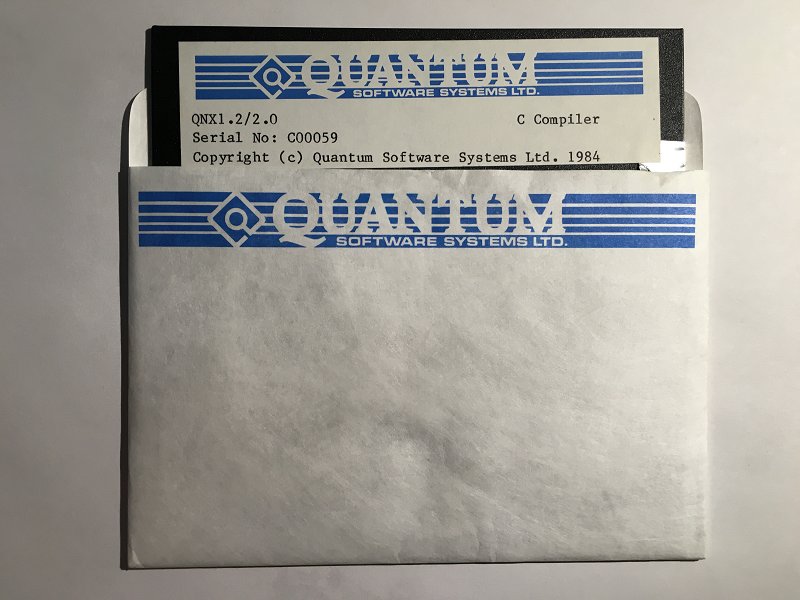
Secondly, in the archaeology department, this has surfaced:

qnx12bootqnx12c

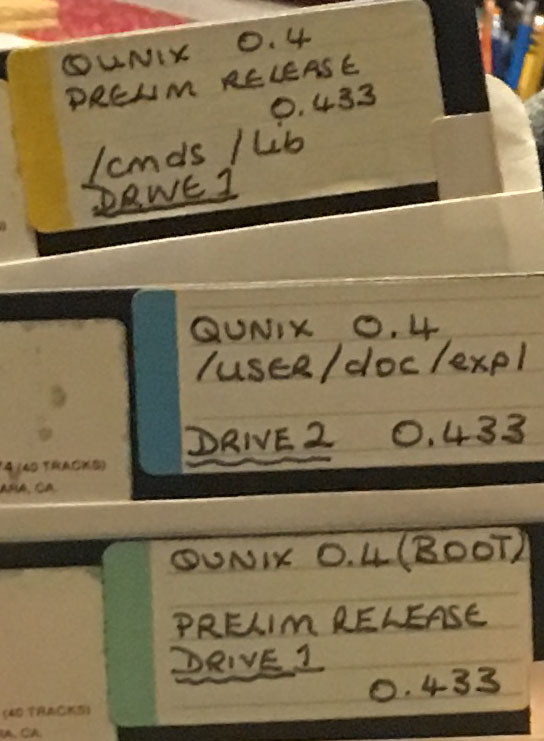
But even more interestingly I’ve found a beta / preliminary release v0.4 of QNX:

qunixStay tuned for more…

Blue Lion

While I was sleeping this happened:

That is right, a new re-release of OS/2.  But don’t go all too crazy the targeted release date is Q3 2016.

That being said, they don’t apparently have source code, so yeah.  Me?  I still run OS/2 2.0, and I really don’t see much need in upgrading.  It runs MS-DOS just fine.  At the same time, I really wonder how much IBM charges to brand out your own version of OS/2?  Not that I really need one.

PHP 5.4 is now obsolete on Debian

While doing an update, I got this fun message:


php5 (5.4.45-0+deb7u2) wheezy-security; urgency=medium

* PHP 5.4 has reached end-of-life on 14 Sep 2015 and as a result there
will be no more new upstream releases. The security support of PHP
5.4 in Debian will be best effort only and you are strongly advised
to upgrade to latest stable Debian release that includes PHP 5.6 that
will reach end of security support on 28 Aug 2017.

-- OndÃ…ej Surý <[email protected]> Sun, 04 Oct 2015 17:05:37 +0200

Time to upgrade!

After a bit of digging around here is how I did it.  I’m moving from PHP 5.4 to PHP 5.6


# php --version
PHP 5.4.45-0+deb7u2 (cli) (built: Oct 17 2015 09:01:48)
Copyright (c) 1997-2014 The PHP Group
Zend Engine v2.4.0, Copyright (c) 1998-2014 Zend Technologies

Ok, so here is the version I’m starting with on Debian 7.9 (Wheezy). During this process, I’m using unsigned packages so get used to this fine message, and packages being held back, unless I manually install them:


Reading package lists... Done
W: GPG error: http://packages.dotdeb.org wheezy Release: The following signatures couldn't be verified because the public key is not available: NO_PUBKEY E9C74FEEA2098A6E
W: GPG error: http://packages.dotdeb.org wheezy-php56-zts Release: The following signatures couldn't be verified because the public key is not available: NO_PUBKEY E9C74FEEA2098A6E
Reading package lists... Done
Building dependency tree
Reading state information... Done
0 upgraded, 0 newly installed, 0 to remove and 0 not upgraded.

But if you can read this, then it worked!

First add these to the /etc/apt/sources.lst file:

deb http://packages.dotdeb.org wheezy all
deb-src http://packages.dotdeb.org wheezy all
deb http://packages.dotdeb.org wheezy-php56-zts all
deb-src http://packages.dotdeb.org wheezy-php56-zts all

Then we can run the usual apt-get update / apt-get upgrade shuffle.

On my first run I got this fun output:


The following packages have been kept back:
libapache2-mod-php5 libmysqlclient18 mysql-server php-pear php5 php5-cli
php5-common php5-gd php5-mysql
The following packages will be upgraded:
mysql-common
1 upgraded, 0 newly installed, 0 to remove and 9 not upgraded

So I went ahead and updated mysql-common.  And during that upgrade I got the new message:


WARNING: The following packages cannot be authenticated!
mysql-common
Install these packages without verification [y/N]? y

So yes these packages are all unsigned. 🙁

After this, I ran:


# apt-get install php5

And got the following scary looking output


The following extra packages will be installed:
libapache2-mod-php5 libt1-5 libvpx1 php5-cli php5-common php5-gd php5-mysql
Suggested packages:
php5-user-cache
Recommended packages:
php5-readline
The following NEW packages will be installed:
libt1-5 libvpx1
The following packages will be upgraded:
libapache2-mod-php5 php5 php5-cli php5-common php5-gd php5-mysql
6 upgraded, 2 newly installed, 0 to remove and 3 not upgraded.
Need to get 7,659 kB of archives.
After this operation, 5,220 kB of additional disk space will be used.
Do you want to continue [Y/n]? y
WARNING: The following packages cannot be authenticated!
php5-mysql php5-cli php5-gd libapache2-mod-php5 php5-common php5
Install these packages without verification [y/N]? y

And then finally, after another apt-get update / apt-get upgrade I finally get this output:


The following packages have been kept back:
libmysqlclient18 mysql-server
0 upgraded, 0 newly installed, 0 to remove and 2 not upgraded.

So just update the held back packages and get it over with.


apt-get install libmysqlclient18 mysql-server

Ugh, it isn’t pretty.  But now we are on the newer train of PHP!


# php --version
PHP 5.6.14-1~dotdeb+zts+7.1 (cli) (built: Oct 2 2015 03:39:20)
Copyright (c) 1997-2015 The PHP Group
Zend Engine v2.6.0, Copyright (c) 1998-2015 Zend Technologies
with Zend OPcache v7.0.6-dev, Copyright (c) 1999-2015, by Zend Technologies

Hopefully things continue to work.

DooM shovelware CD archive!

DooM!

DooM!

In the mid 90’s the CD-ROM format was becoming insanely popular, and seen as a ‘get rich quick’ scheme for a brief time.  And of course one of the greatest, customizable games ever, DooM is from that era!  Combine the two, and you have an awesome collection of shovelware CD’s featuring DooM utilities, mods, and levels!

Perhaps one of the more popular CD-ROM distributors was Walnut Creek, which had a good relationship with FreeBSD.  Oddly enough it would eventually merge with BSDi, and split, merge, acquire, become acquired by others.

Archive.org has their massive CD-ROM collection online!  And, it of course includes the DooM 1994 CD.

PCem version 10 is officially released!


  • New machines – AMI XT clone, DTK XT clone, VTech Laser Turbo XT, VTech Laser XT3, Phoenix XT clone, Juko XT clone, IBM PS/1 model 2011, Compaq Deskpro 386, DTK 386SX clone, Phoenix 386 clone, Intel Premiere/PCI, Intel Advanced/EV
  • New graphics cards – IBM VGA, 3DFX Voodoo Graphics
  • Experimental dynamic recompiler – up to 3x speedup
  • Pentium and Pentium MMX emulation
  • CPU fixes – fixed issues in Unreal, Half-Life, Final Fantasy VII, Little Big Adventure 2, Windows 9x setup, Coherent, BeOS and others
  • Improved FDC emulation – more accurate, supports FDI images, supports 1.2MB 5.25″ floppy drive emulation, supports write protect correctly
  • Internal timer improvements, fixes sound in some games (eg Lion King)
  • Added support for up to 4 IDE hard drives
  • MIDI OUT code now handles sysex commands correctly
  • CD-ROM code now no longer crashes Windows 9x when CD-ROM drive empty
  • Fixes to ViRGE, S3 Vision series, ATI Mach64 and OAK OTI-067 cards
  • Various other fixes/changes

Official download links:

PCem v10 for Windows
PCem v10 for Linux


I personally prefer PCem over DOSBox at the moment, as PCem runs the actual BIOS code, so it feels more like an actual vintage PC.  PCem does need a significantly more powerful machine to push it thought.


The client needs to access the internet!

But let’s not give them access to everything.

This is a common scenario I see, where someone needs to get updates to some magical software package on the internet.  Great.  And people just give them access to ANY site, which ends up being not only the internet (the intended destination) but the rest of their internal network.  Granted a good defense in the SDN world is inbound rules as well for each VM, but everything is never 100%.

RFC1918 defines our friends, the private address ranges:

     10.0.0.0        -   10.255.255.255  (10/8 prefix)
     172.16.0.0      -   172.31.255.255  (172.16/12 prefix)
     192.168.0.0     -   192.168.255.255 (192.168/16 prefix)

However the solution to this fun filled problem is to grant them HTTP/HTTPS access to the inverse of this.  Enter the netmask command.  You can give it a range, and it’ll lay out what networks to you need to add like this:

     netmask -c 0.0.0.0:9.255.255.255
     0.0.0.0/5
     8.0.0.0/7

Now I can exclude everything right up until 10.0.0.0/8 !

It’s quite the handy tool, but I didn’t see any Windows version.  So a few minutes with MinGW, and dealing with it’s weird Makefile’s way of linking things, and here you go!

This way you can permit internet access, not give them inside, access and still have a global DENY actually work.

YAY.

And if anyone is interested here are the networks:

     0.0.0.0/5
     8.0.0.0/7
    11.0.0.0/8
    12.0.0.0/6
    16.0.0.0/4
    32.0.0.0/3
    64.0.0.0/2
   128.0.0.0/3
   160.0.0.0/5
   168.0.0.0/6
  172.0.0.0/12 
 172.32.0.0/11
 172.64.0.0/10
 172.128.0.0/9
   173.0.0.0/8
   174.0.0.0/7
   176.0.0.0/4
   192.0.0.0/9
192.128.0.0/11
192.160.0.0/13
192.169.0.0/16
192.170.0.0/15
192.172.0.0/14
192.176.0.0/12
192.192.0.0/10
   193.0.0.0/8
   194.0.0.0/7
   196.0.0.0/6
   200.0.0.0/5
   208.0.0.0/4

Yes, I know it’s a LOT of typing.

You can run VxWorks too!

(this is a guest post from Tenox)

VxWorks is an embedded operating system that typically runs on things like Mars probes, Boeing 787 or Apache helicopters, but today you can run it too! WindRiver has an evaluation target that you can run on an Intel CPU, meaning you can spin it up on your favorite hypervisor at home.

Go to this page: http://www.windriver.com/evaluations/bsp/ register, download the two ZIP files and follow the instructions.

VxWorks running on VMwareVxWorks comes with two shell modes C and admin. In C shell you execute C code and you can write simple programs or even patch existing running code like they did on Mars Pathfinder. This is the default one with -> prompt. You can enter to admin shell by typing “cmd”. If you are familiar with KSH “vi” mode you can use it for history and editing command line.

The evaluation target is very basic and limited. If you want to do and learn more stuff, you need to download evaluation of VxWorks Platform and spin up the VxWorks Simulator, or build your own target. This is a picture of a slightly older version running on Windows:

vxworks-emulatorThe operating system was also recently featured in Forbes

Local mirrors: