MSN messenger 5.0 fix for NT 4.0

This post is just pure historical at this point.  MSN has been shuttered, and it lives in through Escargo.

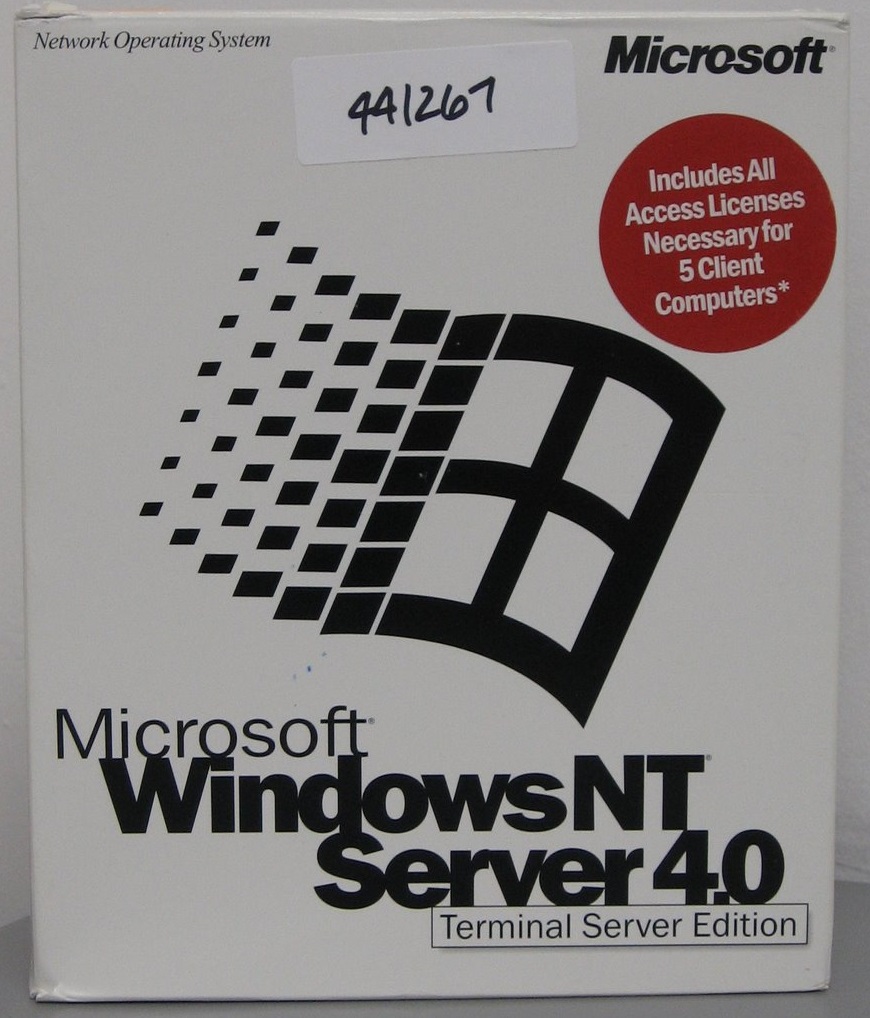
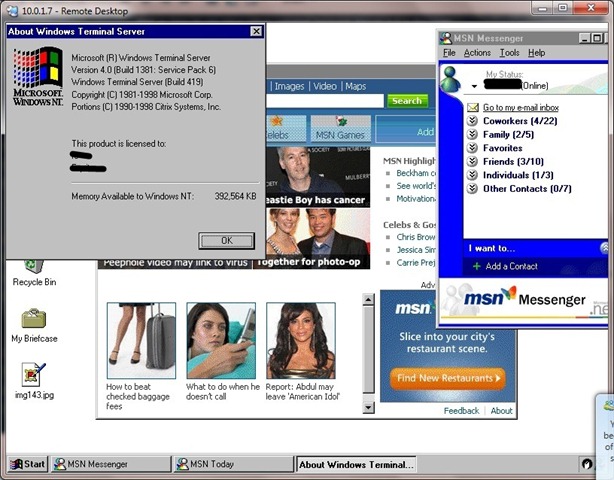
Well as long as you have either installed Terminal Server 4.0 in the ‘right order’ or with Server / Workstation you can probably ‘just install’ this fix..

First you will need the MSN 5.0 client.  It will install but on connecting it’ll declare there is a newer version which it’ll download but will not work…  And you’ll be stuck in a loop.

Thankfully, Jonathan Kay has a fix!

This looks like a bug and wouldn’t be the first time these older clients have been messed up.
I’ve made some enquires to find out one way or another.
I’ve modified the MSN Messenger 5.0 executable to lie to the service about it’s version so
you can login again. Obviously this probably isn’t a great solution, but it’s a workaround
for now. Simply
unzip the exe into the \Program Files\MSN Messenger folder and it will work:
http://messenger.jonathankay.com/redir/msngr5verlie.asp

Jonathan Kay
Microsoft MVP –
Windows Live Messenger
MSN Messenger/Windows Messenger
MessengerGeek Blog:
http://www.messengergeek.com
Messenger Resources: http://messenger.jonathankay.com
(c) 2009 Jonathan Kay – If redistributing, you must include this signature or citation


MSN on terminal server

Well this is great news for NT 4.0 &Windows 2000 users!

Making do with NT 4.0 Terminal Server

I’ve been using NT 4.0 terminal server as of late, as my copy gives me 10 users and well.. it’s cool!  One thing is the new XP and beyond terminal services clients will NOT work, but you can use the one that shipped with NT 4.0 just fine.

Anyways I’ve worked out this install order to get the most out of the thing.

  1. Install NT 4.0 TSE
  2. Install 4.0 Option pack with SMTP
  3. Install Service Pack 6 for Terminal Server
  4. Installer Windows installer 2.0
  5. Install Internet Explorer 5.5 (for MSJAVA) *skip webfolders.
  6. Install MSN Messenger 5.0 (really should be Escargot by now)
  7. Install Microsoft Office 97
  8. Install Microsoft Bookshelf 98
  9. Install Office 97 sp1
  10. Install Office 97 sp2
  11. Install Internet Explorer 6.0

Optional bits:

This is the best way to “balance” the software as most things will NOT play nicely if it’s installed in the “wrong” order.. It’s.. annoying which means format & try AGAIN.. This is the drawback to Terminal Server 4.0 it was such a public ALPHA.

As it stands right now MSN messenger will not work, something about its reported version.. I’m working on a fix for that  Also I’ll have to see about a good point to load in Visual C++ 2.1

Making bootable ISO images

I know for most people using mkisofs is second nature, but I needed to get a machine running MS-DOS without floppies… and it had to be on the bare metal.. Oh joy.

Now I’ve kind of done this before but I’ve never gotten it to preserve the directory structure.  It seems that it’s important to specify some output…

The ‘fun’ thing is that I was able to use virtual pc to build the boot diskette with IDE cdrom drivers, and make sure it works in that it mounted the CD and set the path there…

So I have extracted my MS-DOS install from the floppies into a directory on my pc and I keep the file dos622_1.img in the same directory so mkisofs can place it in the image.  Then it’s just a matter of running:

..\mkisofs.exe -o ..\x.iso -J -r -v -V test_disk -b dos622_1.img .

And I get an x.iso that can boot MS-DOS, and has all the dos commands in place, I can partition & format the hard disk and copy DOS into place.

It’s not much to see, but if you need legacy stuff it’ll be a life saver.. and I know I’ll end up losing the flags and needing them again!

Security update for Virtual PC/Virtual Server

The articles from Microsoft are available here and here.  It sounds like some good fun….

FTA:

This security update resolves a privately reported vulnerability in Microsoft Virtual PC and Microsoft Virtual Server. An attacker who successfully exploited this vulnerability could execute arbitrary code and take complete control of an affected guest operating system. An attacker could then install programs; view, change, or delete data; or create new accounts with full user rights.

I know I’ll be updating all my machines…!

86-DOS

While I was looking around at fleshing some stuff out on gunkies I came across this little nugget of MS-DOS history.

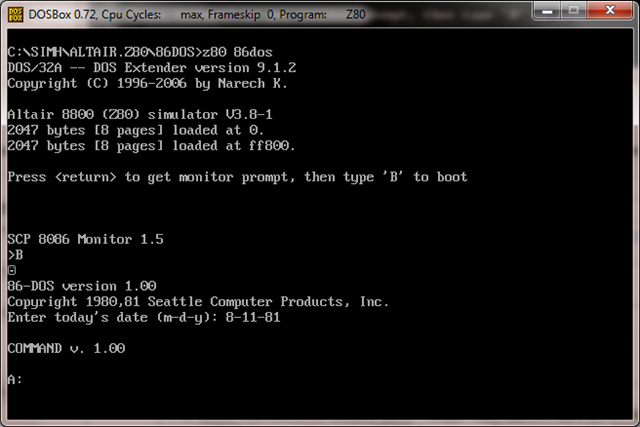
You can actually download 86-DOS the precursor to MS-DOS!  And it even includes a bunch of SOURCE CODE!  The best part is the awesome emulation suite SIMH can run 86-DOS!

Ok, for the first part of this, I thought I’d try my MS-DOS build of SIMH 3.81 which can be found on the sourceforge pages here.  Because I’m using a 64bit OS there is no 16bit environment to kick start DPMI stuff, so I’m using the most excellent DOSBox emulator.

Thanks to the hard work of Peter Schorn, you can download the run able image for 86-dos right here, then simply point the Altair z80 emulator from SIMH to it, and you’ll be running in no time.

To run it, simply point the z80 emulator to the boostrap file 86dos.  Then just follow the onscreen prompts.


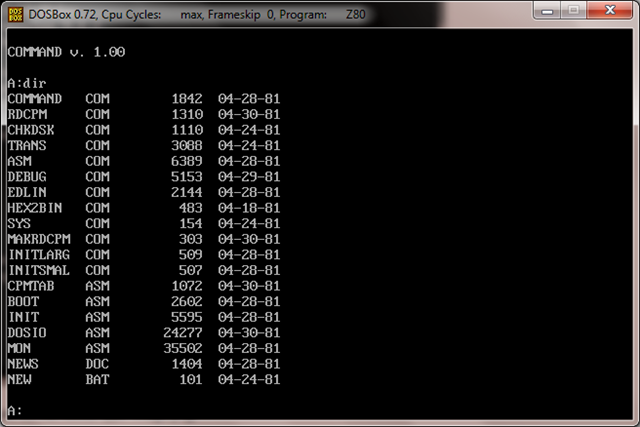
Then you’ll be up & running!  Notice how the prompt is different from MS-DOS, and yet how familiar it ‘feels’.  Also check out the commands!


Rumor has it that edlin has largely remained the same, up to TODAY on 32 bit versions of Vista!  I haven’t even verified it, but it would prove interesting.

I should also point out that Peter has amassed quite the collection of CP/M images, programming languages and other interesting stuff here.

Windows LIVE email settings

Ok, so this isn’t really virtualization, however I was setting up my step kids email, and it was a NIGHTMARE to figure out where the setup information was for the SMTP…

Like all things Microsoft it’s scattered in 320 places.


Configuration Settings:

  • Incoming Server = pop3.live.com
    -Port 995
    -Encryption/Authentication = SSL is required
    -Full Username = [email protected] (same as full email address, where xxxx.com = live.com, msn.com or hotmail.com )
    -Password is required
    -SPA(secure password authorization) = Off(uncheck this option)
  • Outgoing Server = smtp.live.com
    -Port 25 or 587 [Note: Preferred Outgoing is Port 587 instead of Port 25 since many ISP’s blocks Port 25 use. Similar blocking can occur when using Port 25 in hotels or accessing via a WiFi network]
    -Outgoing Server Authentication = On(check the option)-Encryption/Authentication = SSL or TLS
    * Choose SSL for Windows Live Mail, Outlook 2003, iPhone, iPod Touch, Outlook Express and Vista’s Windows Mail * Choose TLS for Outlook 2007 (required)
    -Full Username = [email protected] (same as full email address)
    – unless outgoing server is configured to use same incoming server option
    -Password is required
    – unless outgoing server is configured to use same incoming server option

This is the place to go for all the setup information it would seem.  Also I really like Vista’s email client it’s pretty dammed close to outlook 2003..  Naturally it doesn’t support Microsoft Exchange, but I have to wonder if Exchange server can be configured for IMAP over SSL.. You could then remove the need for outlook on peoples computers…

Also I found the pieces of 86-DOS, the precursor to MS-DOS, I’ll do a write up on that later… Naturally it requires the ever so awesome SIMH, and naturally you should start with the MS-DOS version right here, as it includes lots of startup emulators to get you going…

Running Windows 2003 r2 x64 on Qemu 0.9.0

This took me a LOT longer then it should have to figure out. So for anyone else wanting to run the 64bit versions of Windows on Qemu (I havent tested Vista/2008/7 yet) Only version 0.9.0 will work.

Because sourceforge is still giving me errors I’ll provide direct links…

Anyways to buidl Qemu you’ll need a MinGW/MSYS enviroment. The new stuff works on Vista x64 so that’s good to me, as it’ll run natively.

You’ll need the following files:

MinGW-5.1.4.exe
MSYS-1.0.11-rc-1.exe
msysDTK-1.0.1.exe
w32api-3.13-mingw32-dev.tar.gz
mingwrt-3.15.2-mingw32-dev.tar.gz

First, install MinGW by choosing the ‘current’ version, then check the following options:

*MinGW Base tools
*G++ compiler
*MinGW make

Allow it to instal into c:\MinGW

Next install MSYS with the default options. Then it’ll ask you the following, respond as I have:

Do you wish to continue with the post install? [yn ] y

Do you have MinGW installed? [yn ] y

Please answer the following in the form of c:/foo/bar.
Where is your MinGW installation? c:/mingw

Install msysDTK with the default options.

Now you should be able to run the msys CLI
Start -> run -> mingw -> msys -> msys

Let’s expand out the win32api & mingw32 dev updates:

cd /mingw
tar -zxvf /c/install/qemu-build/w32api-3.13-mingw32-dev.tar.gz
tar -zxvf /c/install/qemu-build/mingwrt-3.15.2-mingw32-dev.tar.gz

Now your ‘gcc -v’ should return something like this:

Reading specs from c:/mingw/bin/../lib/gcc/mingw32/3.4.5/specs
Configured with: ../gcc-3.4.5-20060117-3/configure –with-gcc –with-gnu-ld –wi
th-gnu-as –host=mingw32 –target=mingw32 –prefix=/mingw –enable-threads –dis
able-nls –enable-languages=c,c++,f77,ada,objc,java –disable-win32-registry –d
isable-shared –enable-sjlj-exceptions –enable-libgcj –disable-java-awt –with
out-x –enable-java-gc=boehm –disable-libgcj-debug –enable-interpreter –enabl
e-hash-synchronization –enable-libstdcxx-debug
Thread model: win32
gcc version 3.4.5 (mingw-vista special r3)

Ok, now let’s build the prerequisits, zlib & SDL.

zlib-1.2.3.tar.gz

cd /
mkdir -p /usr/src
cd /usr/src
tar -zxvf /c/install/qemu-build/zlib-1.2.3.tar.gz
./configure
make
make install

Now SDL.

SDL-1.2.13.tar.gz

tar -zxvf /c/install/qemu-build/SDL-1.2.13.tar.gz
cd SDL-1.2.13
./configure
make
make install

Now we need to tweak some things that MinGW seems to have issues finding in the /usr/local path.. I’m sure there is a better ‘fix’ but hell, this is quick & cheap!

cd /mingw/include
ln -s /usr/local/include/zconf.h .
ln -s /usr/local/include/zlib.h .
ln -s /usr/local/include/SDL .
cd /mingw/lib
ln -s /usr/local/lib/libSDL.a .
ln -s /usr/local/lib/libz.a .
cd /bin
ln -s true.exe texi2html.exe
ln -s true.exe pod2man.exe

Ok, now we just need the source to Qemu 0.9.0…. It’s becoming something RARE which is weird considering just how compatable this version is… So I’d recommend keeping a copy in email or something.

qemu-0.9.0.tar.gz

cd /usr/src
tar -zxvf /c/install/qemu-build/qemu-0.9.0.tar.gz
cd qemu-0.9.0
./configure –target-list=x86_64-softmmu
make

Now instead of the usual Qemu 32bit x86 emulator, you’ll get qemu-system-x86_64.exe in the x86_64-softmmu directory. Running it is just like the regular Qemu. So first I’m going to create a 16GB disk to boot from like this:

qemu-img create -f qcow win64.disk 16G

*NOTE if you have any issues where it just doesn’t work, use the qemu-img from here. I’ve had issues with the one that I’ve built, but the emulator works…. go figure.

Now let’s boot from the disc:

$ x86_64-softmmu/qemu-system-x86_64.exe -m 1024 -L pc-bios/ -hda win64.disk -cdrom en_win_srv_2003_r2_enterprise_x64_cd1.iso -net nic,model=rtl8139 -net user -boot d

Now if you don’t have the ISO files, and have physical discs don’t fret! It’s easy to have Qemu point to them… Let’s say your CD-ROM (DVD/BR disk) is D: then it’s just a matter of running:

$ x86_64-softmmu/qemu-system-x86_64.exe -m 1024 -L pc-bios/ -hda win64.disk -cdrom \\.\d: -net nic,model=rtl8139 -net user -boot d

Easy, right? Remember the -m flag for memory, otherwise your VM will run in a TINY 128mb of ram.. And it’ll be insanely SLOW.

And then you’ll get this!
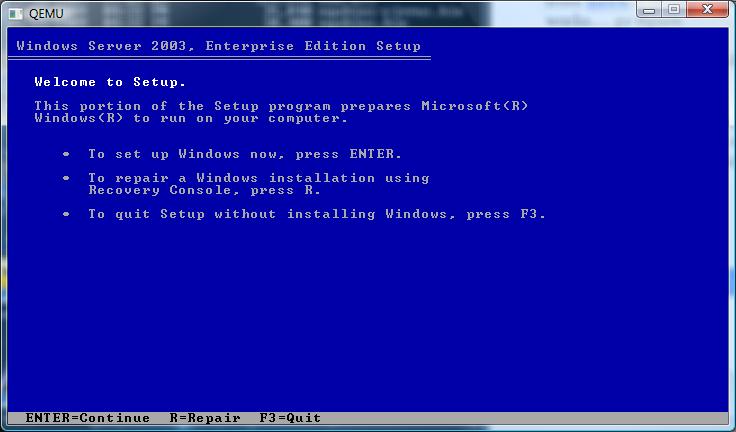
The first screen.. It doesn’t sound all that 64 bit does it?
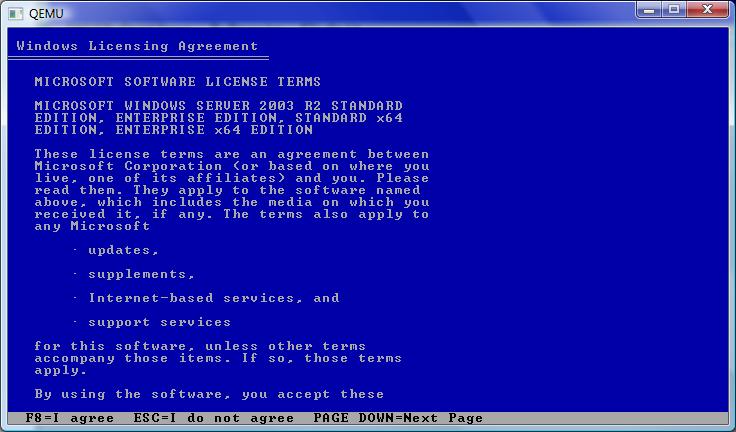

Now we are talking! It certainly is the 64 bit version… It reminds me of the PowerPC/MIPS/Alpha builds where once the Kernel has loaded, it’s all Windows NT..
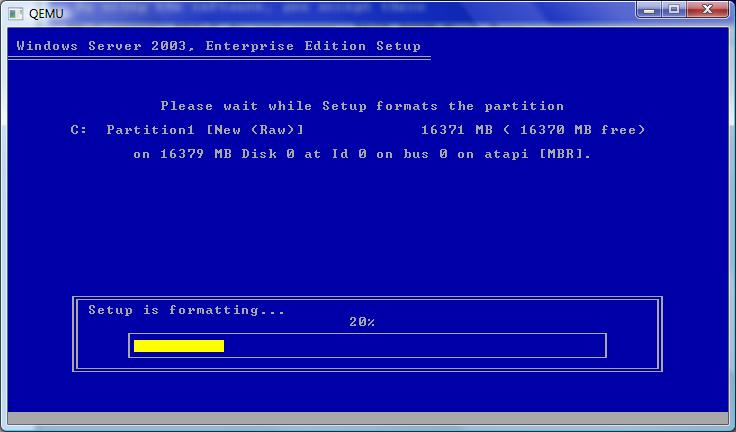

Select your partition, and let’s format away!
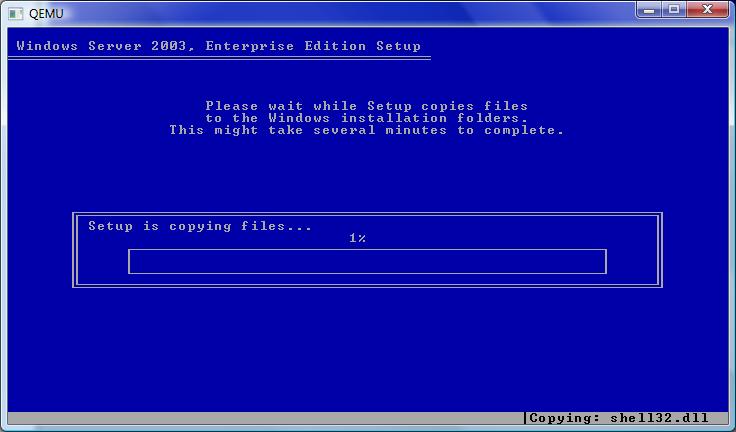

Time for the file copy… This will take a while.
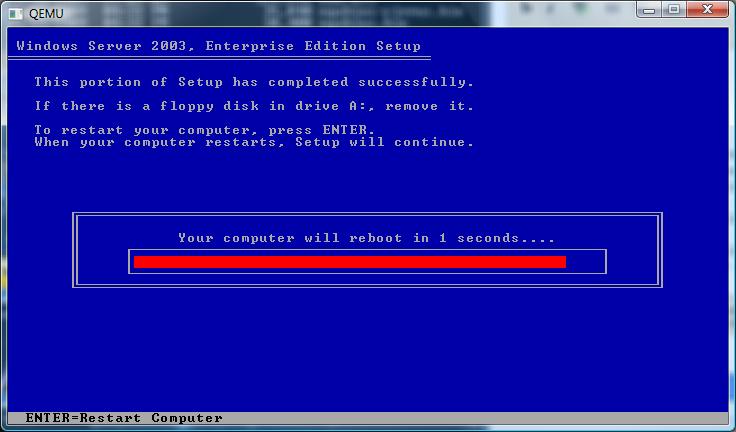

Finally!

Then it’ll reboot, and you’ll get the happy bootloader!
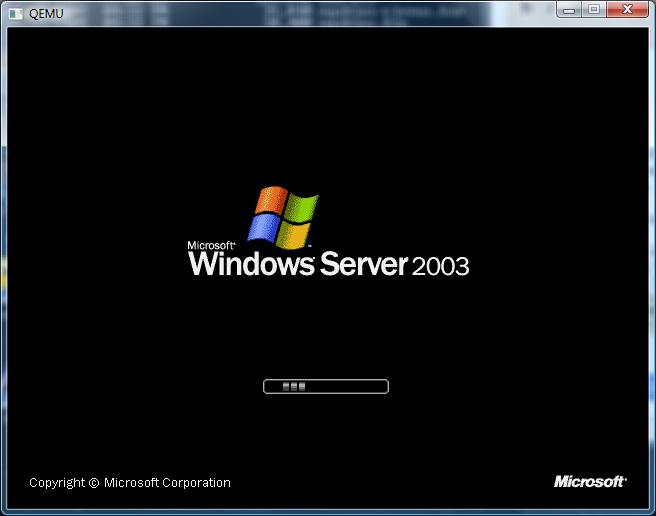

Bootloader in action..
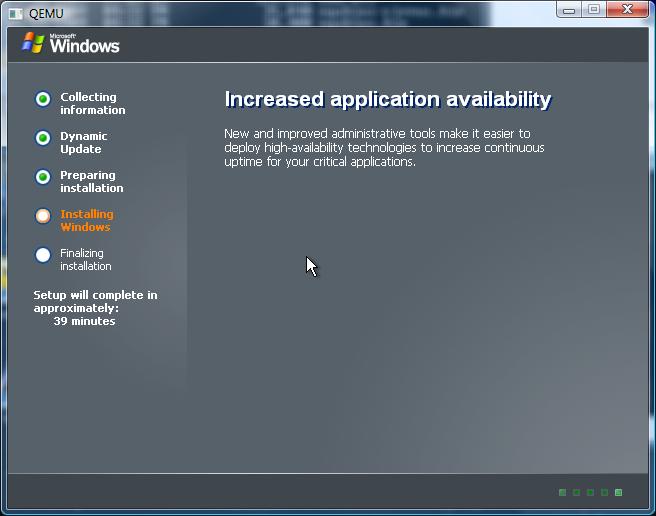

I haven’t timed it, but I suspect it’ll be longer then 39 minutes.

As you can see with the right version of Qemu it’s trivial to get Windows 2003 r2 x64 running… It’s good for doing some .net 32/64 bit testing… Which reminds me of another tidbit..

Some things in .net land will NOT work on IIS running in 64 bit mode. You’ll have to throw the switch to get a 32bit .net on IIS. The good news though is that this can take advantage of 2GB for a normal exe, and if you tag it, 3GB to under 4GB of ram.. So the 64bit version is not without waste.

%SystemRoot%\Microsoft.NET\Framework\v2.0.50727\aspnet_regiis -i -enable
iisreset
CScript “%SystemDrive%\InetPub\AdminScripts\adsutil.vbs” set w3svc/AppPools/Enable32bitAppOnWin64 1
iisreset

I did verify that this would get sharepoint to run on 2003 x64.. As I always feel better trashing a VM then real iron…

And don’t forget the flexibility of the -redir command on Qemu to allow you to redirect ports into the VM…

Say you want to use terminal server into your VM, you can redirect say port 1000 into the vm by adding:

-redir tcp:10000:10.0.2.15:3389

Then it’s a simple matter of using a terminal server client to localhost:10000

I hope this clears up how easy it is to build your own Qemu, and of course how to run something other then the ‘normal’ 32bit version of Qemu.

Windows 95 (Japanese) on Qemu

Well I ordered the Asian version of Windows 95 from retrosoftware.com . And the best part was the cover for the Internet Explorer 3.0 update:


Say what you will, but there is no doubt the Japanese always get more… interesting looking versions of our software…

Check out the additional pictures from the manual:

Don’t you feel bad for dear old dad?

Hmm what do I do with this RJ11??

Now we’re cruising on the internet!

Well, at least it’s not Peado bear..

Other then that, the box looks somewhat boring…

All the way from Japan!


Anyways I thought it would a good time to see if Qemu 0.10.5 can install Windows 95. So I started with a simple MS-DOS / Windows 3.1 install on a 1GB disk. Then I just mounted the CD-ROM (remember on a Win32/Win64 host to access your ‘D:’ drive you use the -cdrom \\.\d: to get access…)

Now the setup was SLOW, it reminded me of an old Pentium while it grinded away.. But the plus is that it actually WORKS… Unlike some other emulators with FAST machines.. I know it’s a trade off between slow emulation, or just not working at all. But Windows 95 will NOT run on physical machines with a faster then 1.5Ghz clock. (or so I remember).

Anyways with a little work you can come up with this:

Ok the good news is that it works, the ‘bad’ news is that the video & networking require drivers to run properly. Thankfully Natalia Portillo has provided all of this stuff on ONE EASY TO FIND SITE!!! I’d highly advise downloading a copy of what you need, using bzip2 to re-compress the files, and emailing them to yourself… That way you won’t lose them time & time over again!… As I just have.

Although to be honest it works better in ISA mode.. Remember the ne2000 is set for 0x300 IRQ 9 in the ISA mode.

If you want to try the PCI route, you’ll need an updated PCI driver which you can find on intel’s site here.

And one last thing I’d like to leave you Ted Stevens fans with. According to Microsoft Japan, the internet is NOT a series of tubes, but actually a bunch of trucks…. All labeled TCP/IP.

Was Ted Stevens right?

funny joke…

Well I bought some “SolarNet” netscout from SUN that allows Win16 clients to tunnel TCP/IP over an IPX network to a Solaris 2.4 x86/sparc box to access the internet… It is interesting in that it has NAT like functionality over a different network..

Sometimes we have to remember that LOTS of people in the mid 90’s only had IPX routers and an exclusive Netware environment so all this ‘internet’ talk had to be phased in, and a product like this would have allowed for a rapid deployment of people on the internet….

Anyways going thru the manual, it’s kind of funny. It’s FULL of Buckaroo Banzai jokes, talk about overthrusters, and whatnot. Then in the email client, there is this gem:

From: [email protected] (P.D.)
Subject: Careful with that Shop-Vac, Eugene!

Cleaners Vacuum Family’s Cat
—————————-
From the Ottawa Citizen, 14 May 1991

Sudbury, Ont. – Cleaners who used an industrial-strength vacuum to clean air ducts at a local home were surprised to learn that their vacuum had sucked up a cat named Pebbles.


“We got a call from one of my guys that the truck was meowing,” said Colin Firth, owner of Sudbury Air Duct Cleaning Systems. Firth said he thought the workers were joking until Pebbles’s owner Kristina Anderson called to say her cat had been missing since the ducts were cleaned.

Naturally SUN had credited John Whorfin for sending the whole thing..

Anyways I thought it was interesting to see what happens when tech writers run amuck.

Sadly John Bigboote didn’t seem to get any mention…. I guess management drew the line somewhere.

Oh those zany internet people!

On using SQL 4.21

Ok, I know it’s been all retro SQL server but bear with me… MSDE/SqlExpress is just too small for some pet project, and I want to run my SQL natively… So it’s 4.21 for now.

Anyways, I thought I’d mention that to run SQL 4.21 on Windows 7, you’ll need the userenv.dll from a Vista computer, just copy it to where your i386 files are so you can run the setup, even if it complains about your x64 dll as ‘The image file c:\sql\i386\userenv.dll is valid but is for a machine type other then the current machine…’. Let it continue and it’ll still run. Also remember to set it to 256 colors in the compatibility tab or you’ll never get to use any radio boxes… It still barfs initializing the services, but it’ll let you run the server, and slap down a working master database from a blank installed machine (say from NT 4.0..) Naturally you’ll have to comment out the line in setup.inf about the client access DLL dbnmpntw.dll, and register c:\sql\binn;c:\sql\dll yourself in the system’s path environment variable…

Oh and since I’m using such an ancient engine, one thing that is kind of annoying is that .net 3.5 only wants to talk to SQL Server 7.0 and higher. However using ODBC you can force it to talk to the ancient 4.21a

Here is what I’m using in my c# to talk to the sql server:

string myConnString = “Driver={SQL Server};Server=.;Database=datamine;Uid=sa;Pwd=”;
OdbcConnection myConnection = new OdbcConnection(myConnString);
OdbcCommand myCommand = new OdbcCommand(query, myConnection);
myConnection.Open();
OdbcDataReader myReader = myCommand.ExecuteReader();
myReader.Close();
myConnection.Close();

So with a little tweak you can get it running on Windows 7, and have .net talking to the database.

Another note is be sure to run the sqladmin tool, and hit the ‘system’ button, then under the manage menu, select the system configuration. By default it won’t accept remote connections, and limits itself to 6MB of ram! You’ll want to bump up its system limits. I’d also say use tempdb in ram, as you probably have more ram in your computer then any server back from 1992… I have 8GB for example on my desktop.

Just don’t forget that something this ancient won’t grow your databases for you… I’m pretty sure you can add additional database devices, and expand the DB, but it will be a while until I fill my first DB… Also you’ll probably find that a lot of the fancy SQL features you’ve grown to like are gone, but surprisingly it still offers a good base. And it’s like 25Mb for the complete install… A pittance by modern standards…